
🎬 Video Learning
WiseMindAI connects videos, subtitles, and notes. While watching a course, interview, demonstration, or tutorial, you can save the current frame to a note together with its video timestamp. When you review the note later, you can return directly to the relevant scene instead of searching through the timeline again.
You can also generate subtitles, a summary, and key highlights, or translate the complete subtitle track, bringing video materials into the same summarization, note-taking, and knowledge organization workflow.
Before you begin
To generate subtitles, first configure an Audio/Video Transcription Service Key. Summaries and highlights require a Large Language Model API Key, while subtitle translation requires a Translation Service Key.
💡 Features
- Generates timestamped subtitles from audio and video.
- Imports existing SRT or VTT subtitle files.
- Translates the complete subtitle track with a selected target language and display mode.
- Generates a video summary and timestamped highlights from subtitles.
- Jumps to the matching video scene from a subtitle or highlight timestamp.
- Saves the current timestamp and subtitle context with a video screenshot in Notes.
- Either pauses the video and opens the note or saves in the background and continues playback.
📖 How to use it
1. Open a video and generate subtitles
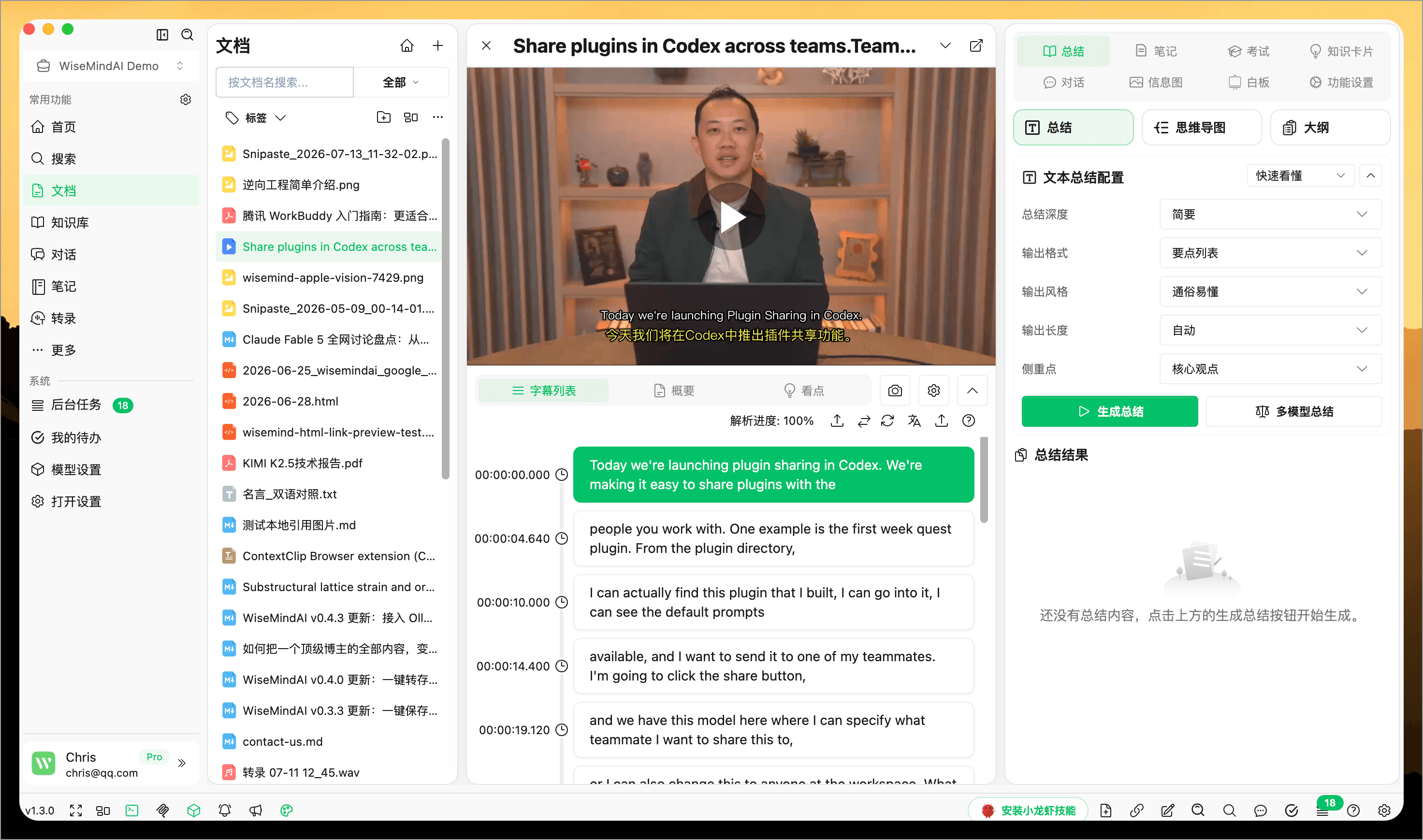
After adding a video to Document Center, open its details and go to Subtitles. Select an audio/video transcription model and source language, then start generating subtitles.
If you already have an SRT or VTT file, select Import Subtitles and use it to continue creating summaries, highlights, or notes.
Online transcription services may charge a fee. Before processing a long video, test the model configuration and recognition quality with a shorter sample.
2. View and navigate subtitles
Generated subtitles appear in video time order. Select a subtitle segment to jump directly to that point, which is useful for checking terminology, instructions, and context.
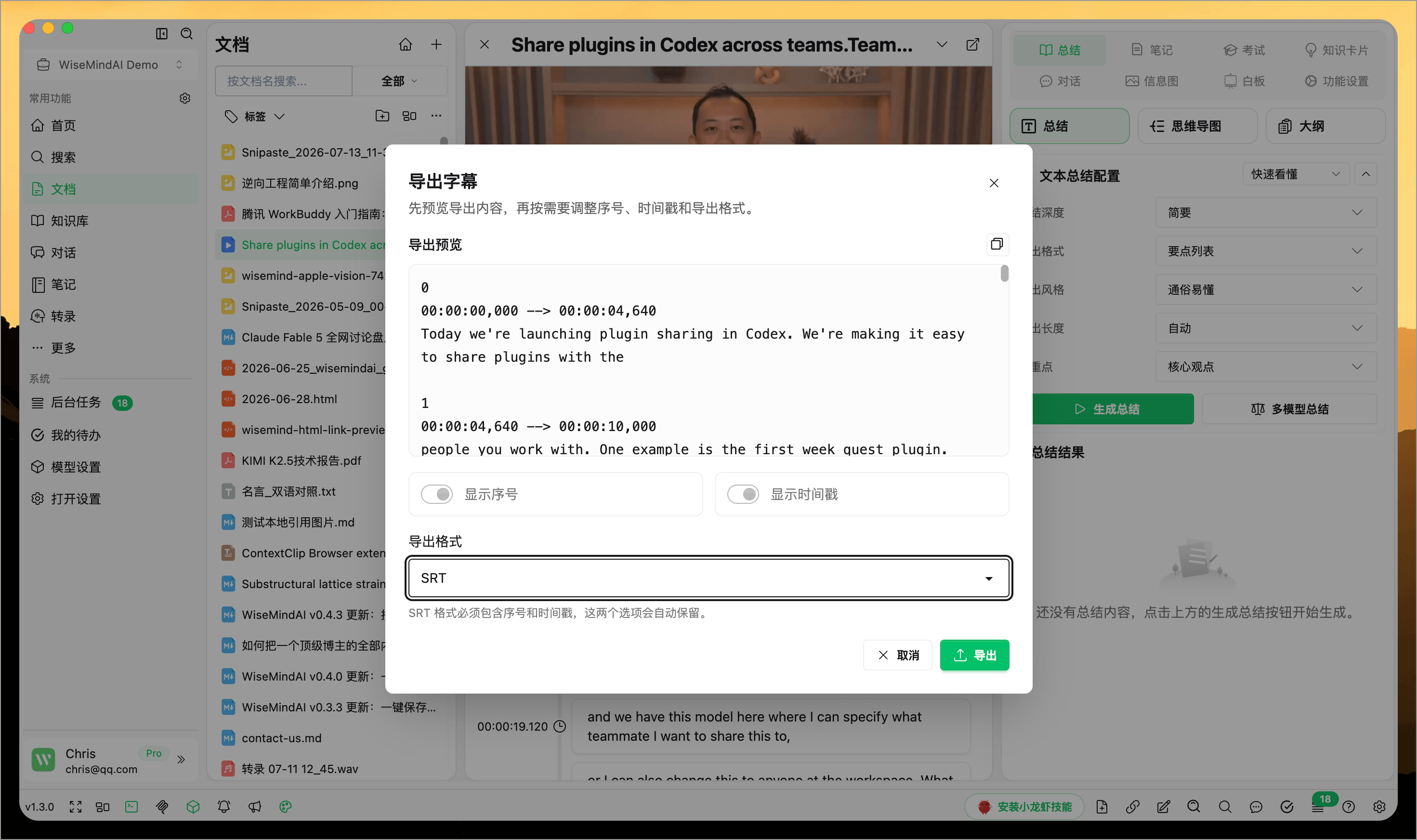
You can also export subtitles. Before exporting, preview the content and choose whether to include sequence numbers and timestamps, along with the output format.
3. Translate the complete subtitle track
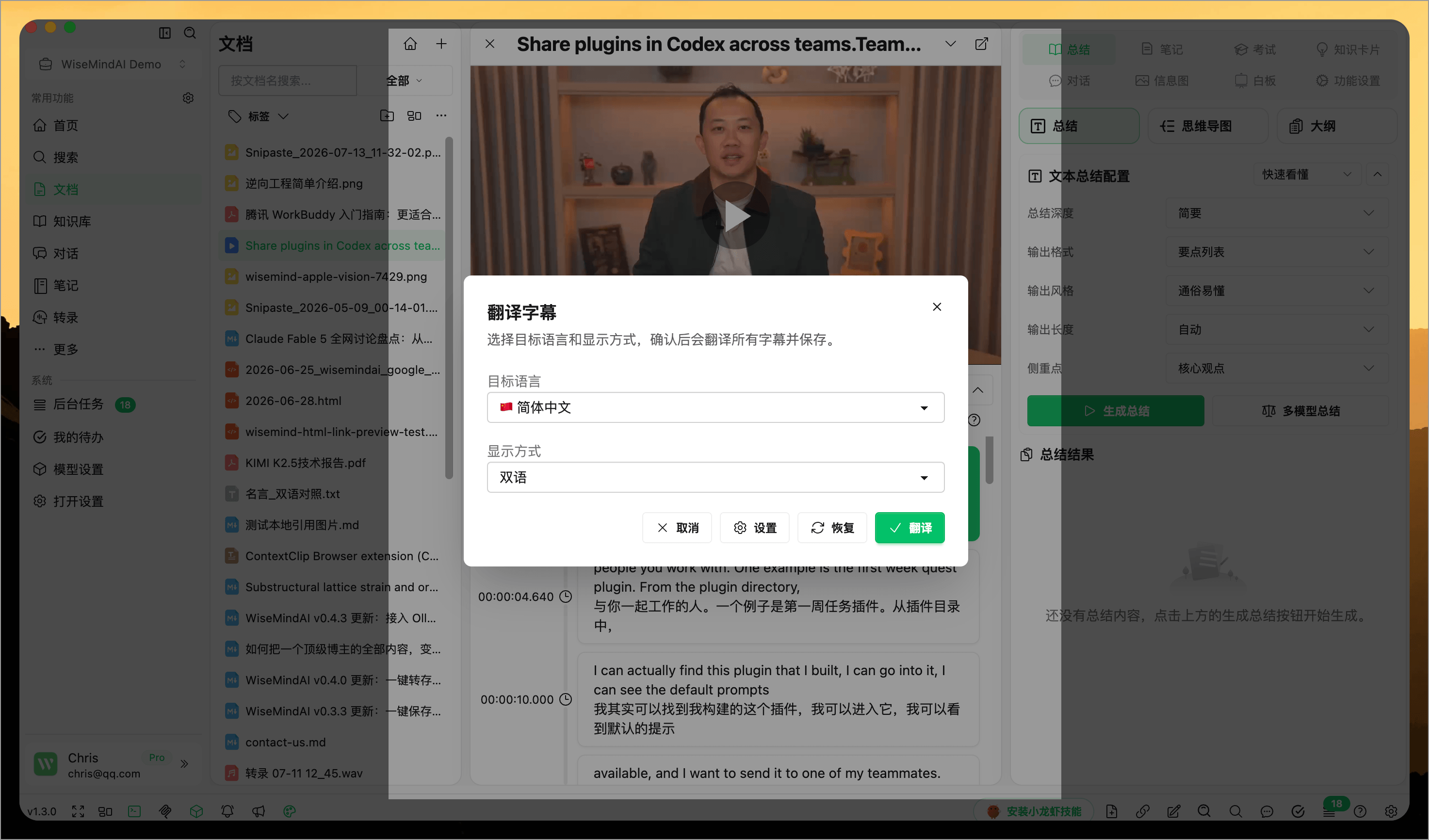
Select Translate in the subtitle area, then choose a target language and display mode. WiseMindAI translates the complete subtitle track, saves the result, and displays progress on the page.
Long subtitle tracks may take some time. Before starting, confirm that the translation service is configured correctly and your account has sufficient quota.
4. Generate a video summary and highlights
After subtitles are available, switch to Summary or Highlights:
- Summary: Organizes the complete subtitle track into a concise overview for preparation or review.
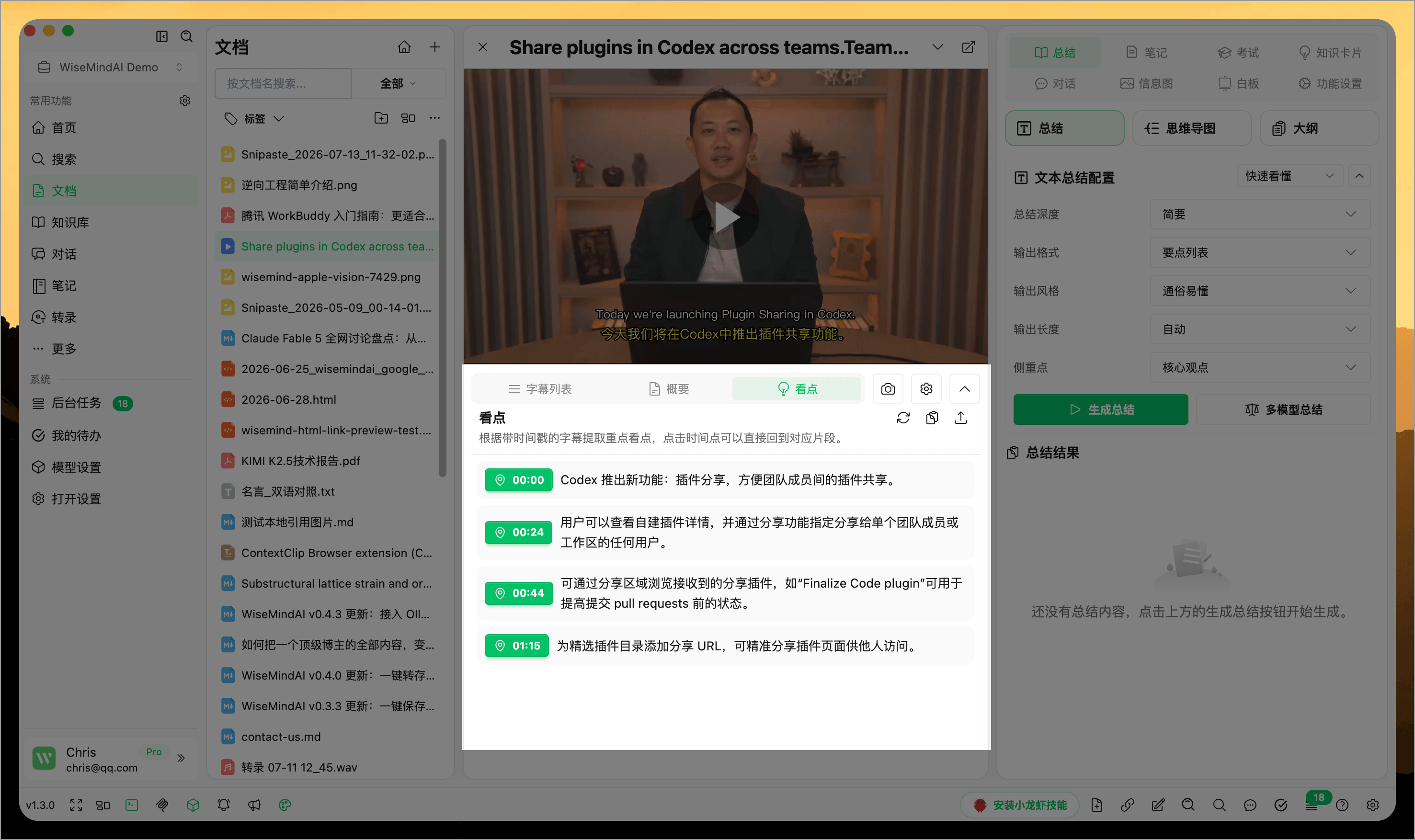
- Highlights: Extracts content worth revisiting and keeps the corresponding video time.
Select a highlight timestamp to return directly to that point in the video.
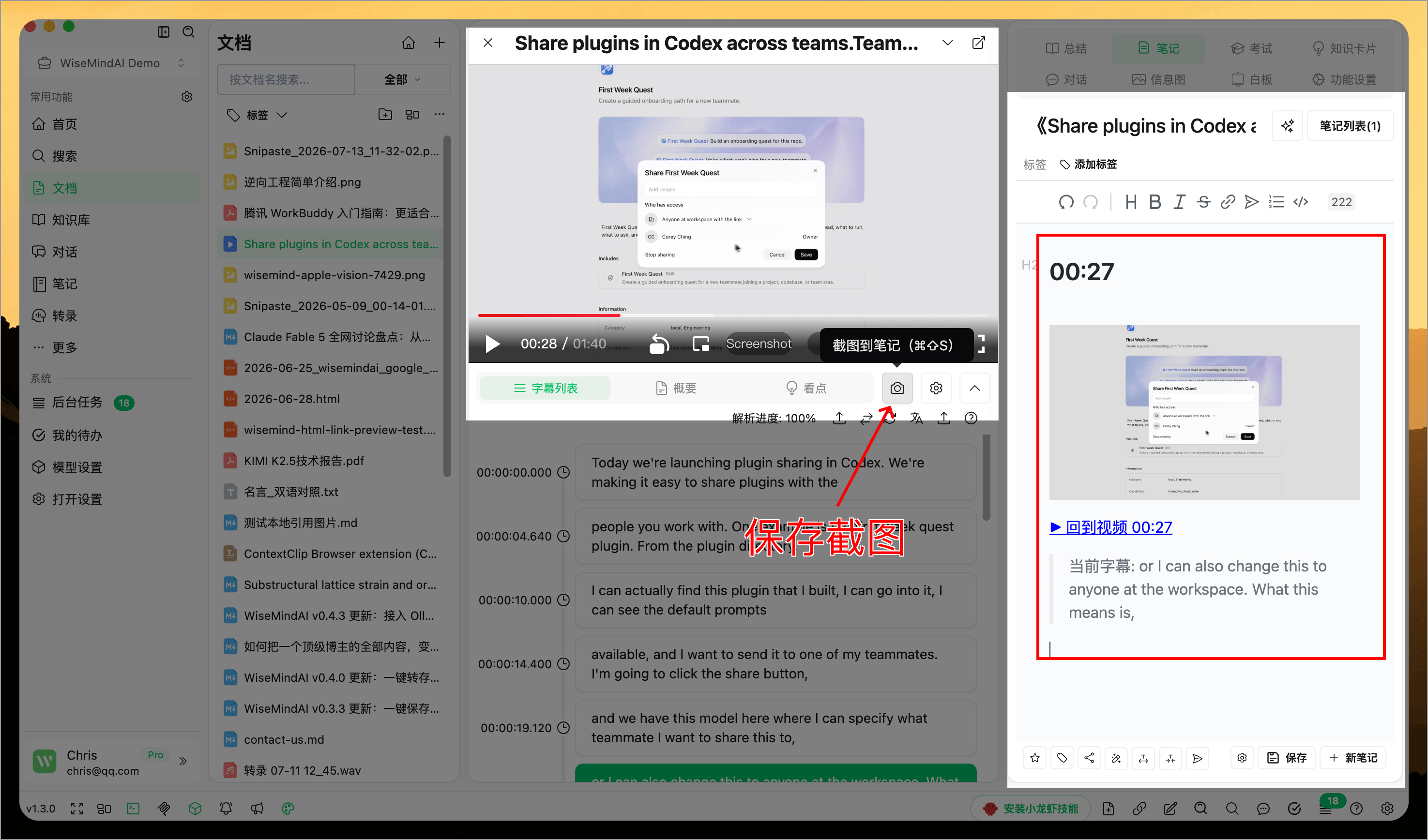
5. Save a screenshot to Notes
When the video reaches a scene you want to record, select Screenshot to Note. WiseMindAI saves the current frame and adds the following to the note:
- The video screenshot.
- The current video time.
- A link back to the original video.
- The current subtitle text.
- A place for your own explanation.
The first time you use this feature, choose how screenshots should be saved:
- Open Note and Pause: Best for writing as you watch. WiseMindAI opens the note so you can add your thoughts immediately.
- Save in Background and Continue: Best for collecting highlights quickly and organizing them later.
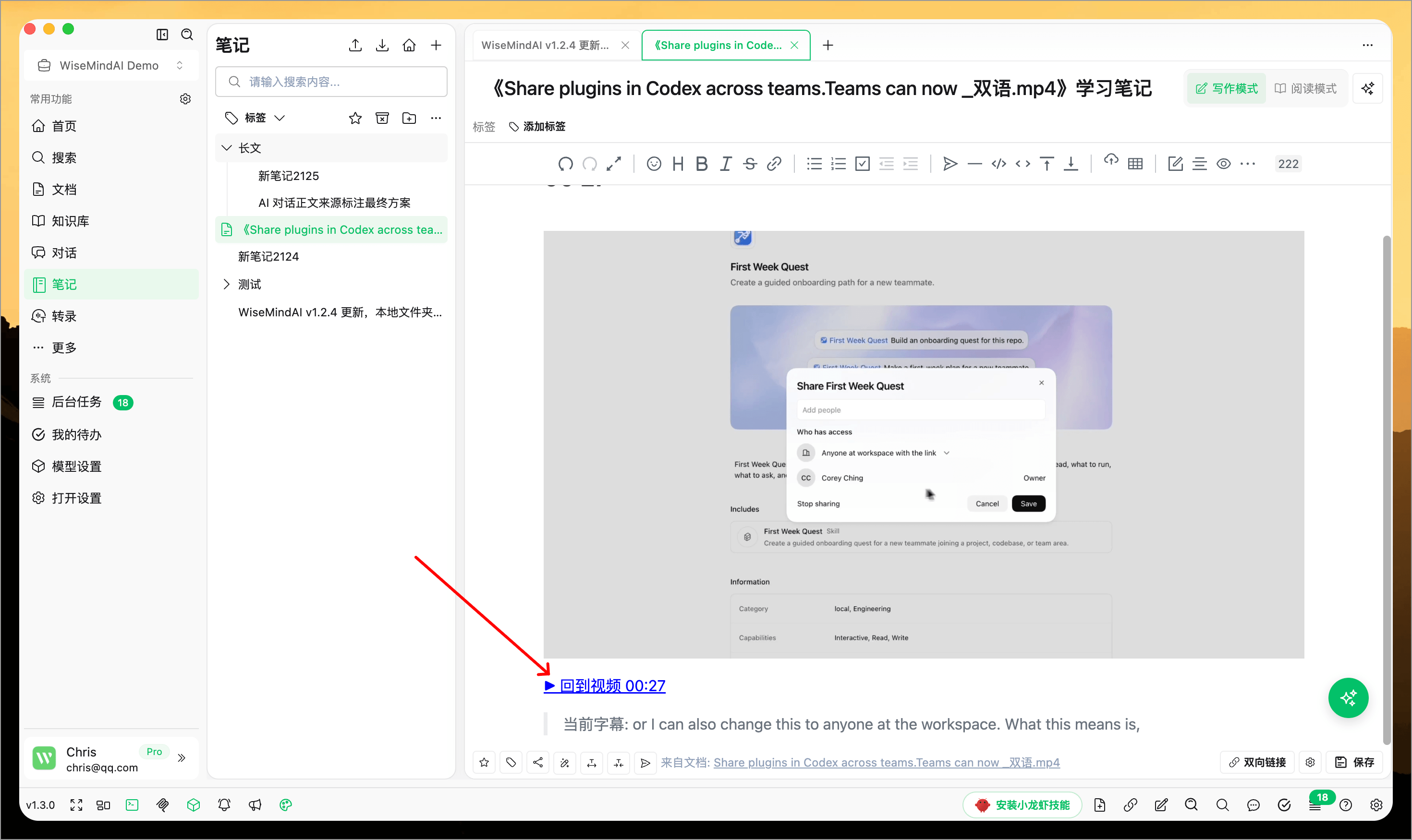
6. Return to the video from a note
The screenshot note includes Back to Video and the corresponding time. Select it to open the original video at that point, reconnecting the screenshot and your notes with their original context.
If the source video has been moved or deleted, the timestamp link may no longer open. For long-term organization, avoid moving local videos after adding them to Document Center.
Which audio/video recognition methods are supported?
WiseMindAI supports local Whisper and online services including Zhipu AI, Alibaba Cloud Bailian, Xiaomi MiMo, StepFun, and Volcengine. File size, language, duration, and pricing support varies by provider; refer to Model Settings in the current client for the available options.
For occasional short videos, you can start with an existing service. For regular processing of courses or meetings, compare Chinese recognition quality, speed, price, and privacy before selecting a model.
🌈 Use cases
- Courses: Capture important demonstrations and add your own explanation.
- Software tutorials: Save specific steps to a note and return to the original scene during review.
- Interviews: Preserve key viewpoints with subtitles and timestamps.
- Experiments and demonstrations: Keep the process, subtitle explanation, and your observations in one note.
- Foreign-language videos: Generate subtitles first, then translate them and create a summary.
FAQ
Why doesn't my video have subtitles?
Make sure you selected a working audio/video transcription model, then check the model configuration, file format, and account quota. You can also import an existing SRT or VTT subtitle file.
Does Screenshot to Note pause the video automatically?
It depends on the selected save behavior. Open Note and Pause pauses playback and opens the note, while Save in Background and Continue does not interrupt viewing.
Why can't a screenshot note return to the original video?
Make sure the video is still in Document Center and the local file has not been moved or deleted. If its location changed, add the video again.
Do subtitle generation and translation cost money?
Online transcription and language model services may charge a small fee. Check the current pricing and quota rules of the selected provider.