
Topics
Topics group materials for the same course or project so you can ask questions, summarize, or generate quizzes together. Older docs called this a “Knowledge Base”. The entry is Topics on the left of My Materials.
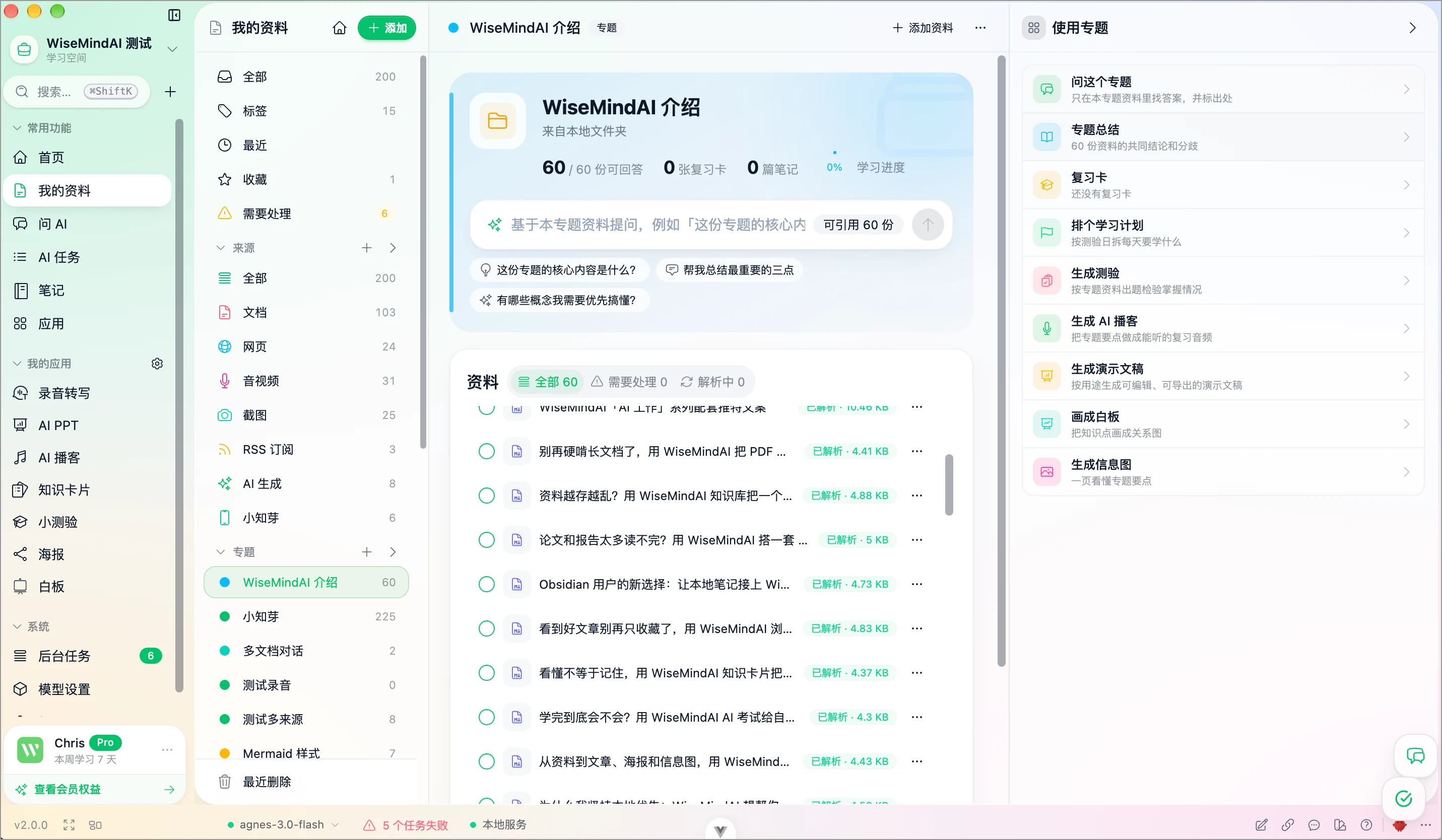
Create a topic
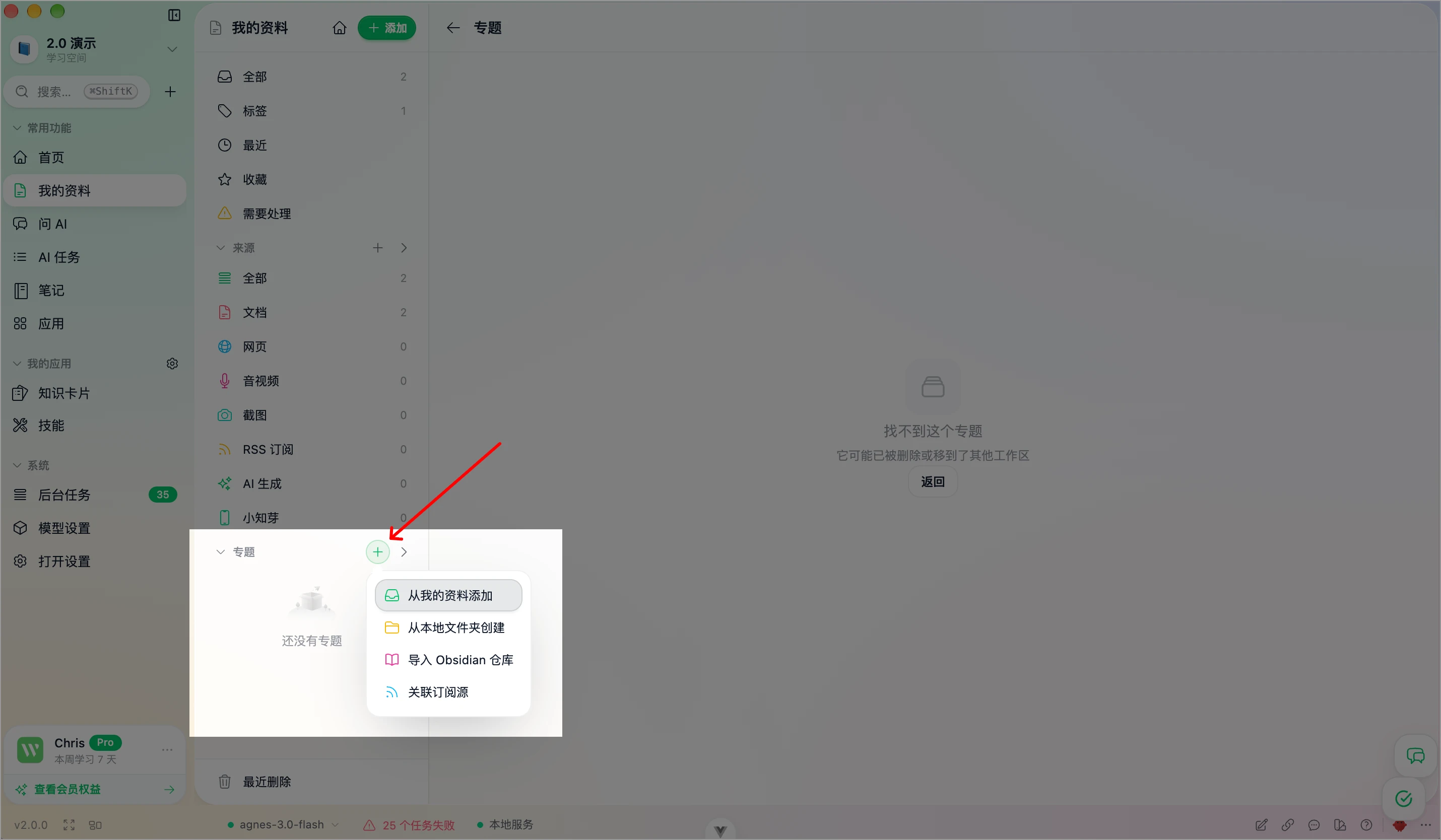
Follow these steps to create one:
- Open the topic list and choose New.
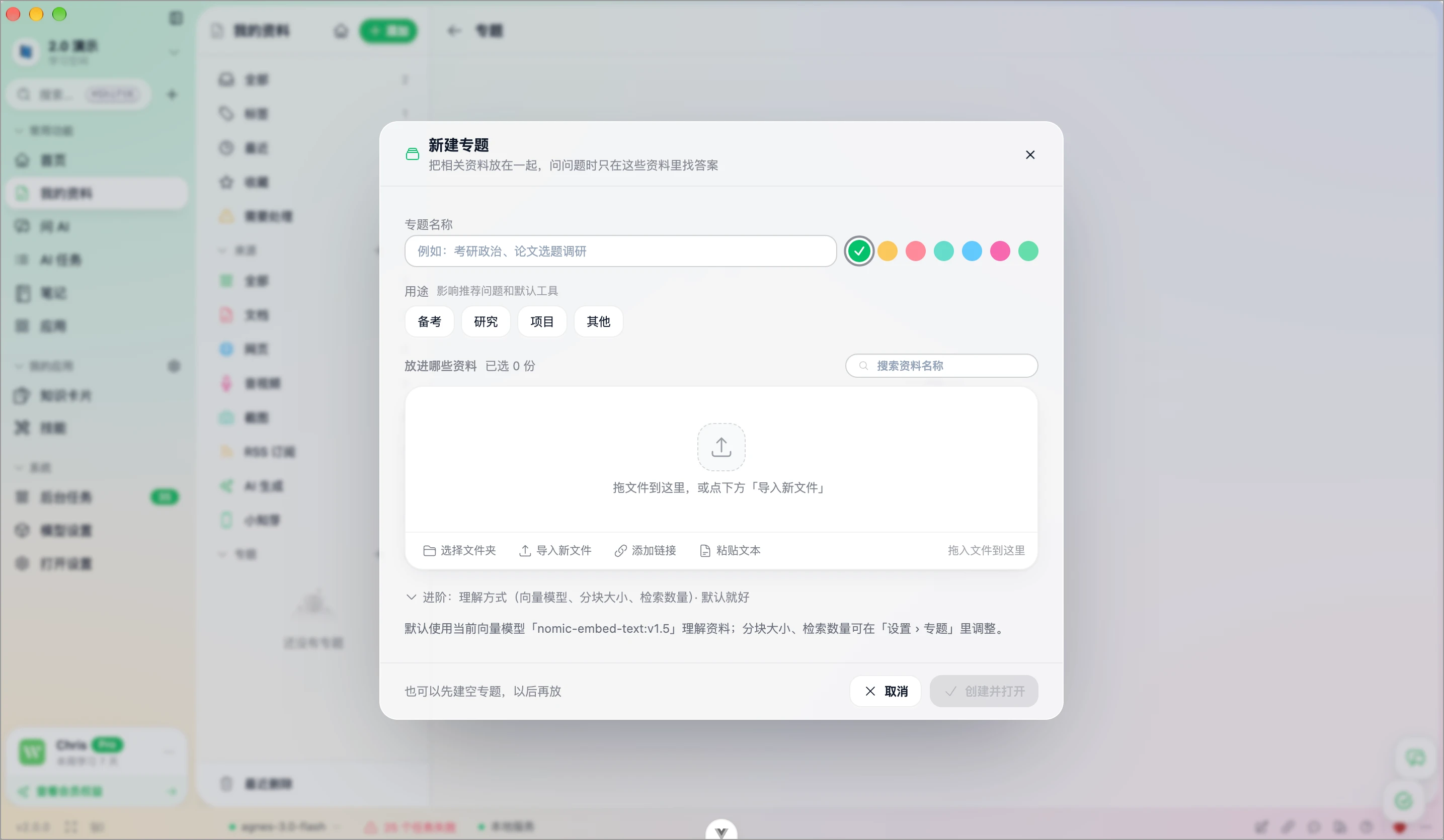
- Enter a name, such as “Graduate politics” or “Thesis topic research”. Purpose can be exam prep, research, project, or other.
- Select materials to include, or create first and add later. If the name matches existing materials, the page may recommend a batch you can Add all.
- If a retrieval model is not configured yet, the page prompts you to configure Embedding. You can still create the topic, but body retrieval is not available yet.
- Click Create.
To add materials later: select files in the material list, choose Add to topic or Join topic, search an existing topic, or type a name to create one. The same material can belong to multiple topics. Joining a topic does not remove the file from its original folder.
Deleting a topic itself keeps its materials in the library; they are not deleted with the topic.
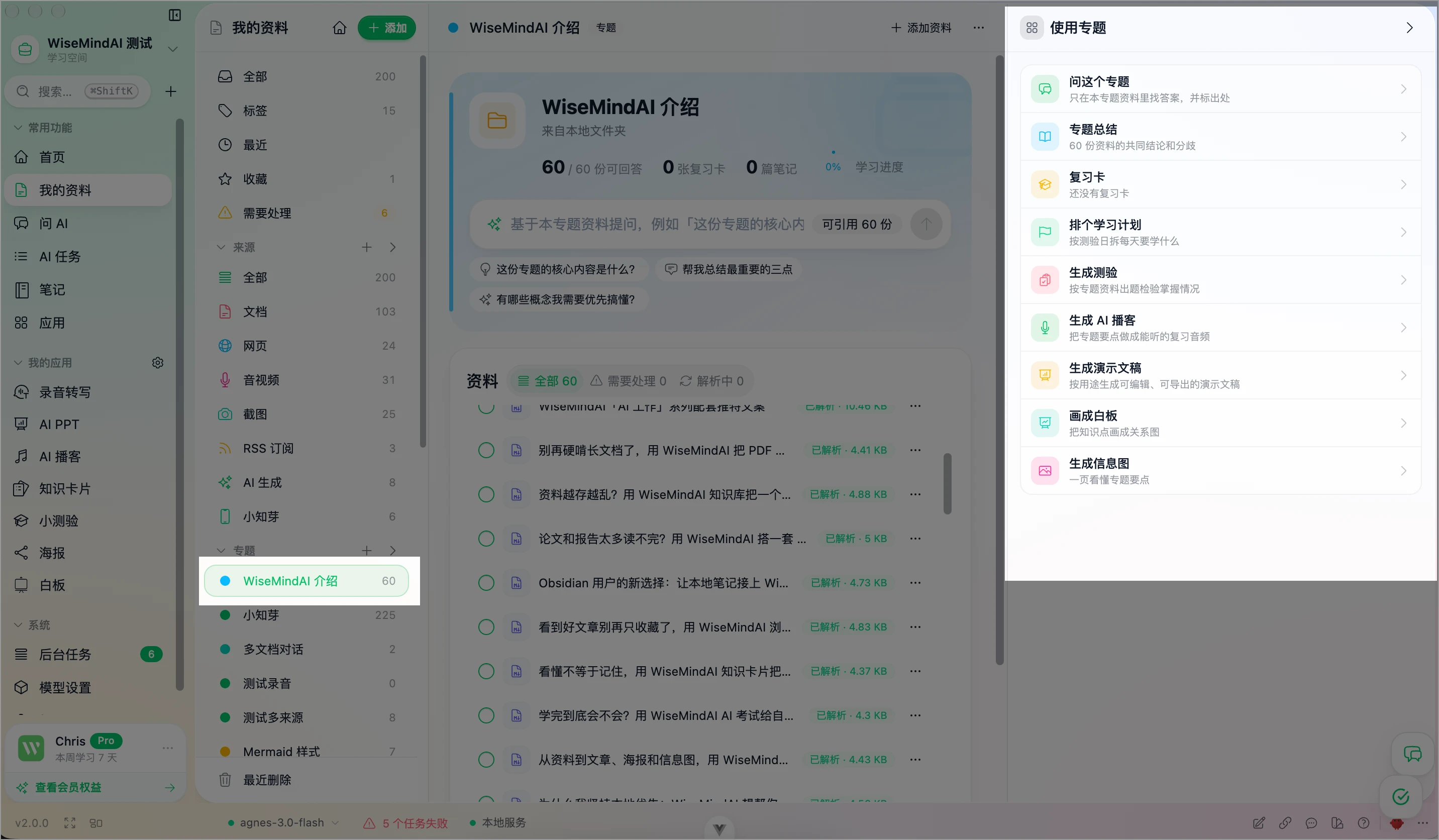
Learning panel on the right
After you open a topic, the right panel gathers learning actions for that topic. It targets multiple understood materials in the topic, and differs from the panel for a single material.
Ask this topic
Answers only from materials in this topic, and tries to cite sources. The page shows how many items can join the answer. Files that are not finished processing do not become searchable automatically.
Topic summary
Summarize shared conclusions and disagreements across materials. Useful for seeing the whole topic before making cards, generating a quiz, or asking more questions.
Review cards
Generate knowledge cards from topic materials and review them on a spaced schedule. Full card and review flow: Knowledge cards.
Build a study plan
Break topic study into daily work by quiz date or deadline. Set the exam date in topic settings first, then generate the plan.
Generate a quiz
Create questions from topic materials to check mastery. Full create-and-answer flow: Quiz.
Generate an AI podcast
Turn topic highlights into audio you can listen to for review. Full production flow: AI Podcast.
Generate a presentation
Generate an editable, exportable presentation by purpose. Full flow: AI PPT.
Draw on the whiteboard
Organize knowledge points as a relationship diagram you can keep adjusting on the canvas. See Whiteboard.
Generate an infographic
Present topic highlights on one page—useful for a quick review of structure and relationships.
In topic settings you can set an exam date and choose an answer style (follow global, concise, or detailed). With Answer only from topic materials on, the model will not fill gaps with general knowledge when the materials have no answer. With it off, general knowledge may be used when nothing is found.
Topics, their materials, and related chats stay in the current learning space. After switching spaces, open the matching space to view other topics.
Where you can create or join a topic
Topics can start from many places. Common entry points:
| Entry | Description |
|---|---|
| New from topic list | Create directly under My Materials → Topics |
| Add from My Materials | Select existing materials and join a topic |
| Create from a local folder | Build a topic from a folder scope, with optional sync |
| Import an Obsidian vault | Keep folder structure and bi-directional links |
| Link a feed | Auto-add items after a subscription updates |
| Add to topic on a material page | Join an existing topic or create one after selecting one or more materials |
| Convert a folder to a topic | When asking or organizing a folder, convert the whole folder into a topic |
| Turn a tag into a topic | On the tags page, organize items under a tag into a topic |
| Notes → Next | After writing a note, choose to join a topic |
| Browser extension save | Optionally join a topic when saving a page |
| Recording / screenshot save | Optionally join a topic when saving as a material |
Auto-add in topic settings can also target folders or tags: materials placed in those folders, or tagged that way, join the topic automatically afterward.
Related: My Materials · Ask AI · Home