
🤖 AI Work
AI Work is not another chat window. It is a complete workflow that takes a request from goal to deliverable.
Describe what you want to accomplish and provide the relevant materials. WiseMindAI plans the steps, reads files, uses the required capabilities, checks the results, and gathers the generated documents, study plans, Knowledge Base content, or other deliverables in one place.
It is designed for multi-step tasks such as organizing materials, summarizing documents, researching a topic, creating reports, following up on meeting actions, and batch processing.
How is AI Work different from regular chat?
Regular chat is useful for asking questions, exploring ideas, explaining concepts, and revising short passages. AI Work is better suited to clear goals that require reading materials and producing a finished deliverable.
For example, you can ask:
Read the product plans and user feedback in this project. Summarize the most important requirements, current problems, and recommended next steps, then create a Markdown report.
WiseMindAI will then:
- Understand the goal and plan the task.
- Read materials within the permitted scope.
- Organize the information and create deliverables.
- Check the results and continue correcting issues when needed.
- Summarize the deliverables, save locations, checks, time used, and usage.
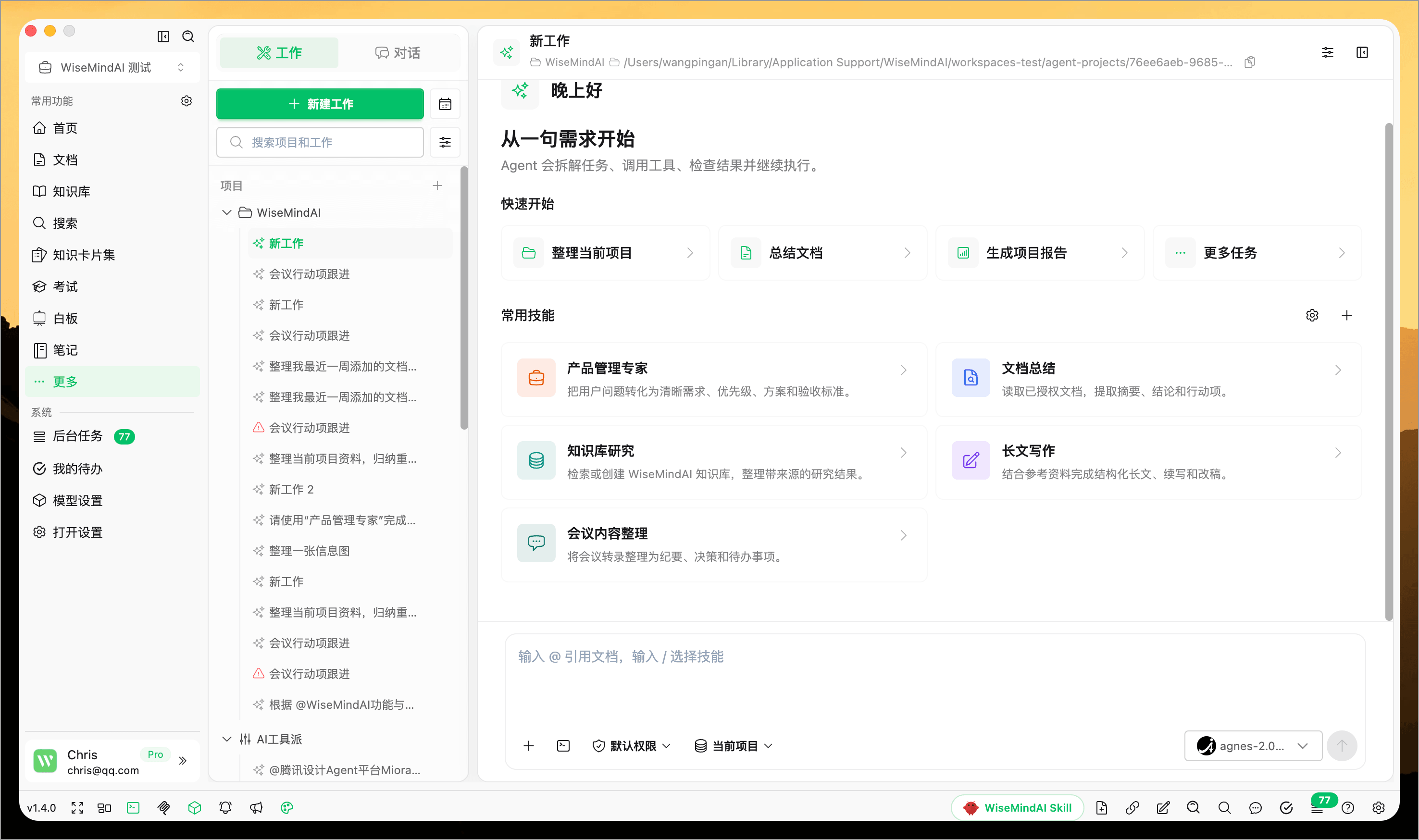
Start from the AI Work home page
The AI Work home page brings Work and Chat entry points together and provides common tasks, ready-to-use Skills, and prompt tutorials. If the current common tasks do not fit, refresh the list to browse another set.
For your first task, select a common task and add materials and requirements as prompted. Once you are familiar with the workflow, you can enter your own goal directly.
Start your first AI Work task
- Open Work from the AI Work home page, or open Chat in the left menu and switch to Work mode.
- Create a project or open an existing one.
- Add the files, folders, or WiseMindAI materials needed for this task.
- Describe the goal, output format, and any requirements that must be followed.
- Review the reading scope and permissions, then start the task.
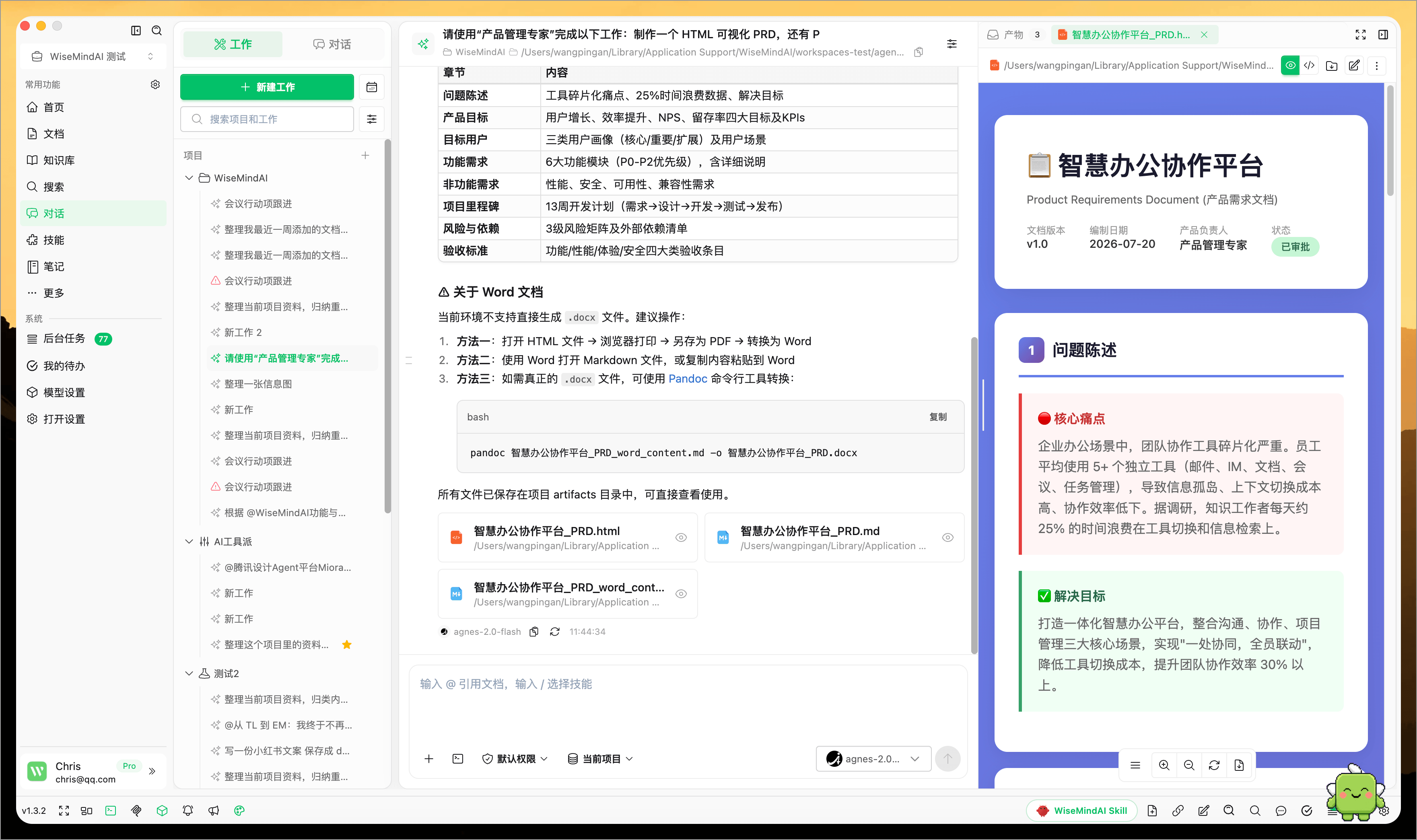
- Follow the steps in the progress area, then preview and save results from the deliverables sidebar.
Before execution starts, WiseMindAI shows the estimated steps, time, and cost. Task complexity, the selected model, and the amount of material can all affect the actual result, so these estimates are for guidance only.
First-time recommendation
Start with a clear goal and a small set of materials, and keep the permission setting at Confirm every time. Once the workflow behaves as expected, gradually add more materials and steps.
Manage materials and multiple tasks with projects
A project can contain multiple independent AI Work tasks while sharing project files, folders, and frequently used Skills.
For each project, you can configure:
- The default model and execution method;
- The scope of materials AI can read;
- Permissions for writing files, opening deliverables, and accessing the internet;
- Shared materials and the default deliverables folder;
- Skills commonly used in the project.
Messages, attachments, selected Skills, and unsent drafts are stored separately for each project and task. Switching projects will not bring content from the previous task into the current one.
Queue more requests while AI is working
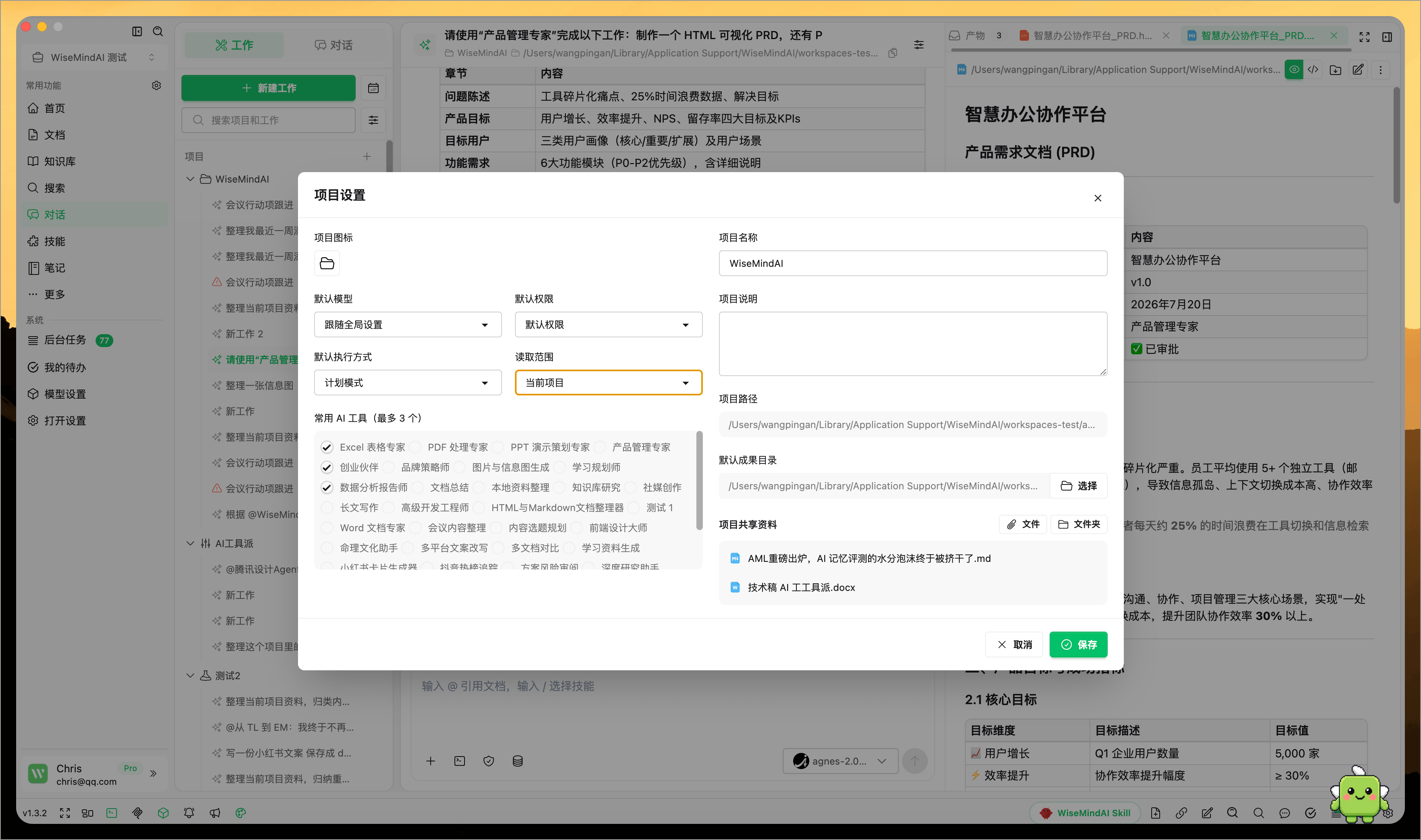
You can continue entering follow-up requests while AI is executing a task. New requests enter the pending queue, where you can:
- Edit a request that has not been sent;
- Delete content you no longer need;
- Move an important request ahead in the queue;
- Refresh or reopen the page and continue with the saved queue.
The execution area shows the current step, completed work, and capabilities in use. Independent files and web pages can be read in parallel, reusable results are retained, and long contexts are organized automatically to reduce repeated reading and unnecessary waiting.
Manage and revise deliverables
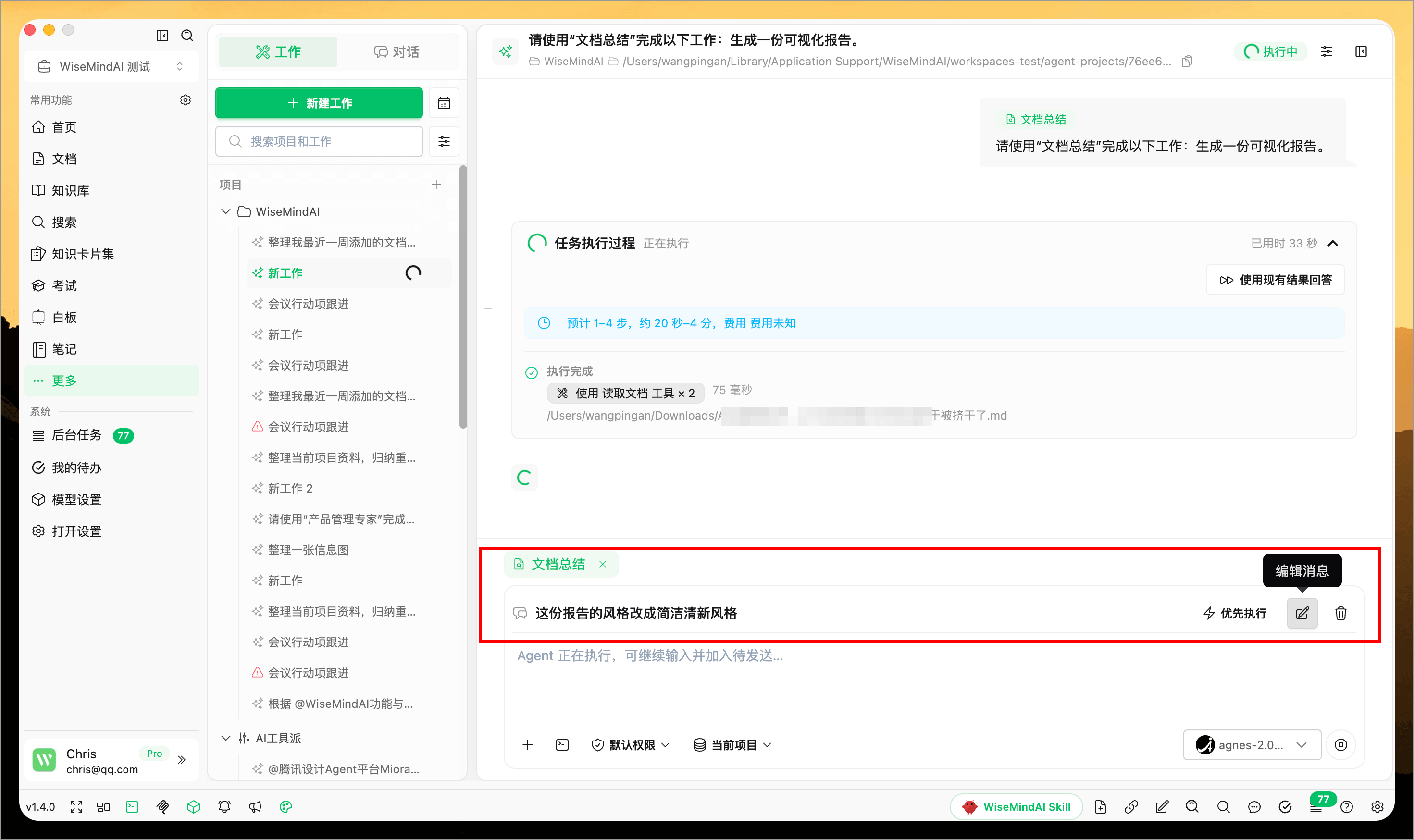
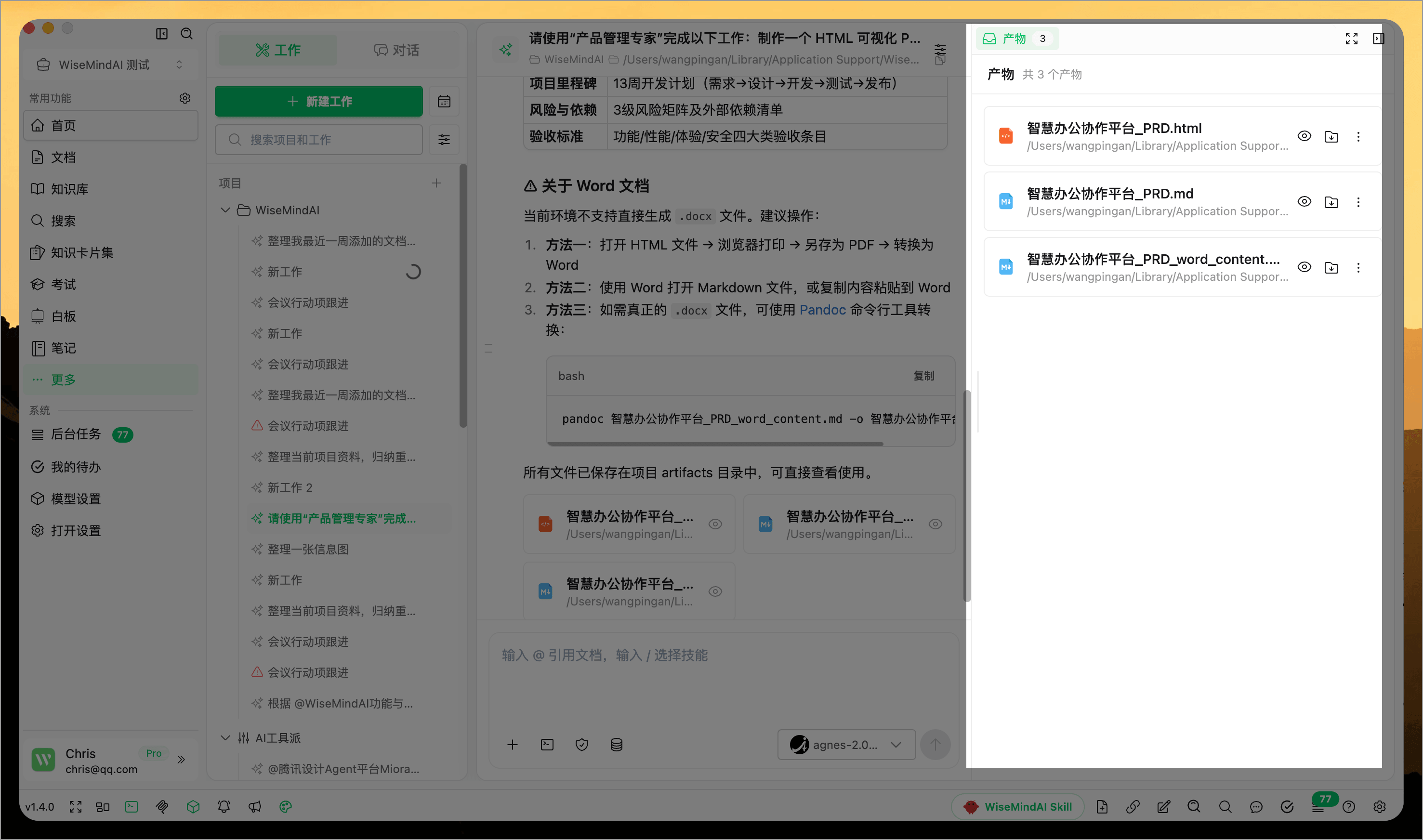
Content created by AI Work appears in the deliverables sidebar. AI Work can create notes, Markdown, PDF, Word, Excel, and SVG files. It can also preview PDF, Word, Excel, PowerPoint, and common image formats directly.
After a deliverable is created, you can:
- Preview, open, copy, export, or rename it;
- Request changes and save a new version;
- View or restore earlier versions;
- Create Study Plans, Knowledge Base documents, or Document Center content directly;
- Save it to WiseMindAI Documents, Notes, or a Knowledge Base.
The completion page also shows where deliverables were saved, whether checks passed, what remains unfinished, the actual time used, and usage. This makes it easier to decide whether the task is truly complete.
Reuse your methods with Skills
A Skill is a reusable way of completing a task. It describes when to use the method, which materials are required, the processing steps, expected deliverables, and required permissions.
In the Skills Center, you can review, enable, disable, pin, or uninstall Skills. You can also limit a Skill to specific projects.
In addition to built-in Skills, you can:
- Import a
SKILL.mdfile; - Import a complete Skill folder with configuration and supporting materials;
- Import a Skill from a GitHub repository;
- Import a Skill from another Agent installed on your computer;
- Describe a method in natural language and let WiseMindAI create a Skill draft;
- Run a trial and check risks before publishing;
- Publish a new version or restore an earlier version.
Before importing, WiseMindAI checks the configuration, icon, permissions, and available capabilities. After installation, you can view the Skill's source, icon, and scope. If something is missing or incompatible, the page explains what needs to be changed.
The Skill details page also lets you open the Skill's local folder directly for inspection and continued editing.
Automate recurring work with Scheduled Tasks
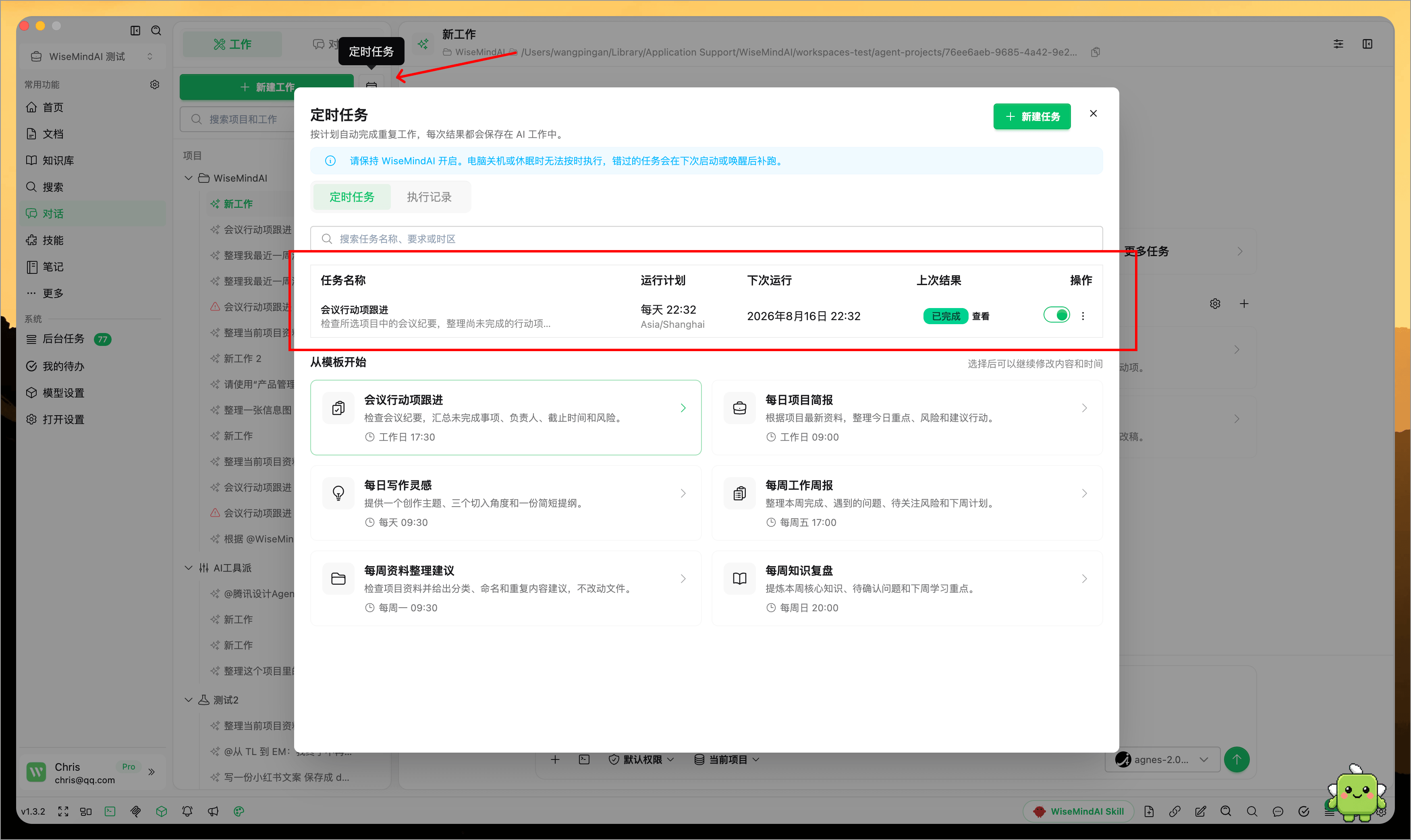
Work that needs to run every day, every week, or on a specific date can be saved as a Scheduled Task.
WiseMindAI includes templates for project briefs, meeting action items, writing ideas, weekly reports, material organization, and knowledge review. After selecting a template, you can change the instructions, run time, project, and model.
Each run creates an independent AI Work task and keeps either the completed result or the reason it failed.
Runtime requirement
Scheduled Tasks depend on WiseMindAI running on your computer. They cannot run while the computer is shut down or asleep. Missed tasks run according to the catch-up rules after WiseMindAI starts again or the computer wakes up.
To prevent unexpected unattended actions, Scheduled Tasks use more cautious permissions. Reading materials can happen according to your settings, while higher-risk actions such as writing files, opening deliverables, or accessing the internet wait for confirmation.
Control the reading scope and permissions
Before starting, choose the scope of materials AI can read:
- Materials for this task: Read only the content you added manually for this task;
- Current project: Use the project folder and shared project materials;
- All content: Search Notes, Documents, and Knowledge Bases in WiseMindAI within the permitted scope.
Writing files, opening deliverables, and accessing the internet require confirmation according to the current permission settings. When working with sensitive materials, reduce the reading scope and review permissions before execution.
Interruptions, failures, and recovery
If a task is stopped or interrupted by an error, completed work and deliverables are preserved. When you return, you can:
- Continue from the interruption point;
- Retry the current step;
- Switch models and continue;
- Skip the current step;
- Answer using the results already available.
When a model is unavailable, the account has insufficient quota, the network fails, a file cannot be accessed, or disk space is low, the page explains the cause and the next action. A later failure will not delete deliverables that were already created.
Recommendations
- Clearly describe the goal, material scope, and deliverable format. This produces more useful results than a vague request such as “organize this for me.”
- Review the estimated steps, usage, and permissions before starting a long task.
- Preview the deliverables and check results before using them. Important content still requires human review.
- Save recurring methods as Skills. If they also need to run at a fixed time, create Scheduled Tasks from them.
- Use separate projects for different topics so unrelated materials and context do not interfere with each other.
Frequently asked questions
Will AI Work modify my files automatically?
Your current permissions determine whether files can be written. When a task needs to write a file, open a deliverable, or access the internet, WiseMindAI requests confirmation according to those settings. Keep Confirm every time enabled when you first use the feature.
Are tasks and queues kept after I close the page?
WiseMindAI preserves unfinished tasks, generated deliverables, and the pending queue whenever possible. Reopen the page to continue reviewing and processing them.
Why are the actual time or usage different from the estimate?
Estimates are calculated from the task, materials, and model available at the start. Adding requests, retrying steps, or discovering additional work during execution can change the actual time and usage.
Do Scheduled Tasks run while the computer is shut down?
No. WiseMindAI must be running on your computer. After the app starts again or the computer wakes up, missed tasks run according to the catch-up rules.
Can AI Work use materials already stored in WiseMindAI?
Yes. Depending on the reading scope you select, AI Work can use materials added for the current task, shared project materials, or search Documents, Notes, and Knowledge Bases within the permitted scope.