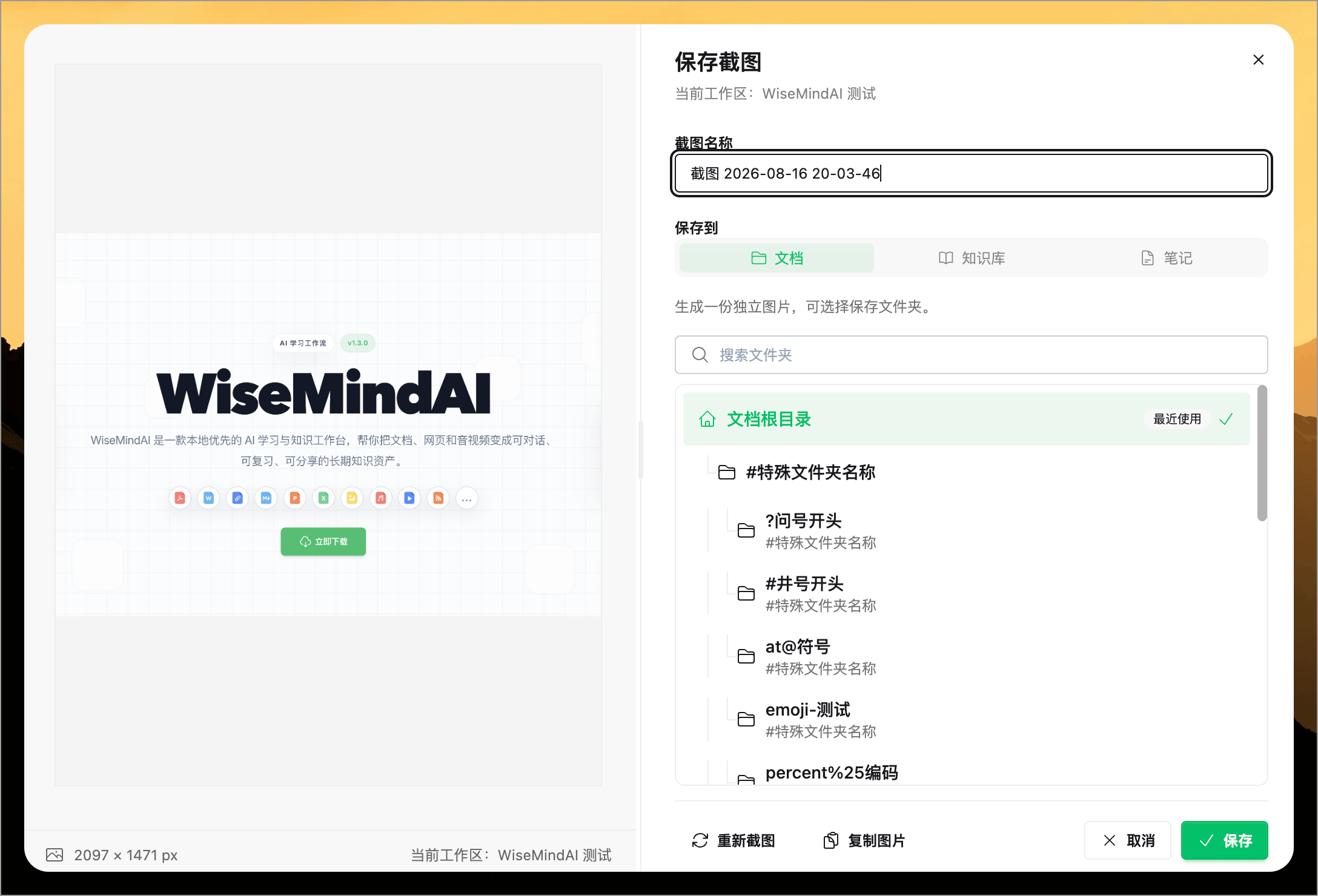
⌨️ System Shortcuts
WiseMindAI supports system-wide shortcuts, allowing you to quickly activate its features from anywhere on your desktop. Currently supported:
- Show Home Page: Ctrl + O / ⌘ + O
- Add URL: Ctrl + L / ⌘ + L
- Add Note: Ctrl + N / ⌘ + N
- Quick Screenshot: Use the global shortcut configured in Settings
You can also open the "Browse Settings" menu in the "Settings Dialog" to configure different functions for various shortcuts.
Additionally, you can click the desktop menu button to access WiseMindAI's shortcut menu.
Global Quick Screenshot
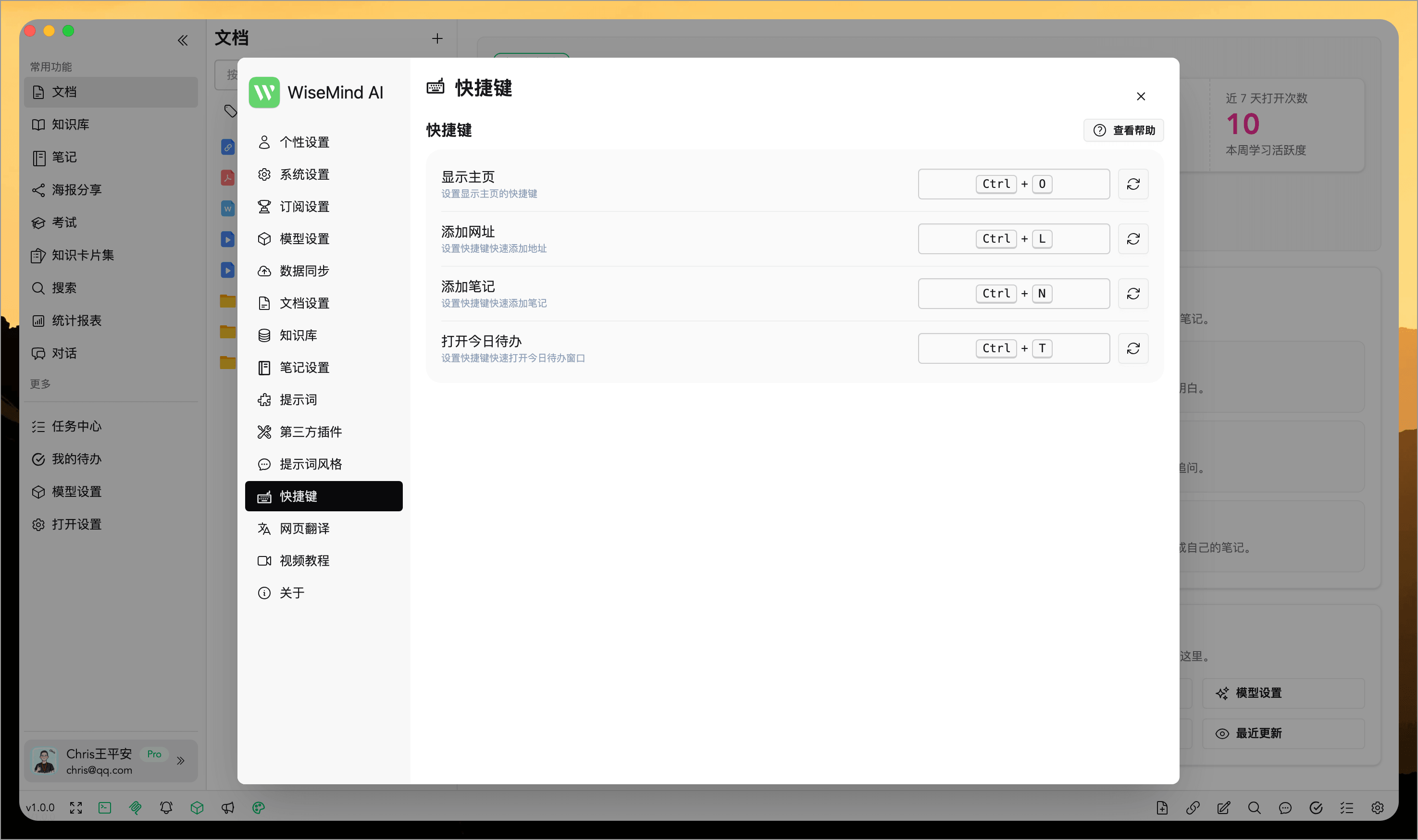
Starting with v1.4.0, use a global shortcut in any app to select part of the screen without opening the WiseMindAI main window first.
After capturing the screen, annotate it with:
- Pen, arrow, and rectangle tools;
- Text;
- Mosaic;
- Undo, redo, and reselect area.
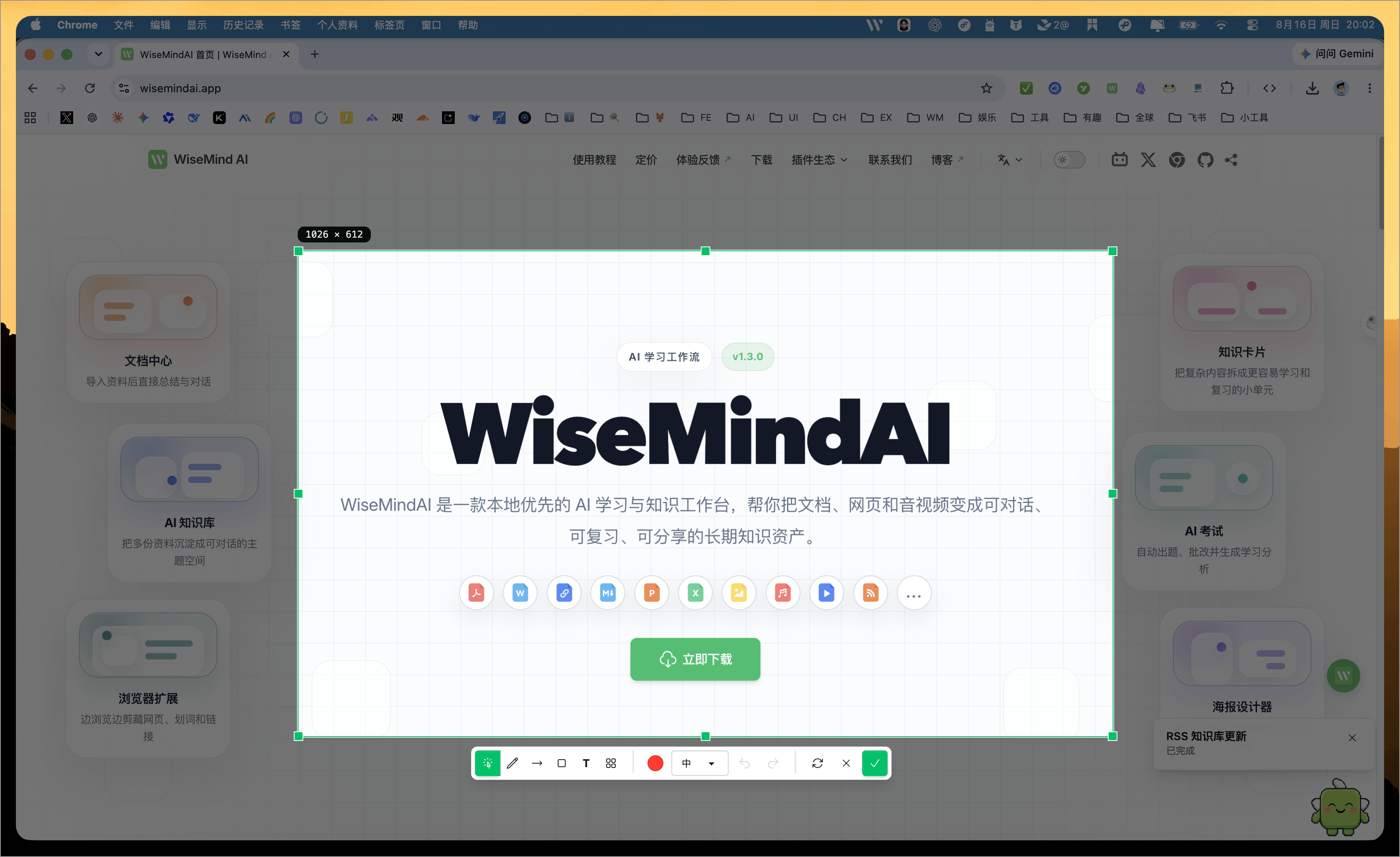
Save the result as a separate document, add it to a Knowledge Base, append it to a selected Note, or copy it directly to the clipboard.
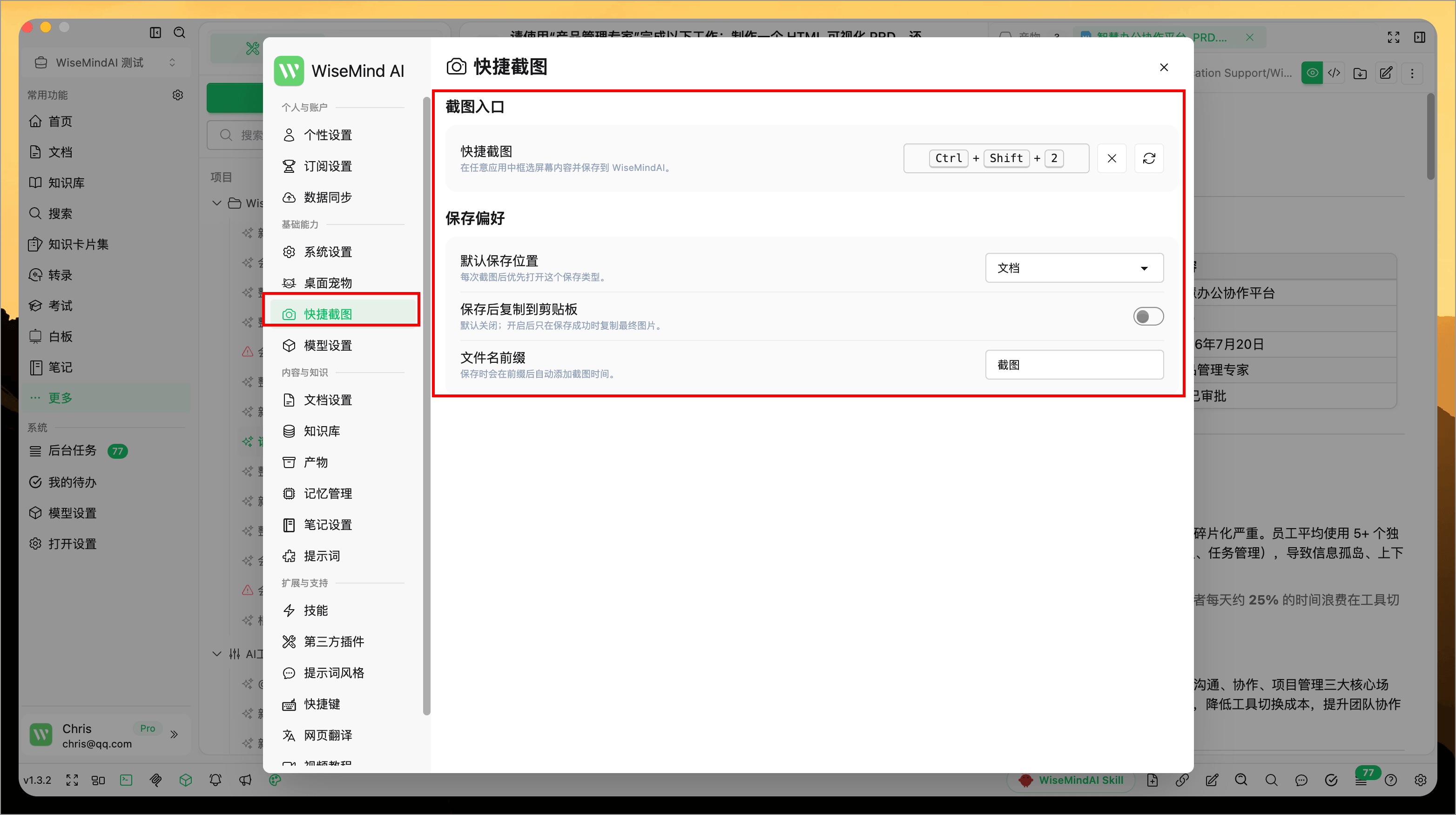
Screenshot settings
In Settings, configure:
- The global screenshot shortcut;
- The default save location;
- The screenshot filename prefix;
- Whether to copy the screenshot to the clipboard after saving.
You can also set the desktop pet's double-click action to Quick Screenshot. This sends content from web pages, chats, videos, or other app interfaces directly into your organization workflow.