
☁️ Workspace Migration, Data Backup, and Sync
Data backup and sync protect your WiseMindAI's long-term knowledge assets. You can back up settings and business data to a local directory or the cloud for quick recovery when switching computers, reinstalling systems, or using multiple devices.
If the current disk is running out of space, or you want to move your materials to a larger drive, use Workspace Migration. It moves the current workspace to a new location without requiring a backup-and-restore cycle.
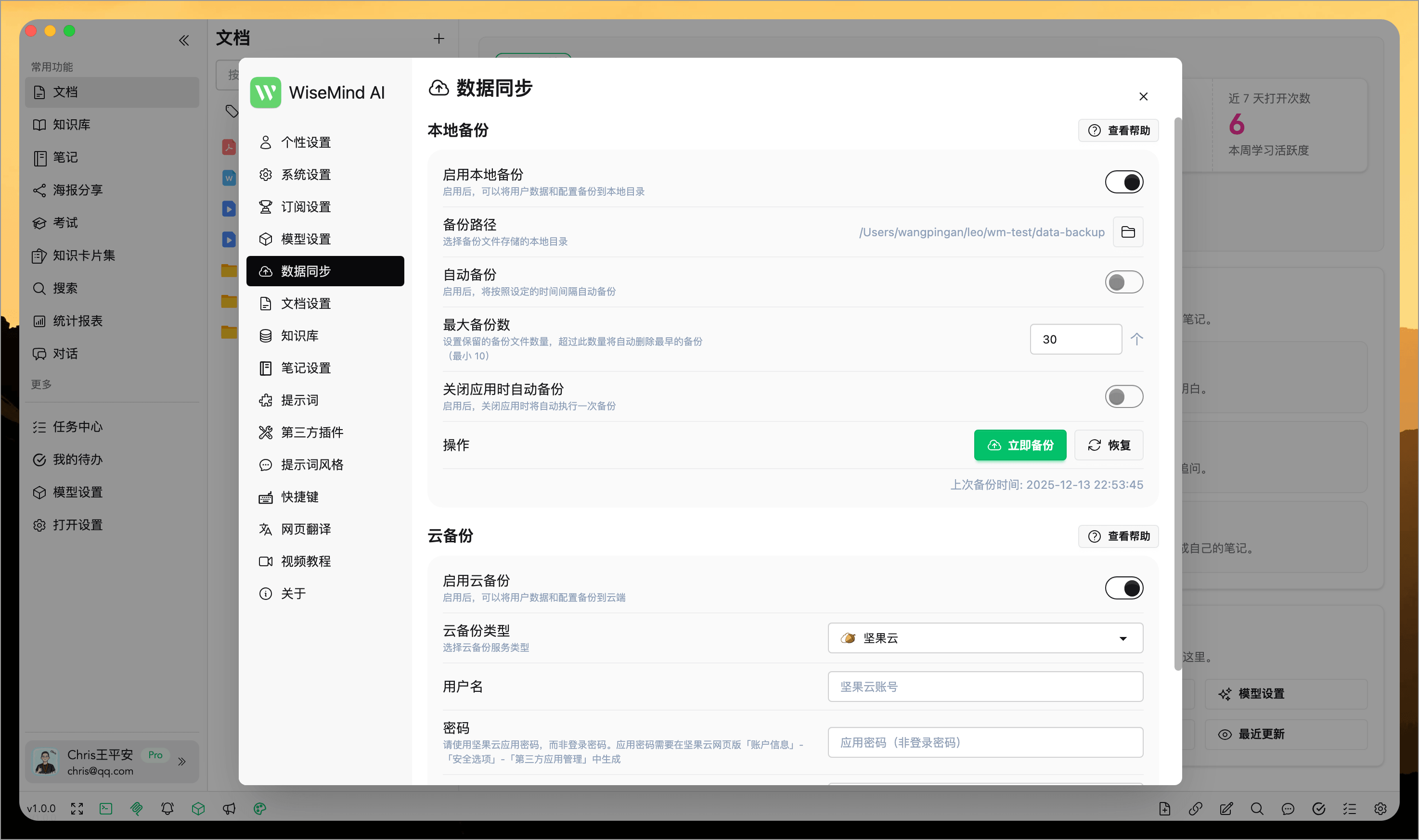
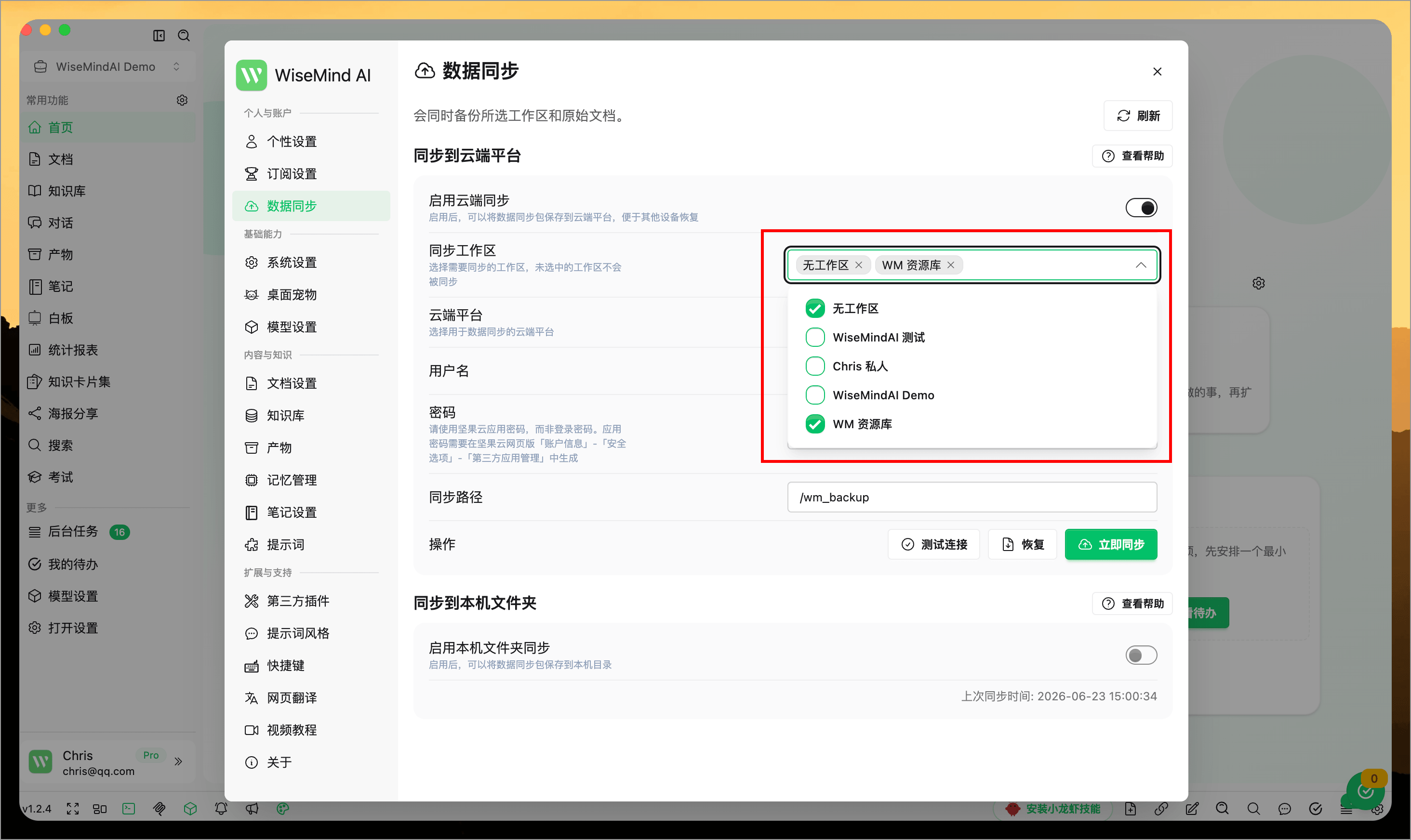
Data sync supports selecting content by workspace. For users with multiple workspaces, you can sync only the parts currently needing migration or backup without processing all data every time.
💡 What Problems It Solves
- Quickly migrate all data when switching computers
- Regular backups to reduce the risk of accidental loss
- Maintain consistent settings across multiple devices
- Selective sync for multiple workspaces, reducing unnecessary data migration
✨ Core Capabilities
- Local Backup: One-click backup to a local folder
- Automatic Backup: Supports scheduled execution based on time intervals
- Historical Backups: Configurable retention of multiple history versions
- Cloud Backup: Supports WebDAV and Jianguoyun
- Data Recovery: Restore full state from either local or cloud storage
- Multi-workspace Sync: Select one or more workspaces for syncing
- Pre-recovery Confirmation: Clearly displays recoverable content before restoration to minimize the risk of selecting the wrong backup
- Workspace Migration: Move an entire workspace to a new local folder and automatically switch to it after completion
📦 What Gets Backed Up
1. User Settings
Includes language, theme, keyboard shortcuts, model configuration, document settings, note settings, plugin configurations, and translation settings.
2. Workspace Data
Includes documents, notes, knowledge base, knowledge cards, exam records, chat logs, posters, search history, and other business data.
Simply put: Restore once to return as close as possible to your original usage state.
📖 How to Use
Migrate an entire workspace
- Open the workspace menu in the left sidebar.
- Open the more menu beside the workspace you want to move and select Migrate Workspace.
- Choose an empty destination folder and review the files and data to be migrated.
- Keep WiseMindAI running and stop editing the current workspace after migration begins.
- Wait for copying and verification to finish. WiseMindAI switches to the new location automatically.
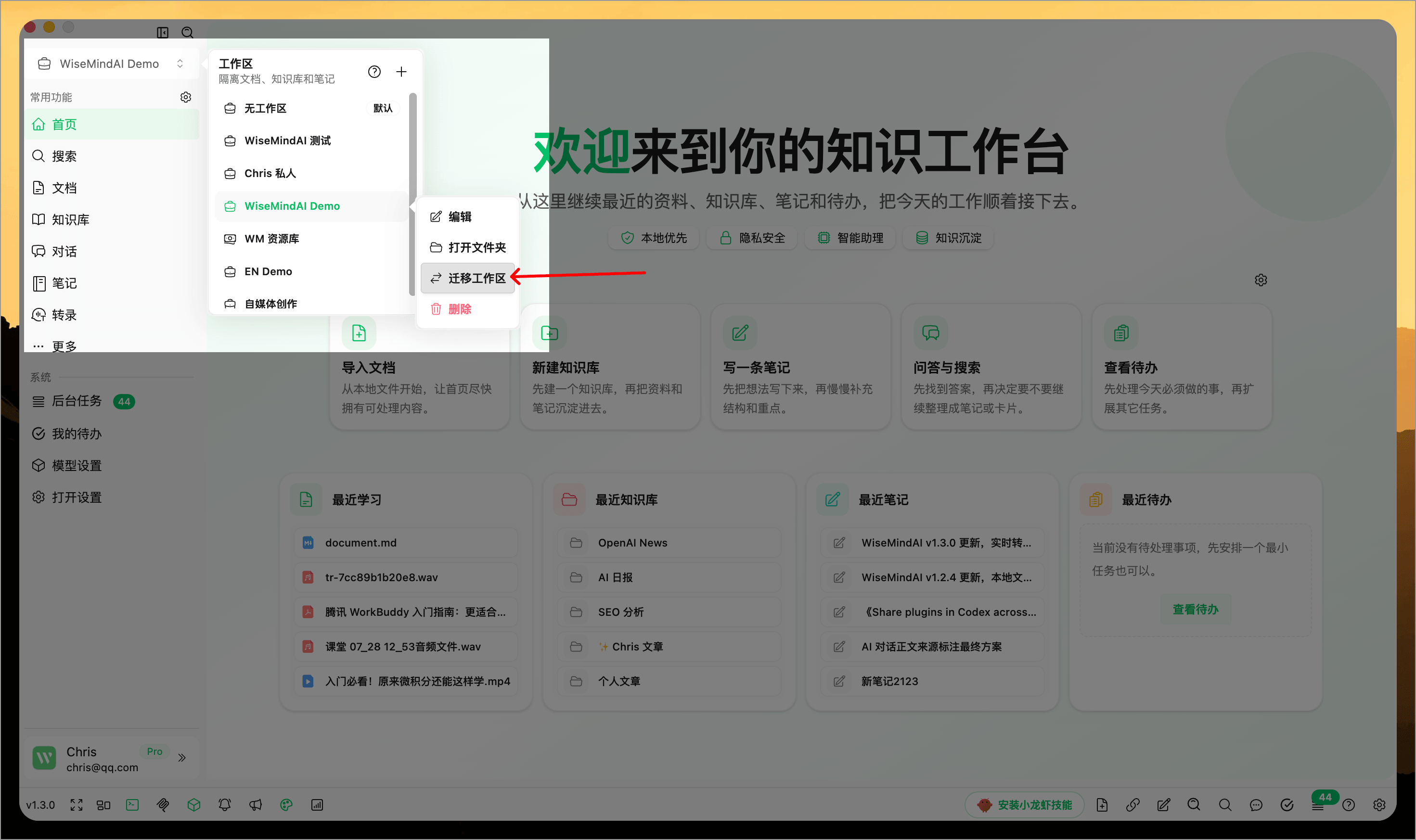
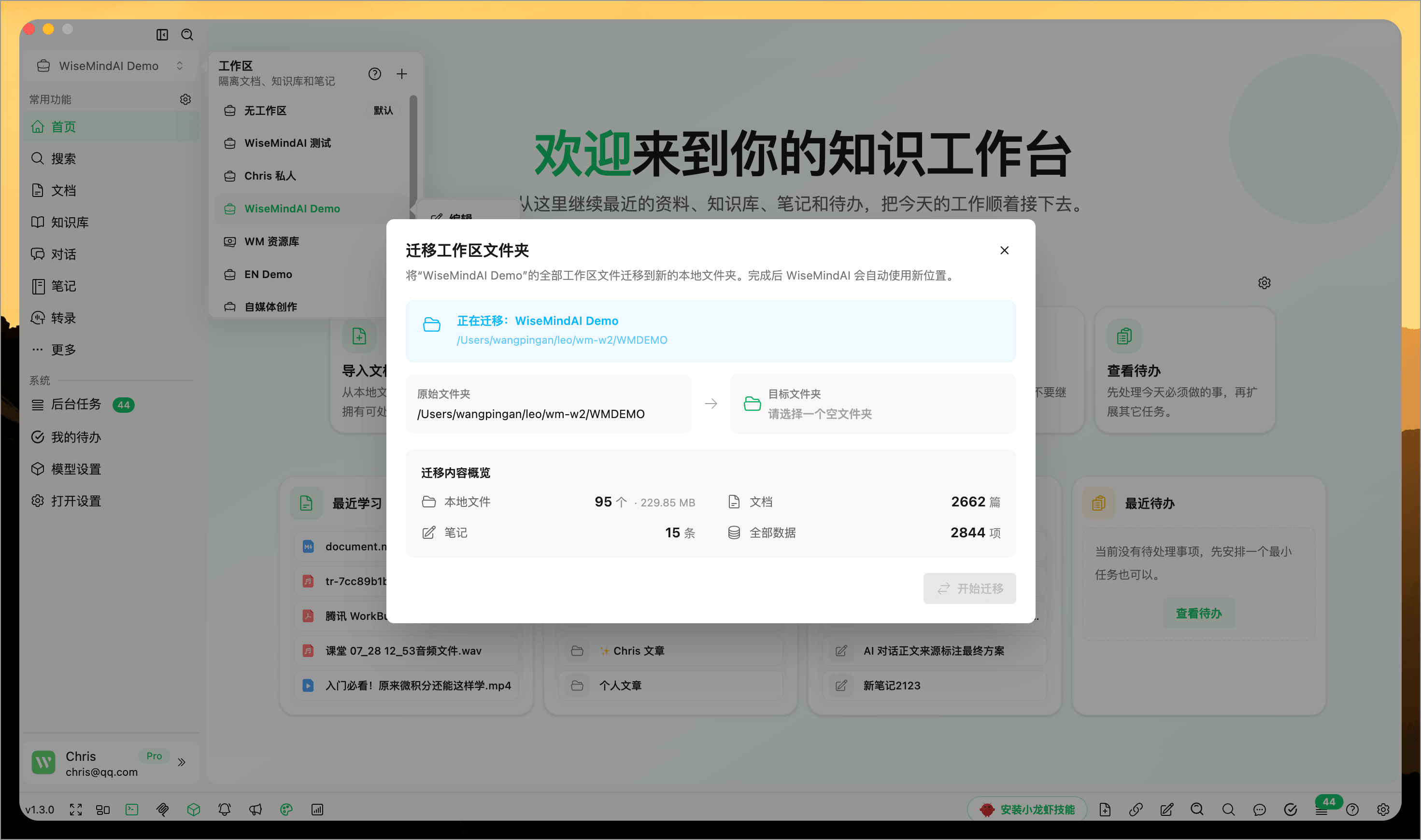
Before migration, WiseMindAI checks whether the destination is available and empty, and whether it conflicts with the original workspace path. It switches locations only after copying and verification succeed. If migration fails, the original folder and current settings remain unchanged.
Local Backup
- Open WiseMindAI Settings
- Navigate to "Data Sync"
- Select the workspace(s) to backup
- Click "Backup Now"
- Choose a save location
- Wait for completion
If you have multiple workspaces, select only those needed based on your actual requirements. For example, if migrating study materials, exclude other workspaces from the package.
Automatic Backup
After enabling automatic backup in "Data Sync", configure:
- Backup interval
- Save path location
- Maximum number of backups to retain
- Whether to auto-backup when closing the application
WiseMindAI uses the previous backup time, app restarts, and system wake state to decide whether another backup is required, and it cleans up incomplete temporary files. If the same schedule is triggered repeatedly within a short period, WiseMindAI avoids creating duplicate backups whenever possible.
Cloud Backup
Currently supports two primary methods:
- WebDAV
- Jianguoyun
After configuration, it is recommended to click "Test Connection" first before enabling automatic backup.
Restore Data
- Enter "Data Sync"
- Click "Restore Data"
- Select local or cloud source for restoration
- Choose the specific backup file or source
- Review backup contents and workspace information
- Confirm restoration
- Wait for completion and restart the application
📝 Important Notes
- Restoration overwrites current data; it is recommended to back up your current state before restoring
- Confirm target workspace before multi-workspace restoration to avoid restoring data to an unexpected location
- Cloud backup depends on network stability, which may cause failures if unstable
- Backup files can be large; ensure sufficient local storage or cloud capacity
- Resilio Sync requires application passwords; do not use your login password directly
- Prioritize compatible versions for restoration to avoid issues caused by cross-version recovery
- Do not edit the current workspace during migration, and keep WiseMindAI running until it completes
- Migration is not a backup; continue creating regular backups to protect against accidental deletion, device failure, or computer replacement
🌈 Recommended Usage Scenarios
1. Daily Backup
Enable automatic backup, such as backing up every 24 hours and retaining 5 to 10 history records.
2. Device Migration
Create a backup on the old device first, then restore it on the new one for faster return to your original usage state.
3. Recovery After Issues
If data is abnormal, accidentally deleted, or needs rollback, directly restore from the most recent available backup.