
Knowledge cards
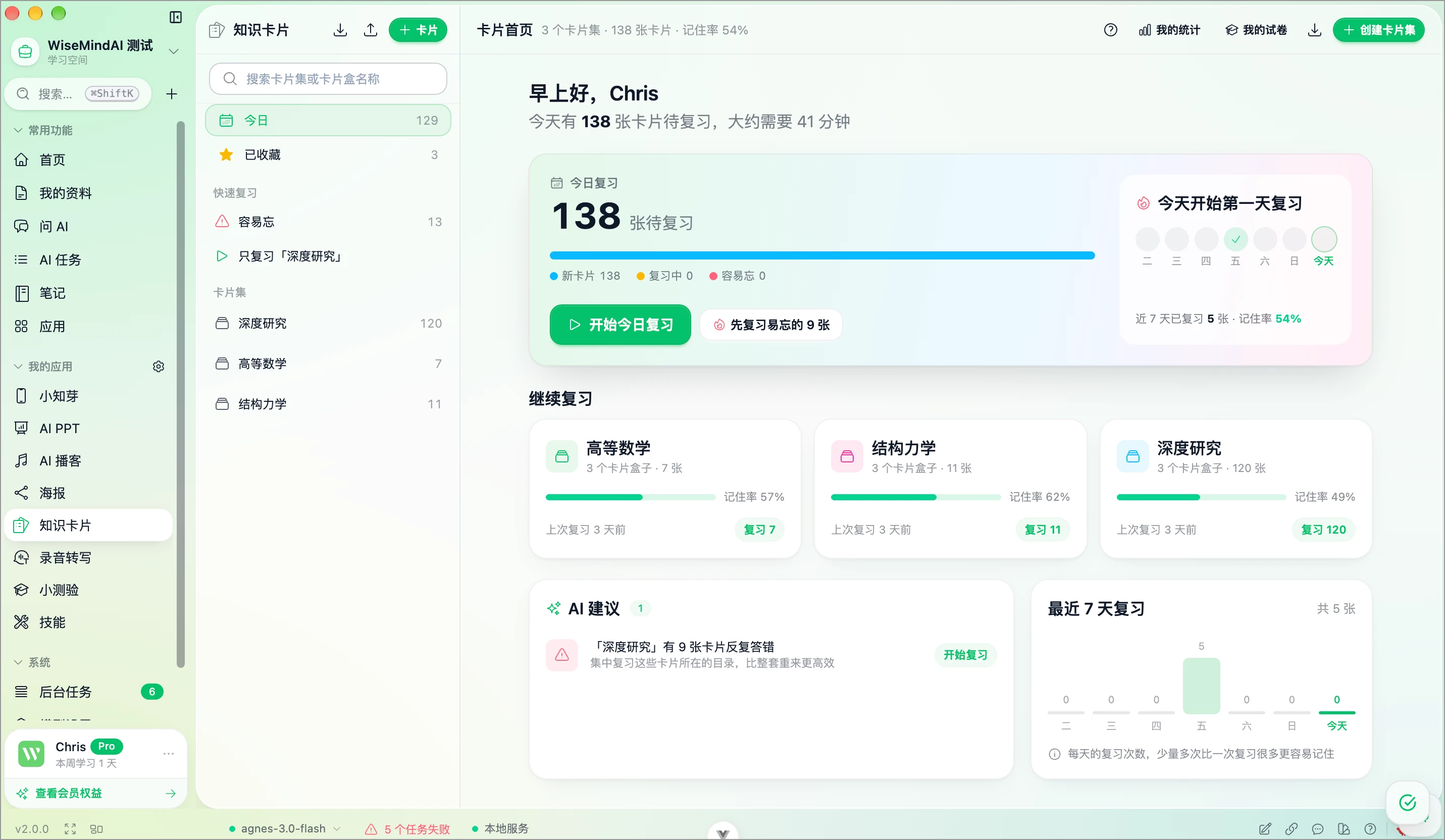
Open Knowledge cards from Apps, or pin it to the sidebar. Clicking Today’s review on Home also opens here. The older name was “Review”.
A knowledge card is not a copy of a material. It splits one knowledge point into front and back, and schedules the next appearance from how well you remembered it last time.
Make cards
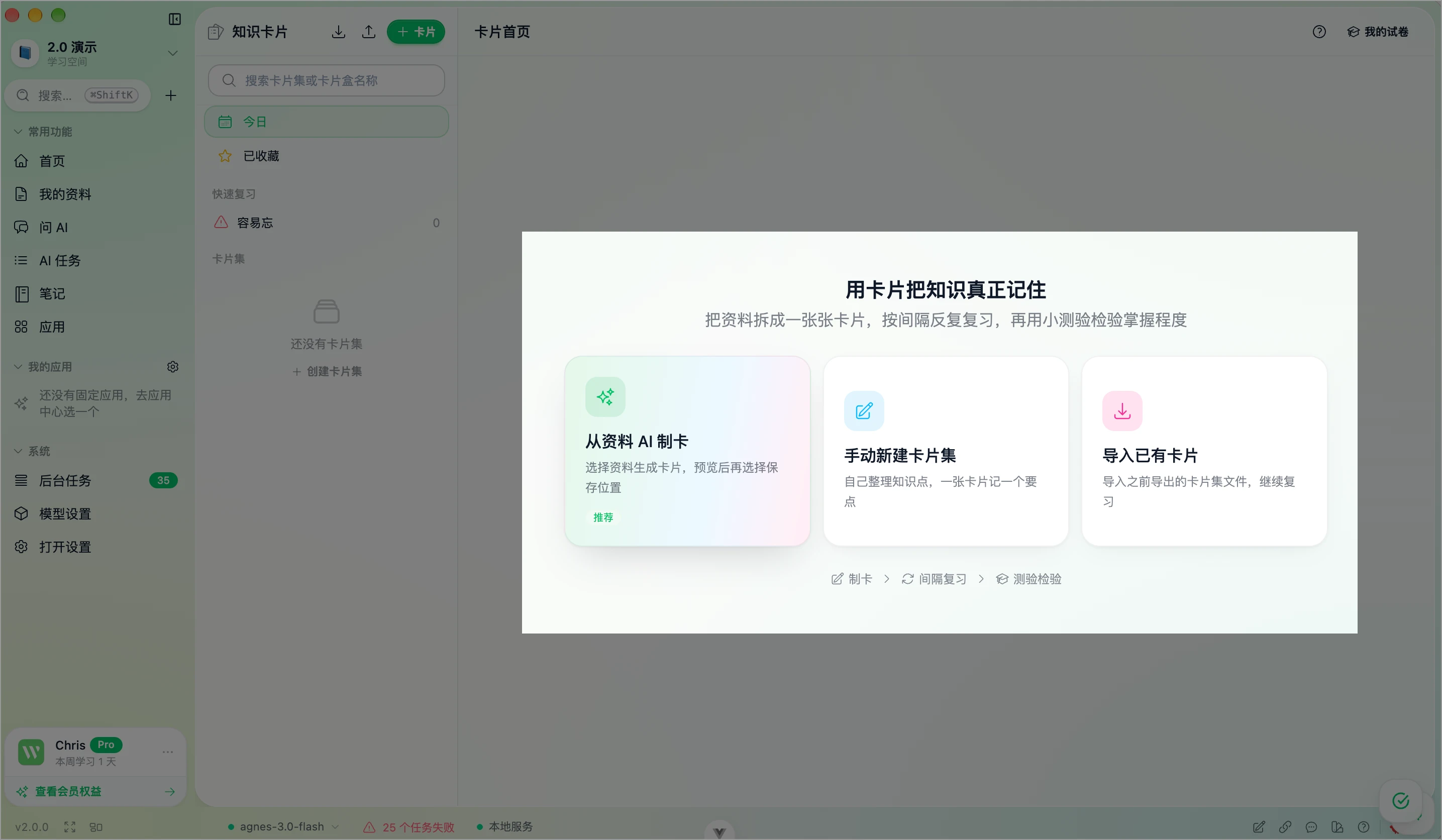
Three create modes are supported:
- AI cards from materials: choose materials, generate cards, preview, then pick where to save
- Create a card set by hand: organize knowledge points yourself—one point per card
- Import existing cards: import a previously exported card-set file and keep reviewing
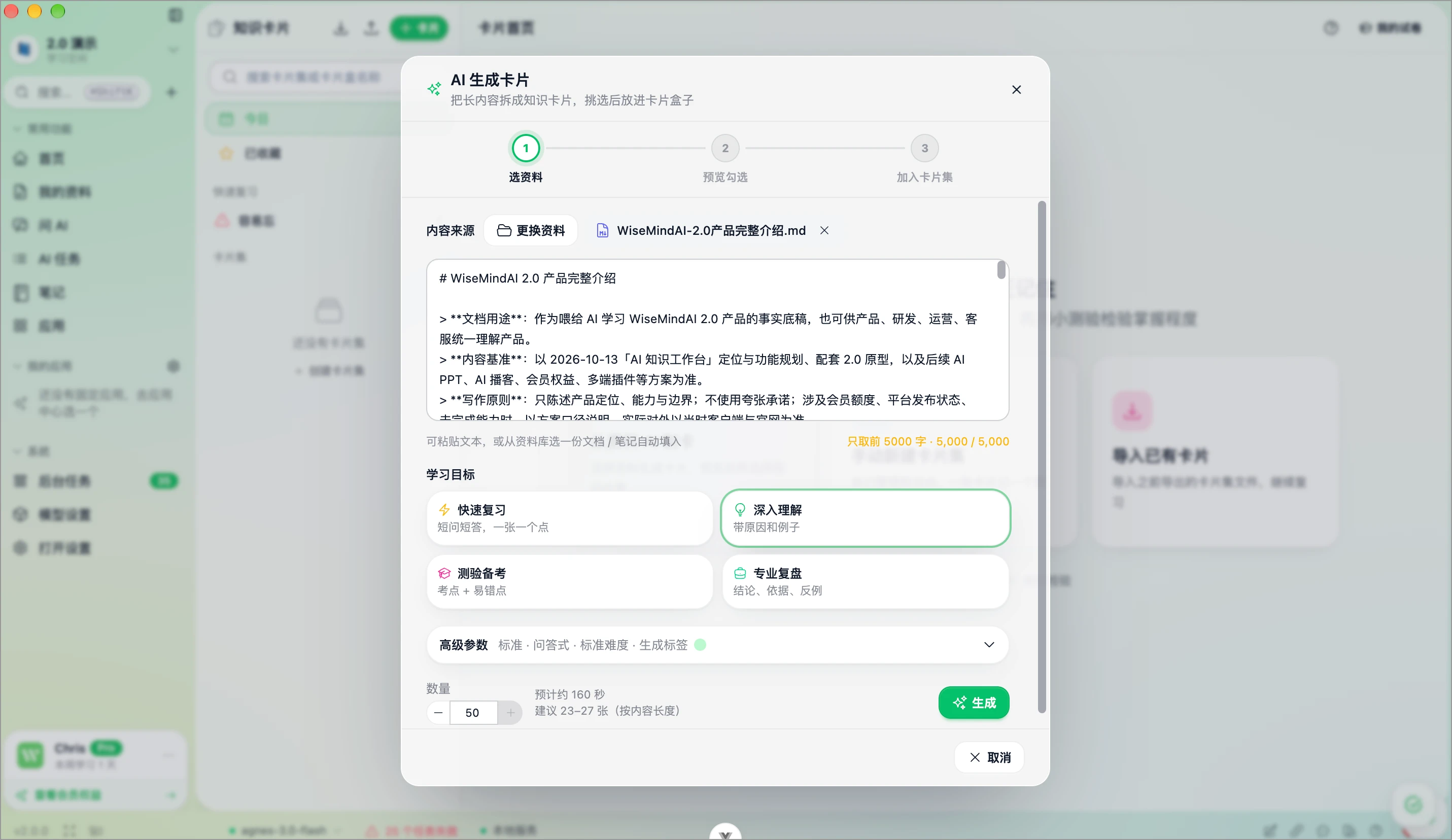
Follow these steps with AI cards from materials to make the first batch:
- Choose materials: pick the materials or notes to generate from
- Learning goal: pick a goal that matches how you will use them, such as quick review, deeper understanding, exam prep, or professional recap
- Card count: choose how many to generate, up to 50
If materials in a folder do not have summaries yet, batch card creation asks you to finish summaries first.
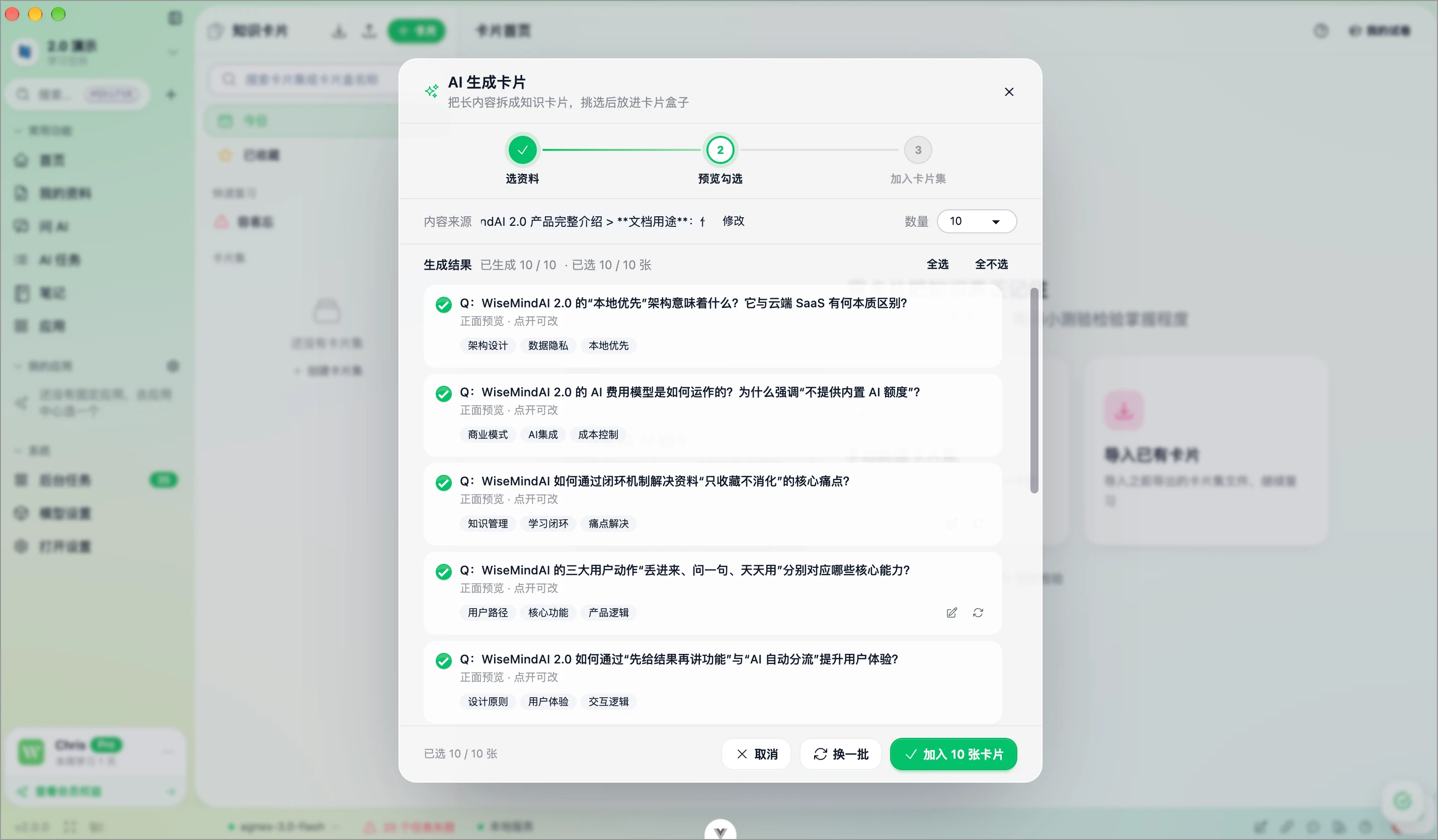
Then preview the generated list. Keep the cards you need, and edit each card’s content so it matches how you learn:
After creation, all cards appear on the knowledge-card canvas:
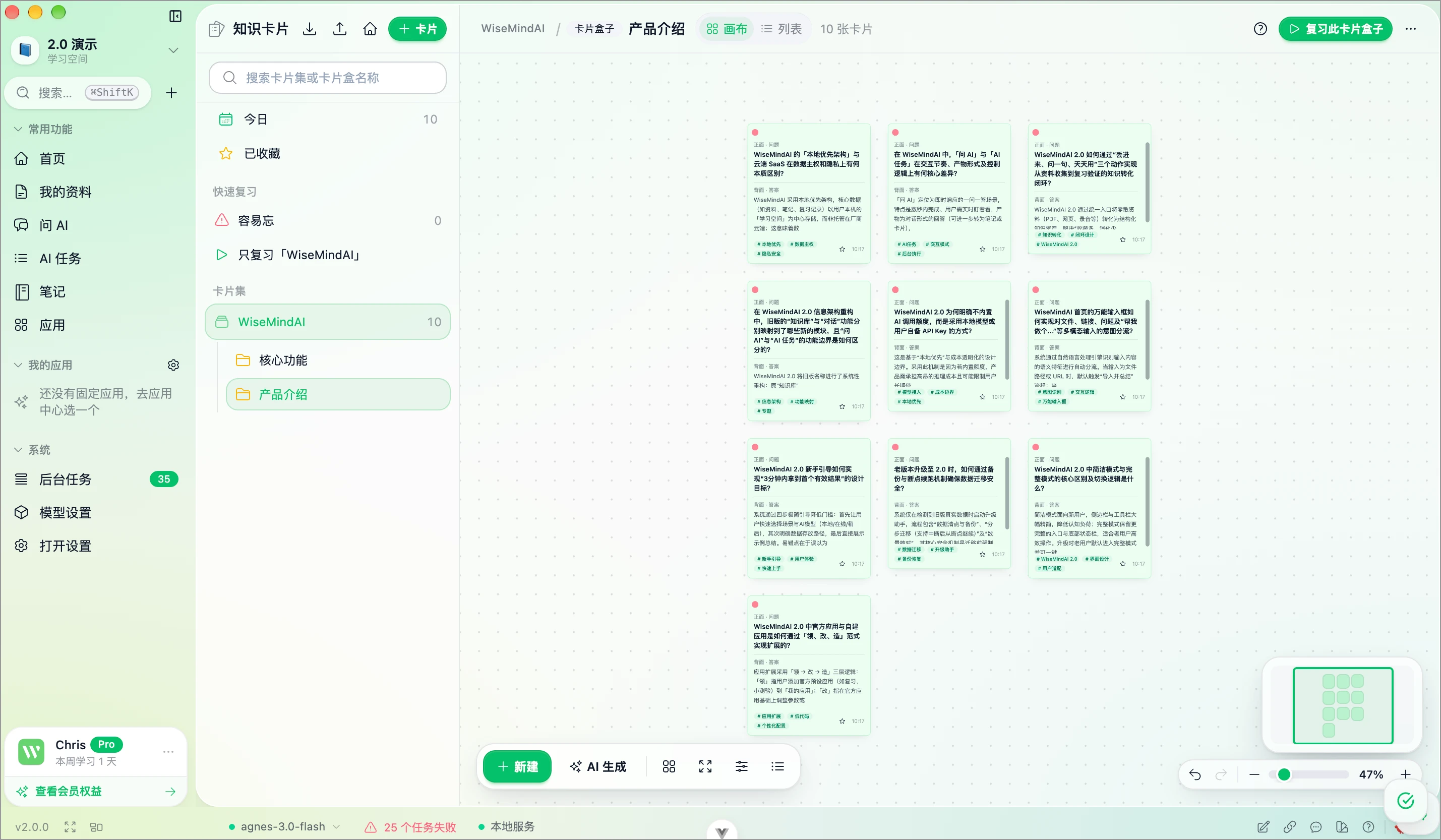
Generating cards calls the configured model. Without a usable model, this step will not start.
Suggested usage
- Prepare materials first: import slides or write notes. See My Materials.
- Only make cards for points you tend to forget—you do not need to card an entire slide deck.
- Enter from Home → Today’s review each day and follow the schedule, instead of tracking review dates yourself.
- Answer before you flip to the back; check the back afterward.
- Cards you missed come back sooner; cards you remembered get longer intervals. After a round, check how many you have mastered.
- If a card is wrong, edit the back in the table instead of creating a duplicate.
How to review
- Open Knowledge cards, or enter today’s due cards from Home.
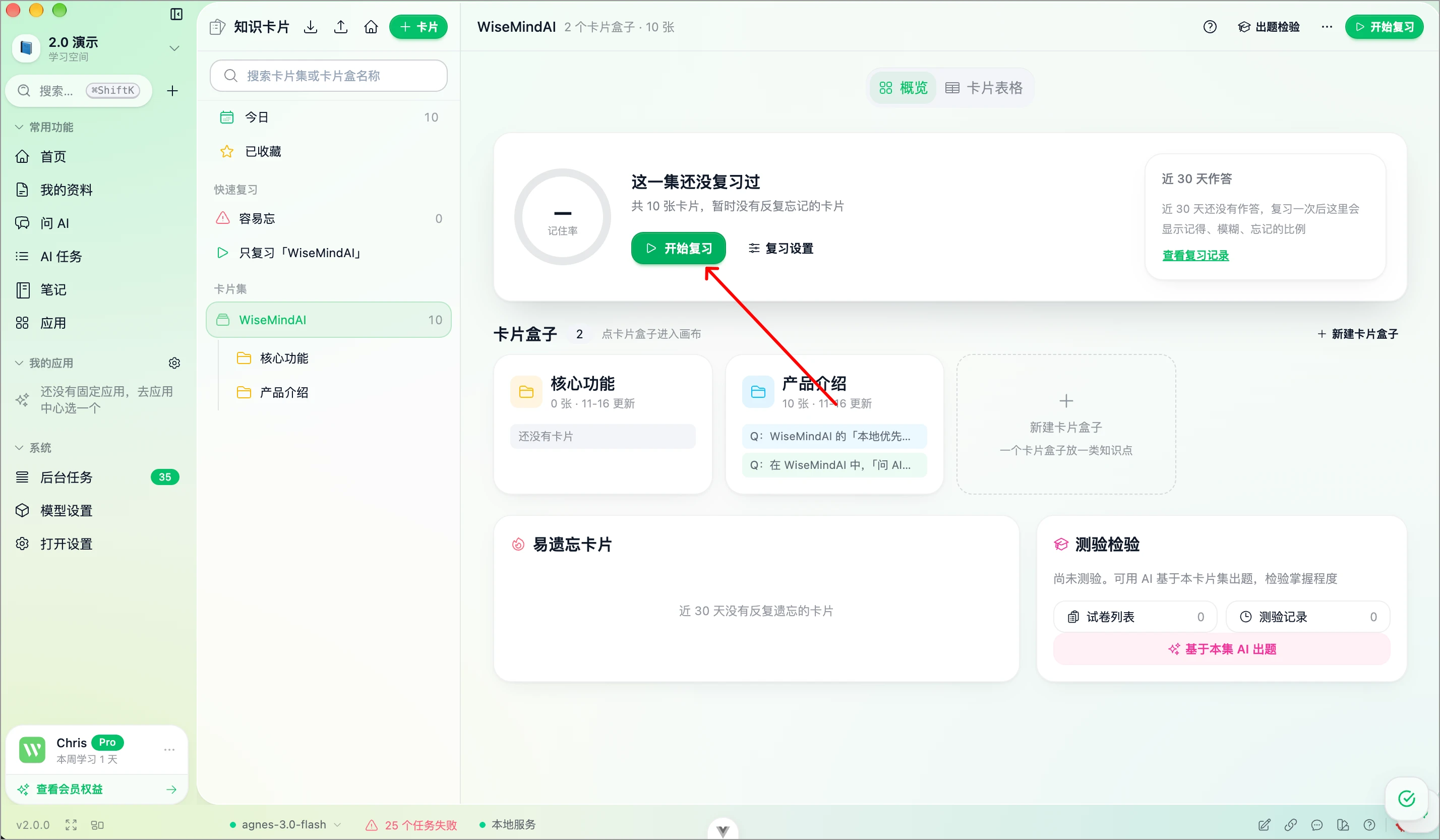
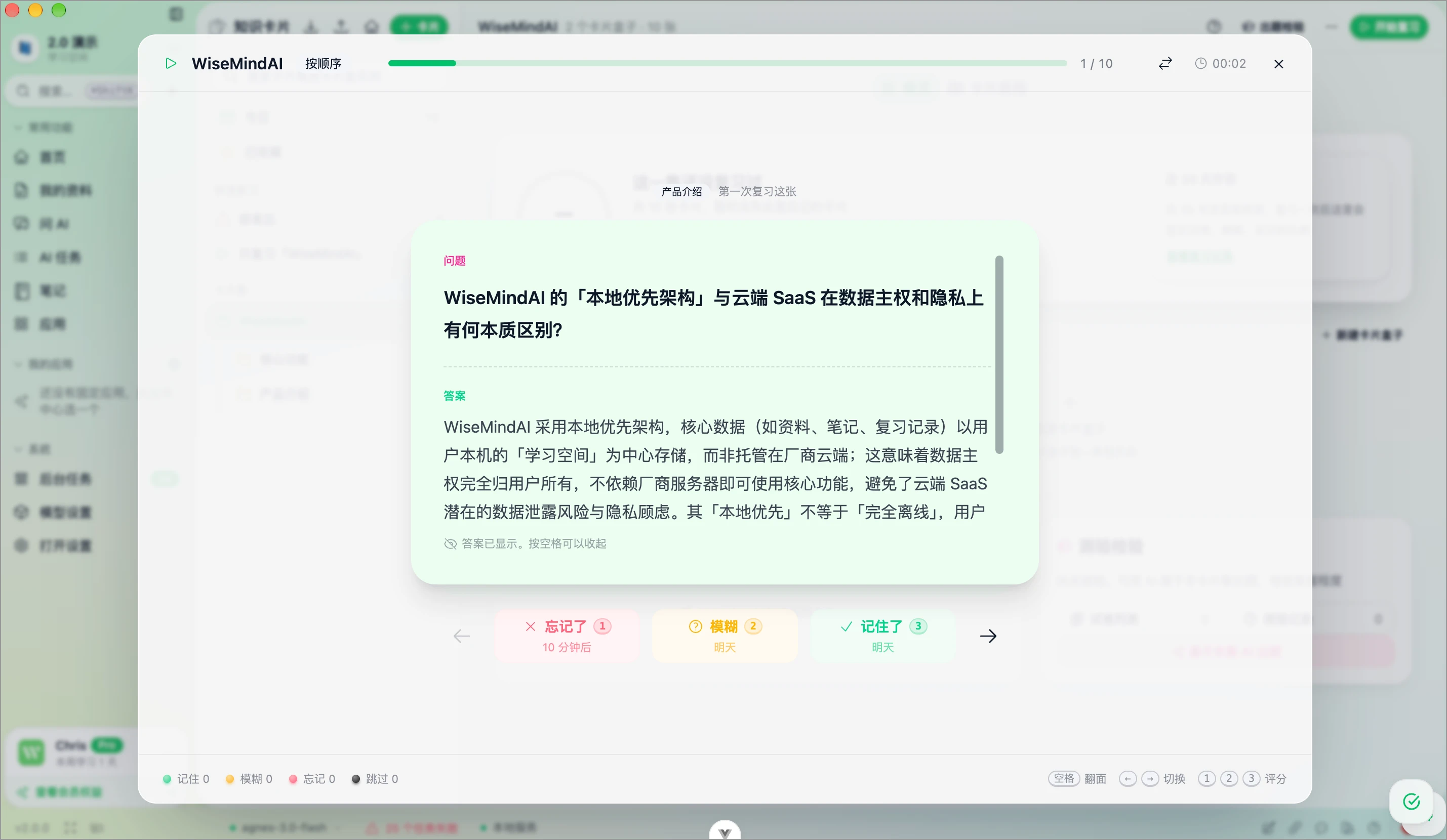
- Look at the front, recall the back, then flip to check.
- Choose an interval by how well you remembered. Intervals appear as in a few minutes, in a few hours, tomorrow, or in several days.
- After a round, you see how many you have mastered and how many to review tomorrow.
You can review only one card set, or open Today’s review, Easy to forget, and Favorites. Switch between overview and the card table; filter the table by Due, Easy to forget, or Not learned.
Back first starts from the back. Open source opens the material or note that produced the card. If the source is no longer in the current learning space, the link will not open.
With other features
- After finishing a note, use Make review cards to extract key points.
- Quiz checks whether you can answer questions; knowledge cards consolidate single points.
- In Learning stats, view review history, keep flipping cards, and inspect answer records.
Export and spaces
Export Markdown, images, and more. Cards stay in the current learning space.
Related: Notes · Learning stats · Quiz · Home