
General Models
General Models are used for chat, writing, summaries, in-document translation, plugins, and AI Task. Open Settings → AI & Models, then General Models.
The provider bills usage. It is not included in WiseMindAI membership. A key for the same provider can be synced to that provider's other model categories. You can add a custom platform when the service is not listed.
One row per provider. “Where to apply” is where you get the API key. “Official website” is the site stored for that provider in the app. Click “Open website” to go there. If the app has no site for that provider, the cell is “—”. “Default” is the model ID prefilled when you open the form. If nothing is prefilled, or the prefilled ID is no longer in the built-in list, the cell says “Choose in the app”. Most providers also accept a custom model ID.
| Provider | Where to apply | Official website | Default |
|---|---|---|---|
| Agnes AI | Get API key | Open website | Choose in the app |
| Alibaba Cloud Bailian | Get API key | Open website | Choose in the app |
| Baichuan | Get API key | Open website | Baichuan4-Turbo |
| CherryIn | Get API key | Open website | openai/gpt-4.1 |
| DeepSeek | Get API key | Open website | Choose in the app |
| Volcengine | Get API key | Open website | — |
| Gemini | Get API key | Open website | gemini-3.8-flash |
| Custom Any OpenAI-compatible endpoint | Apply with that service | — | gpt-4 |
| Groq | Get API key | Open website | llama3-8b-8192 |
| Tencent Hunyuan | Get API key | Open website | hy4 |
| Hunyuan TokenHub | Get API key | Open website | Choose in the app |
| LM Studio | No API key | Open website | — |
| LongCat | Get API key | Open website | LongCat-2.5 |
| MiMo | Get API key | Open website | Choose in the app |
| MiMo Token Plan | Get API key | Open website | mimo-v2.6-pro |
| MiniMax | Get API key | Open website | MiniMax-M3 |
| MiniMax Token Plan | Get API key | Open website | MiniMax-M3 |
| Mistral AI | Get API key | Open website | pixtral-12b-2409 |
| ModelScope | Get API key | Open website | Choose in the app |
| Kimi | Get API key | Open website | kimi-k3 |
| Ollama | No API key | Open website | — |
| Ollama Cloud | Get API key | Open website | — |
| OpenAI | Get API key | Open website | Choose in the app |
| OpenCode | Get API key | Open website | gpt-5.6-sol |
| OpenRouter | Get API key | Open website | Choose in the app |
| Poe | Get API key | Open website | Assistant |
| Baidu Qianfan | Get API key | Open website | ernie-5.1 |
| Qianwen AI Platform | Get API key | Open website | qwen3.6-plus |
| SiliconFlow | Get API key | Open website | Qwen/Qwen2.5-7B-Instruct |
| Stepfun | Get API key | Open website | Choose in the app |
| xAI | Get API key | Open website | grok-4.3 |
| iFLYTEK Spark | Get API key | Open website | Choose in the app |
| iFLYTEK MaaS | Get API key | Open website | xdeepseekv3 |
| Zhipu AI | Get API key | Open website | glm-4-flash |
How to create an API key (DeepSeek example)
Before using a cloud model, create an API key on the provider’s platform, then paste it into WiseMindAI. Most providers follow a similar flow.
The steps below use DeepSeek under General models. For other providers, see the table above.
- Open the DeepSeek Platform and sign up or log in.
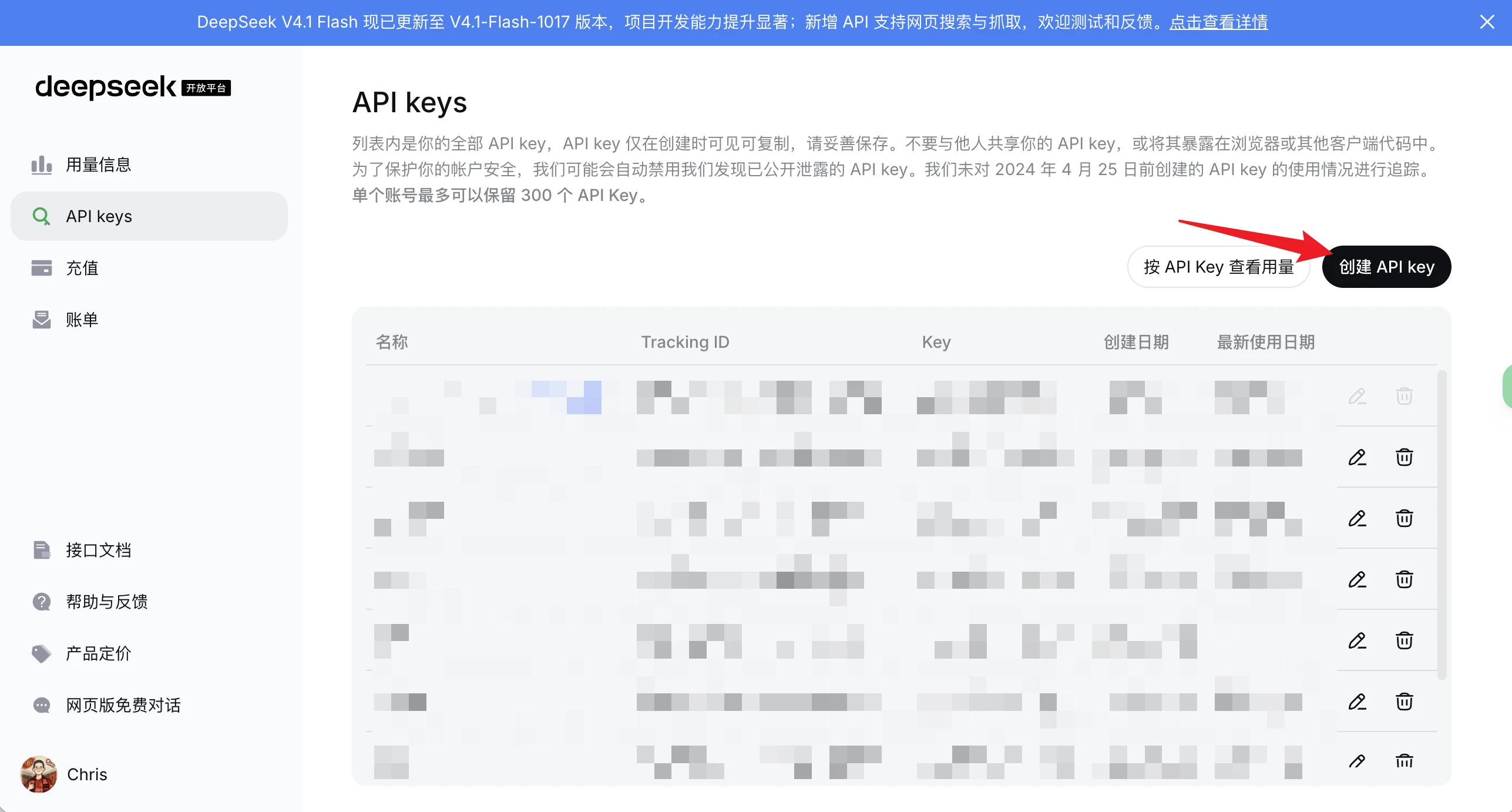
- Go to API Keys in the left sidebar, then click Create API Key.
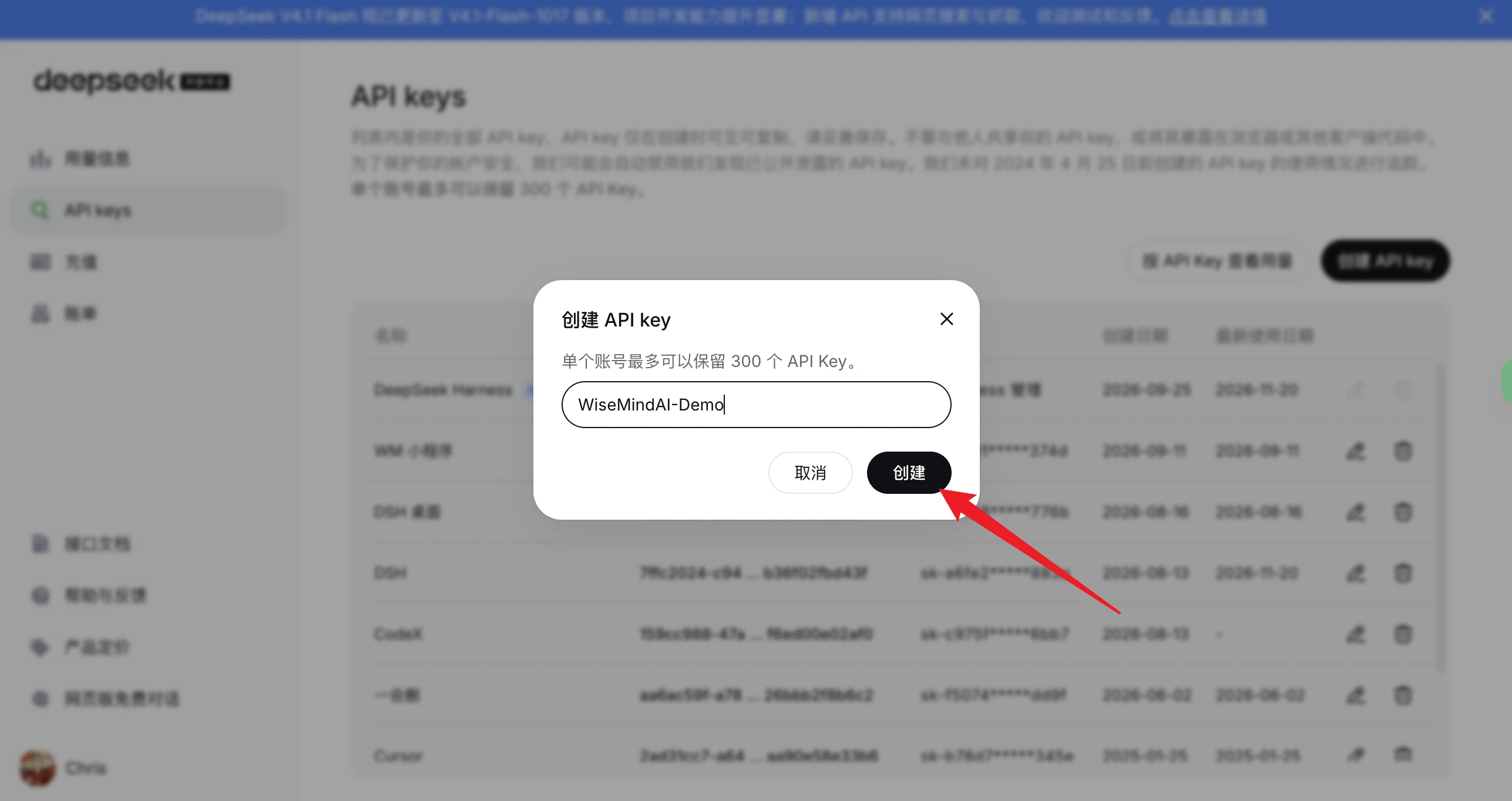
- Enter a name (for example
WiseMindAI) and click Create.
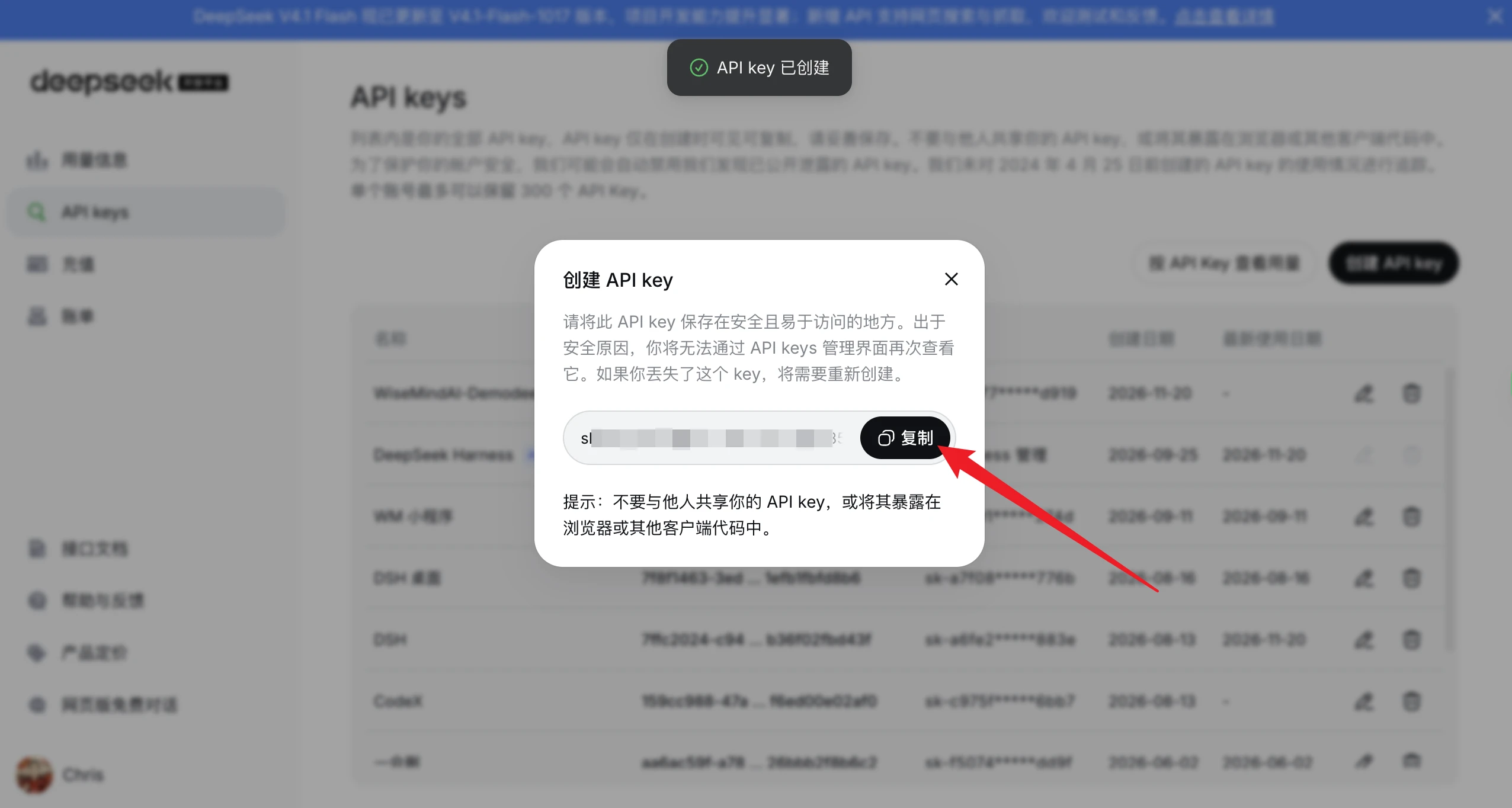
- Copy and store the full key immediately. It is shown in full only once; if you lose it, delete it and create a new one.
- In WiseMindAI, open Settings → AI & models → General models, choose DeepSeek, paste the API key, pick a model, and save. Click Test to confirm the setup works.
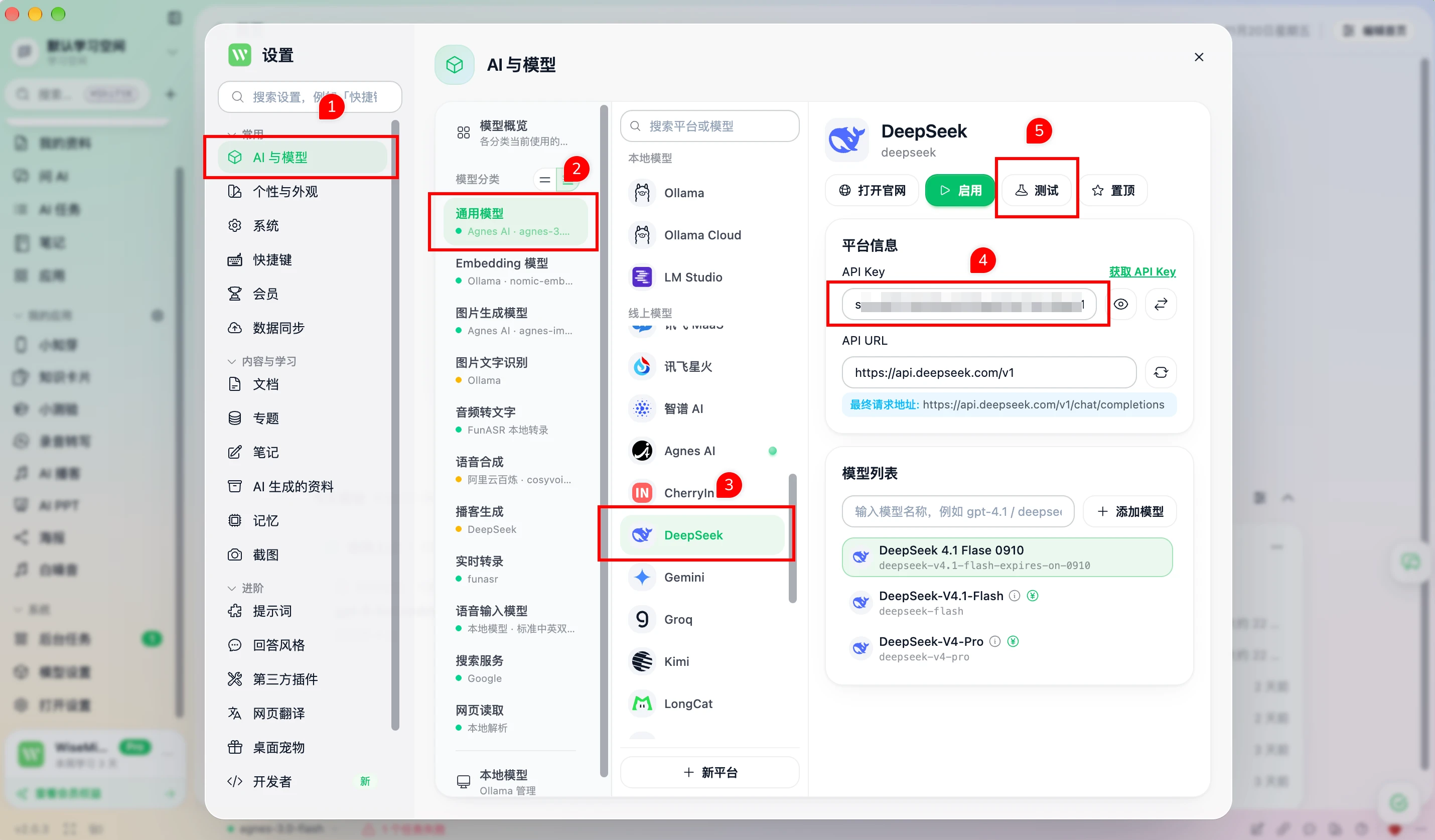
If the test dialog opens, you can verify the connection there:
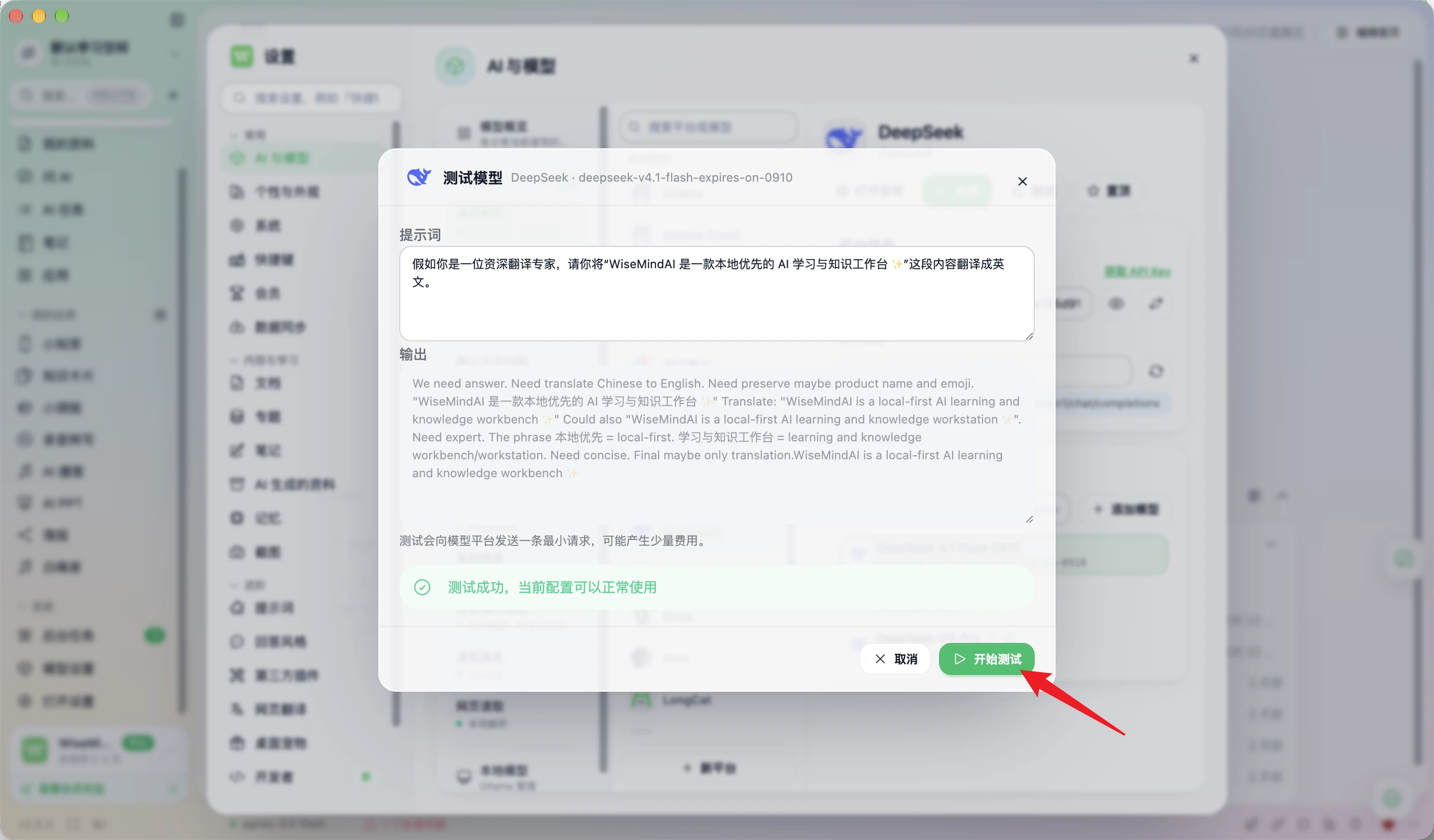
That finishes setup. You can then use documents, summaries, chat, outline generation, and more. Note that some providers charge for API keys—watch your quota on each platform.
Note
Usage fees are charged by DeepSeek and other providers, not by WiseMindAI membership. If you see an insufficient-quota error, top up on the provider’s platform and try again.