
Quiz
Open Quiz from Apps, or pin it to the sidebar. Older docs called this “AI Exam”.
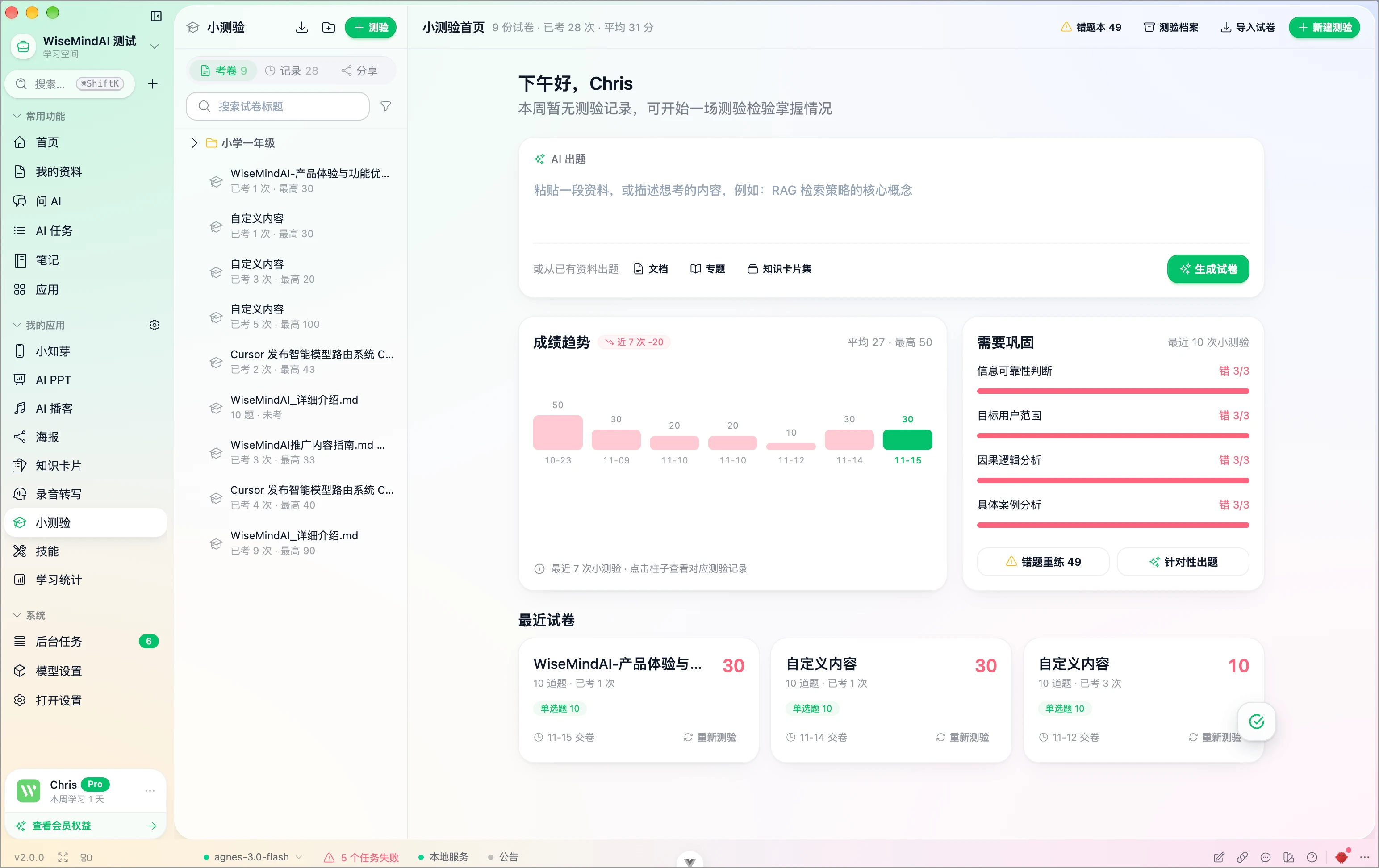
Create questions
Follow these steps to generate a set of questions:
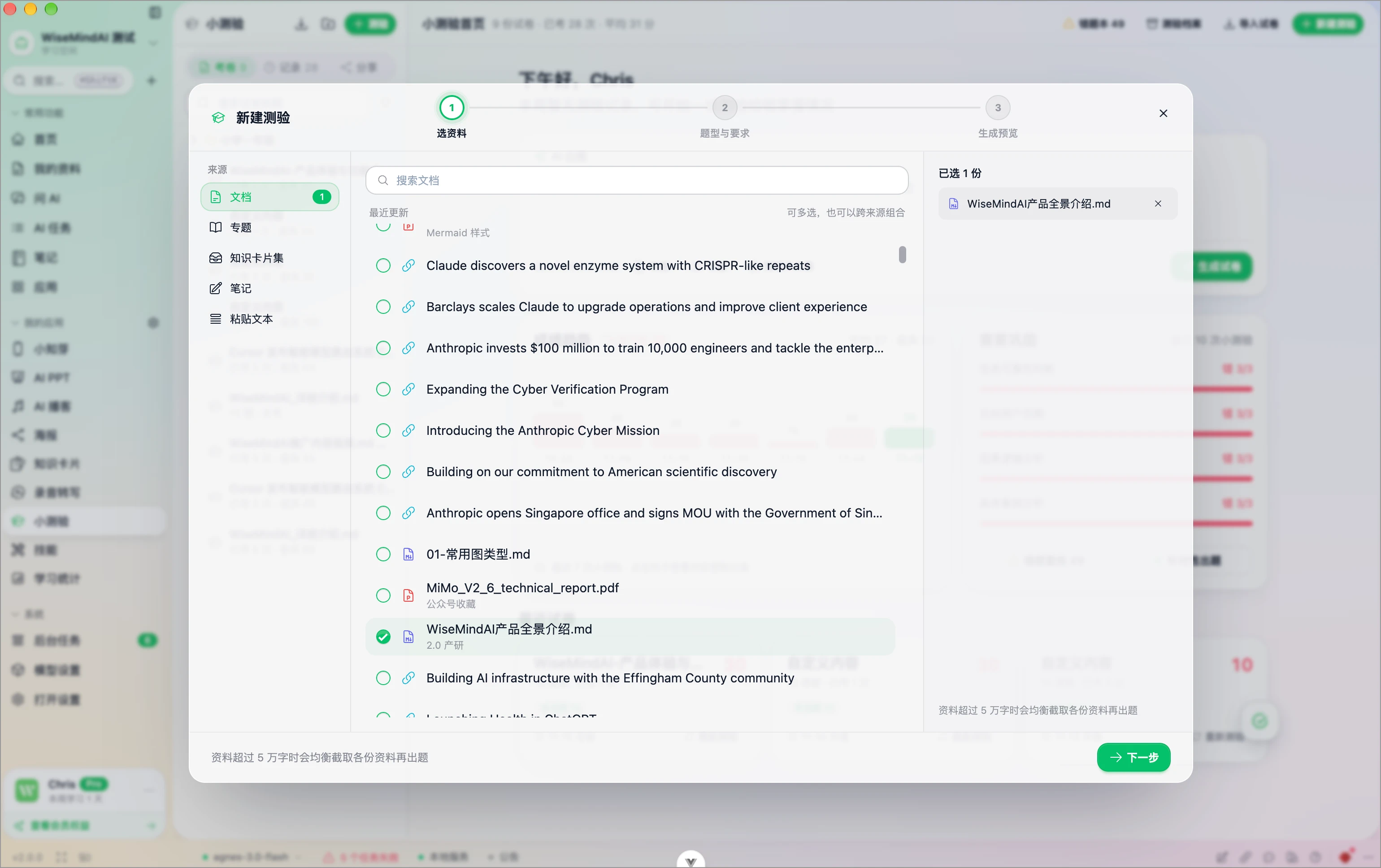
- Open Quiz and choose a source: one material, one topic, a set of review cards, or pasted text. After you open a material, the learning panel on the right also has a Quiz entry.
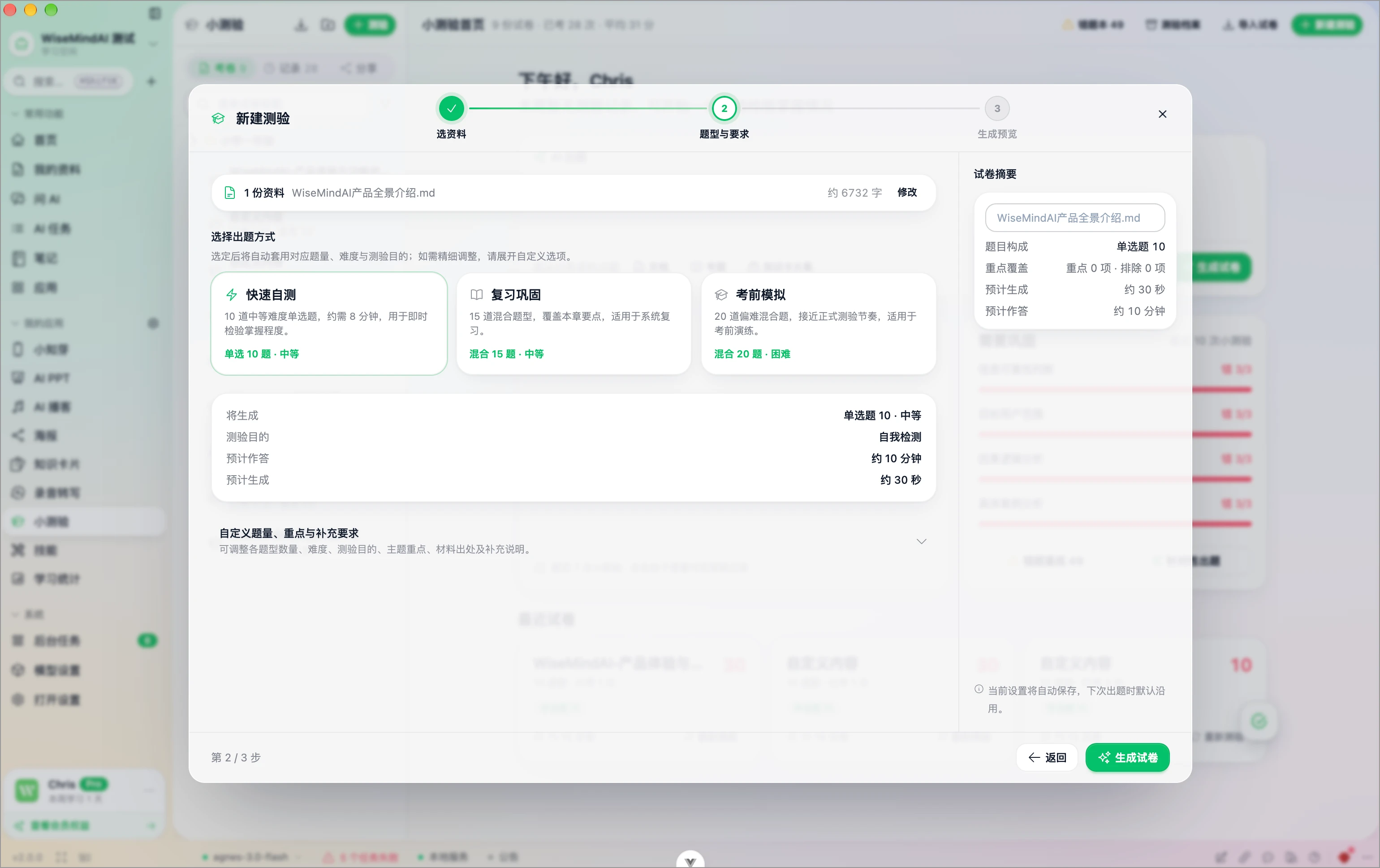
- Confirm the question count and types, then start generating. For larger sets, choose Continue in background so you can leave the page while it runs. When it finishes, the notification shows the total number of questions.
- Review the questions after generation. Content that is not in the source should not be treated as covered knowledge.
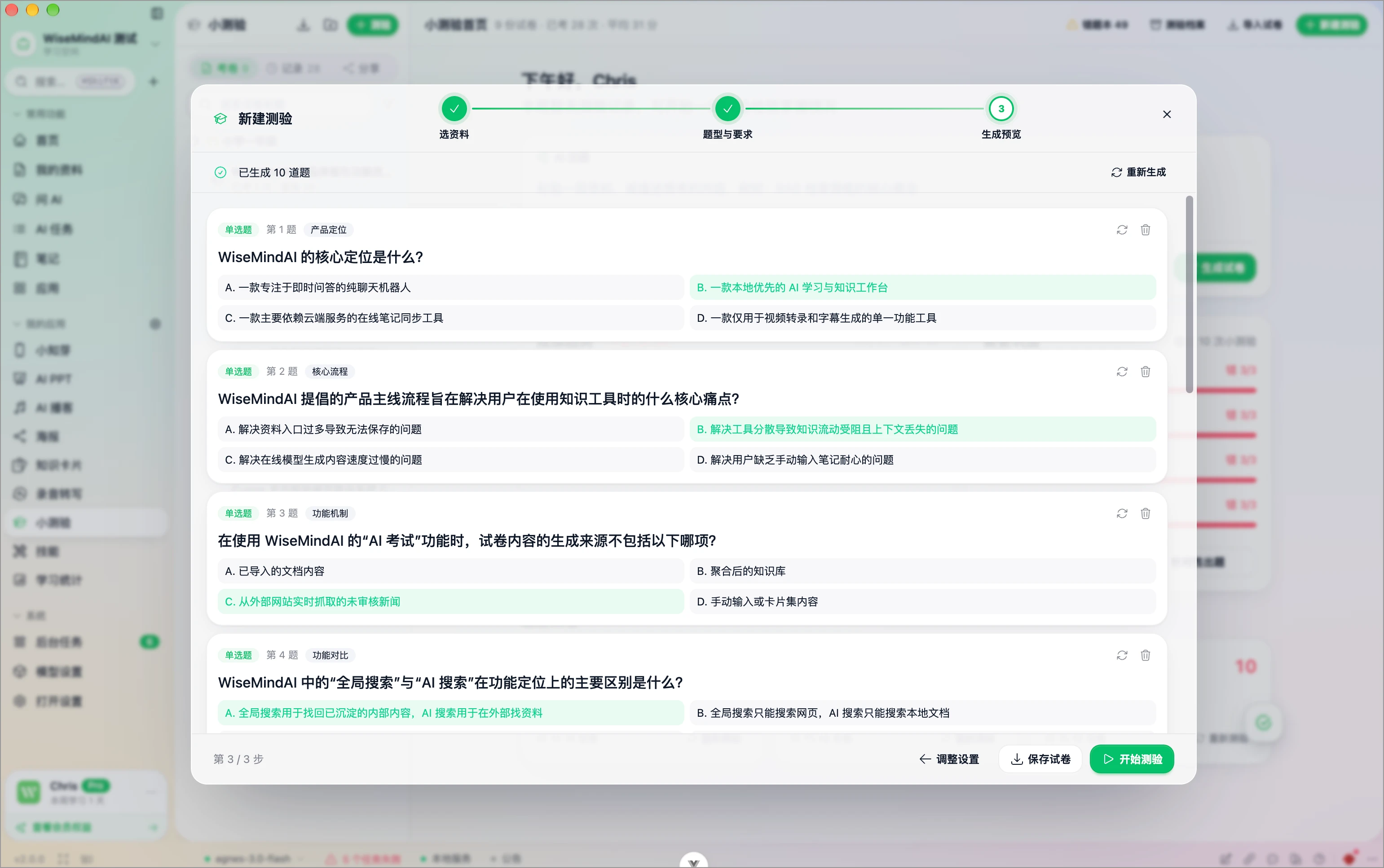
Generating questions calls the model you configured. Without a usable model, generation will not start.
Take the quiz
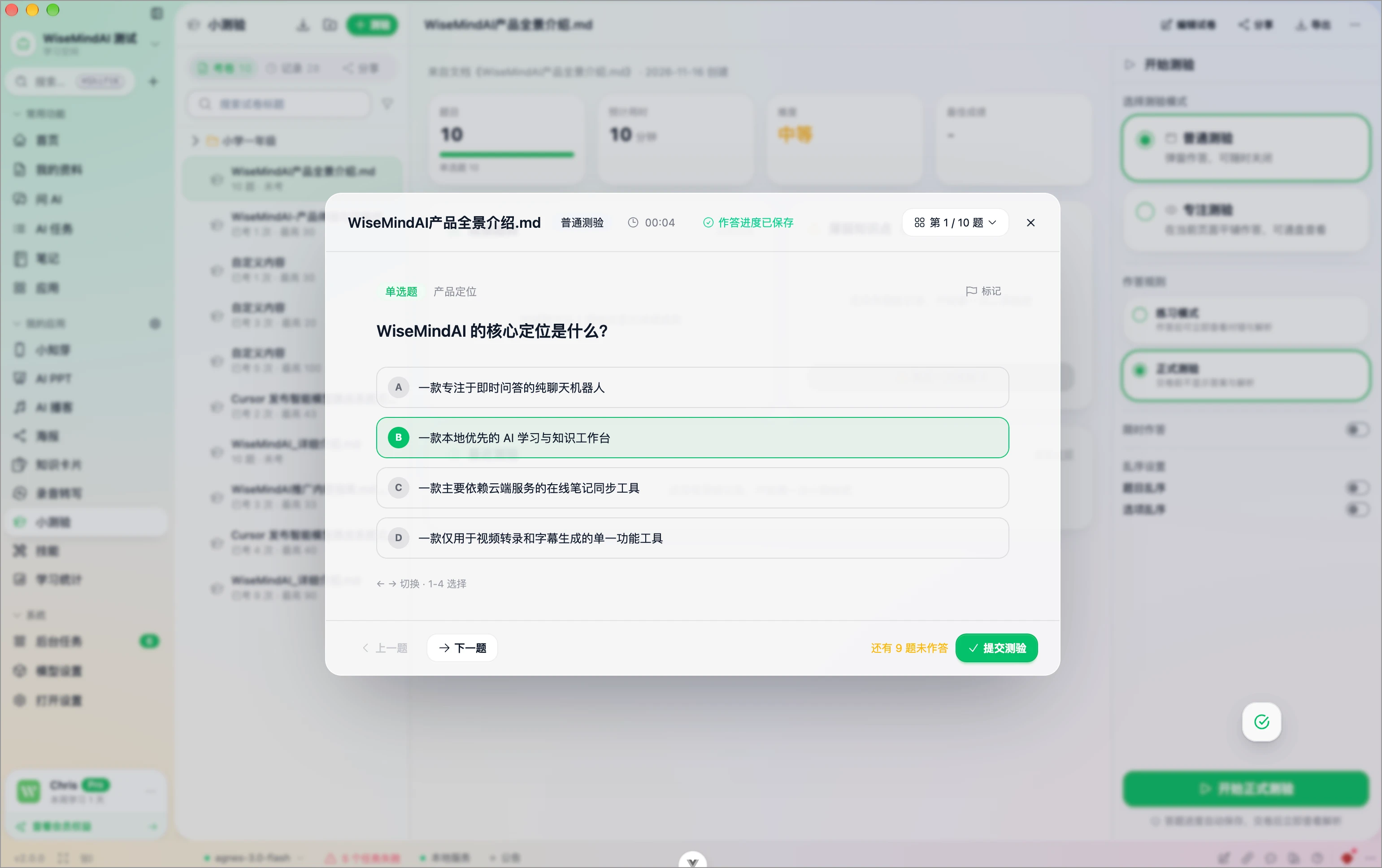
After questions are ready, enter the quiz to check how well you have learned:
Answer and review results
- Answer the questions and submit.
- Check this attempt’s score and report card. The report card offers several styles and can be downloaded as an image.
- Missed items collect in the Wrong-answer book. If Home shows missed items you have not mastered yet, return to the quiz and practice again.
- When needed, open the AI analysis report. It is generated by the model and is not an objective measure of mastery.
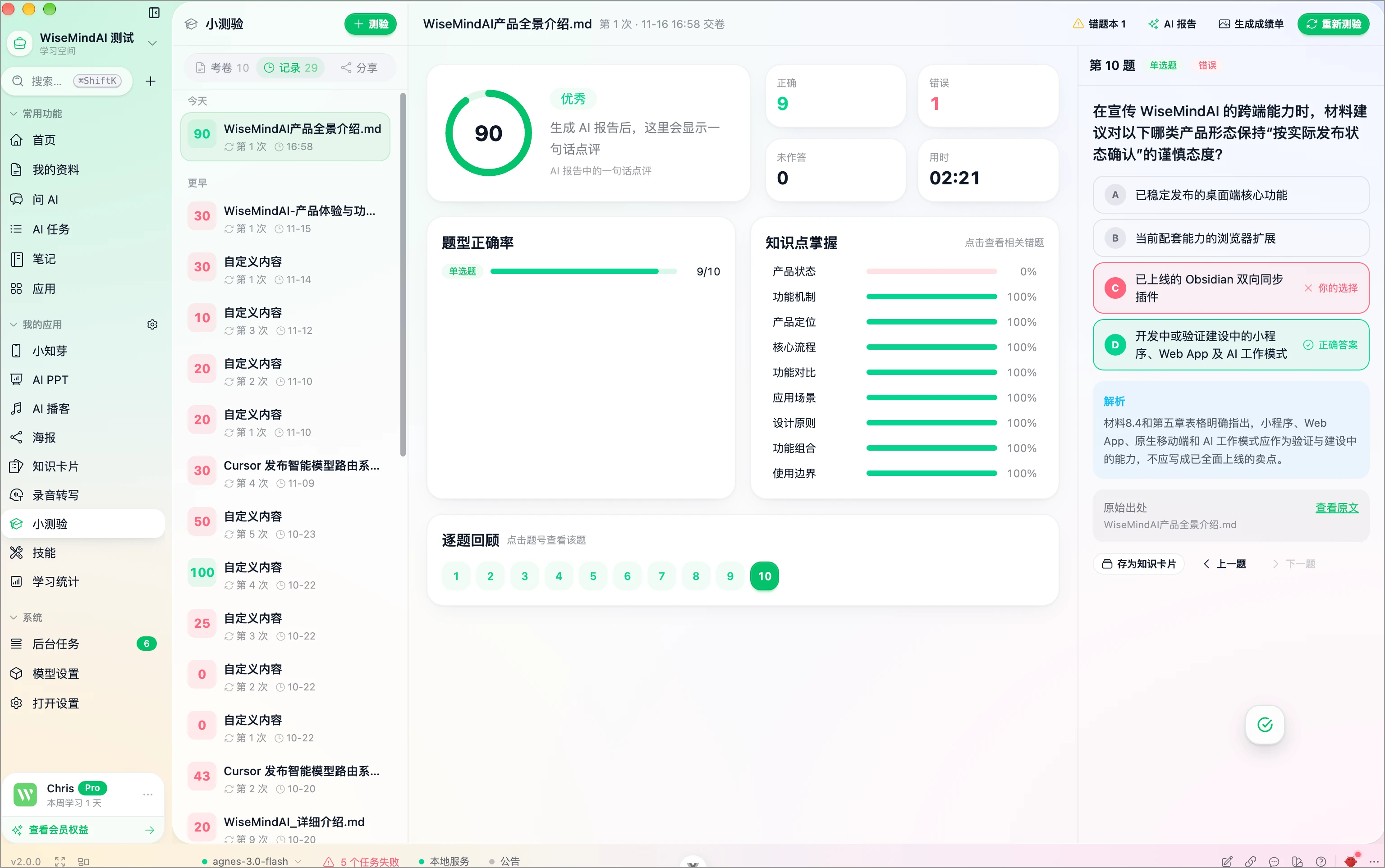
Quizzes and exam records stay in the current learning space and can only link to materials in that space. Past quizzes are available under Exam archive.
Related: My Materials · Knowledge cards · Built-in apps