
Notes
Notes in the sidebar is where you record and organize your own content. Notes you create by hand, and notes generated by AI and saved, both appear in the list.
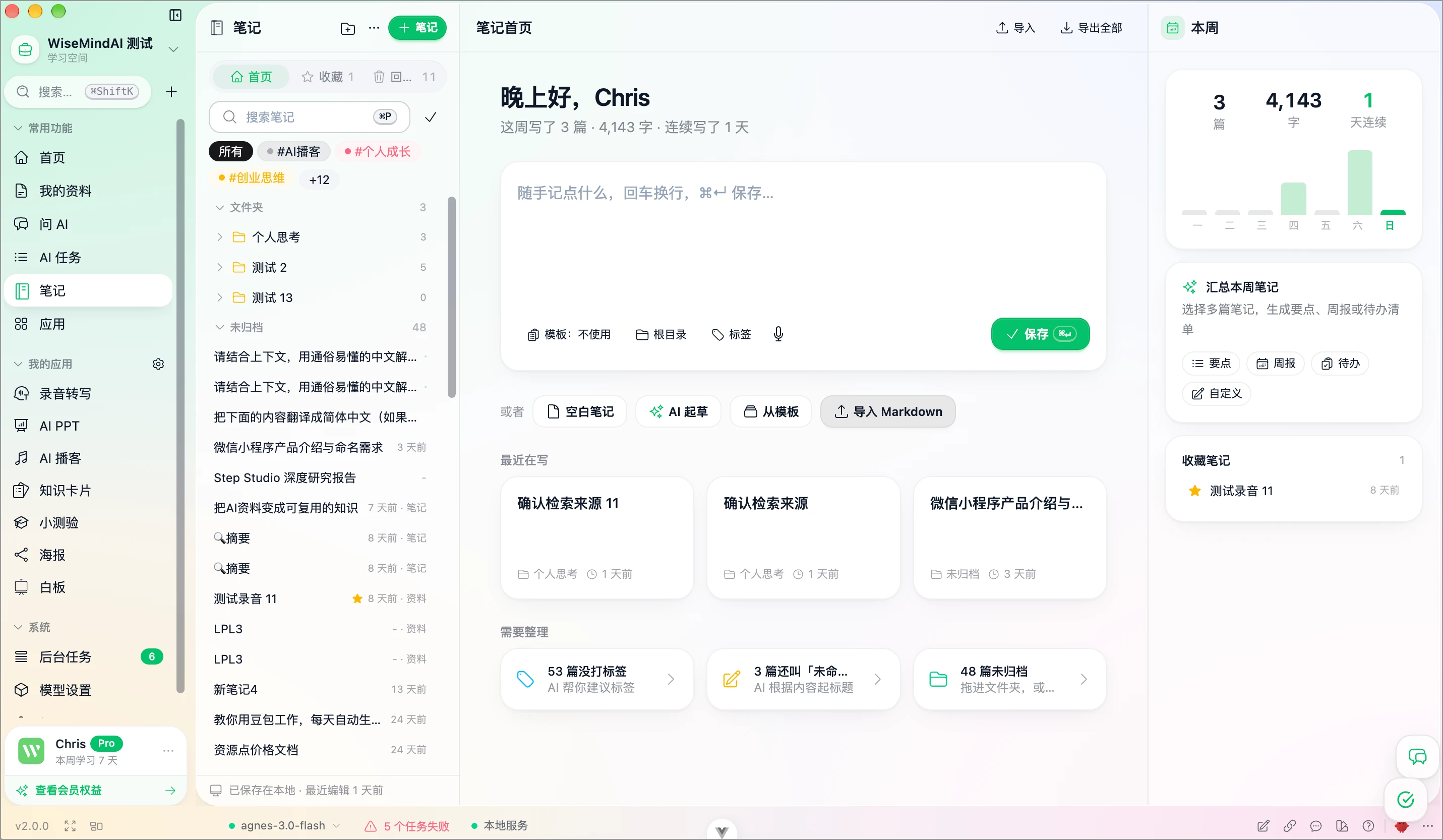
Write a note
You can create a blank note by hand, or choose another create mode when needed:
- Blank note: start writing on an empty page
- AI draft: generate a first draft from materials or a topic
- Use a template: start quickly for class, meetings, weekly reports, and similar scenes; templates live under Settings → Notes → Note templates, and appear only after you enable them
- Import Markdown: import local Markdown, or bring in a folder or an Obsidian vault
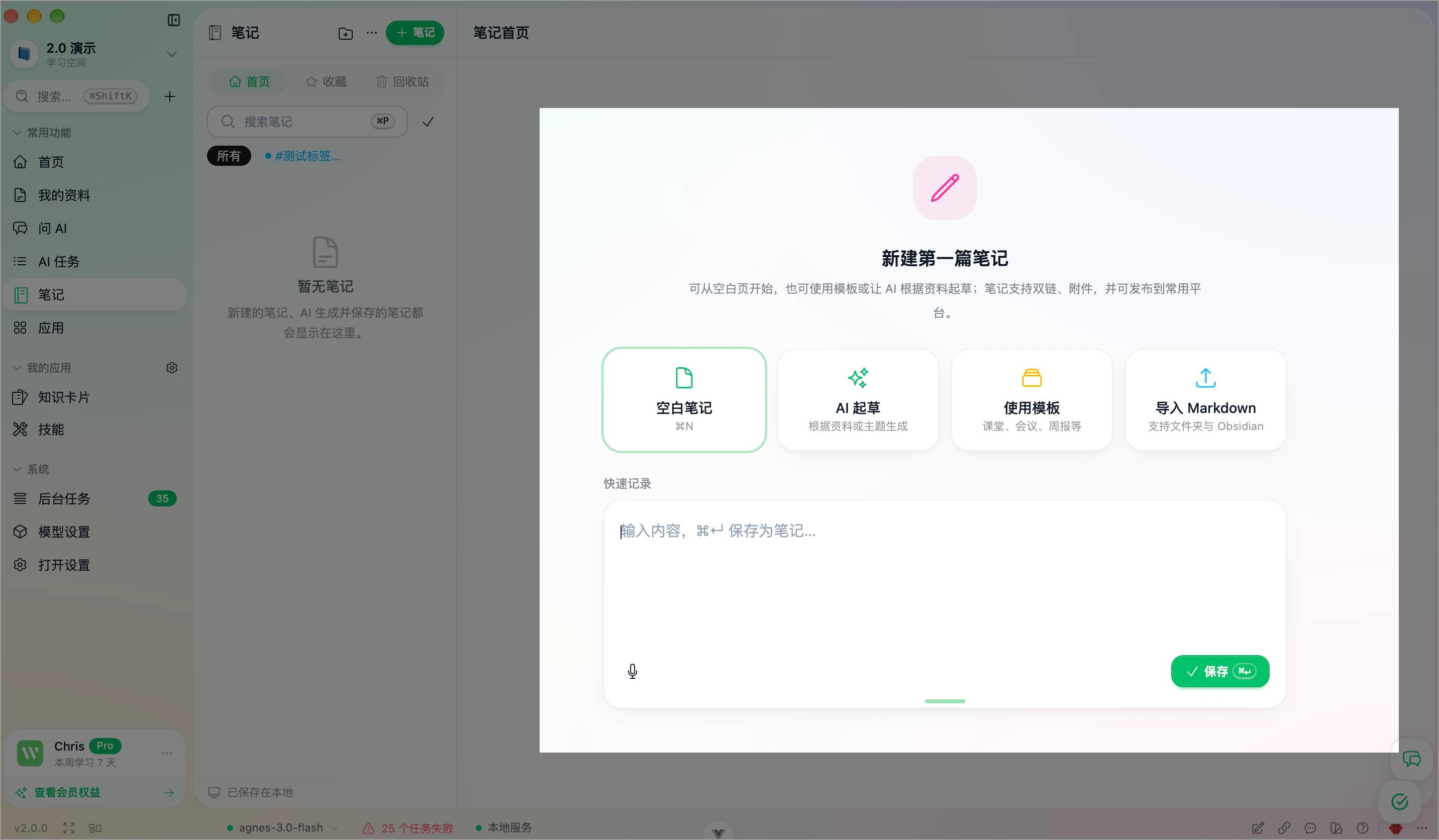
You can also choose New → Quick note in the sidebar, or create a note from the notes page.
While writing:
- Type
[[in the body to link another note. The Links panel on the right lists existing bi-directional links, and titles mentioned in the text that are not linked yet. - When you finish, Next on the right can make review cards, make an infographic, add the note to My Materials, add it to a topic, or publish it.
Edit with AI
Select a passage, or run AI on the whole note. Actions include Ask AI, expand, simplify, polish, continue, change tone, and translate. Custom actions are under Settings → Prompts. In the menu they appear as My actions.
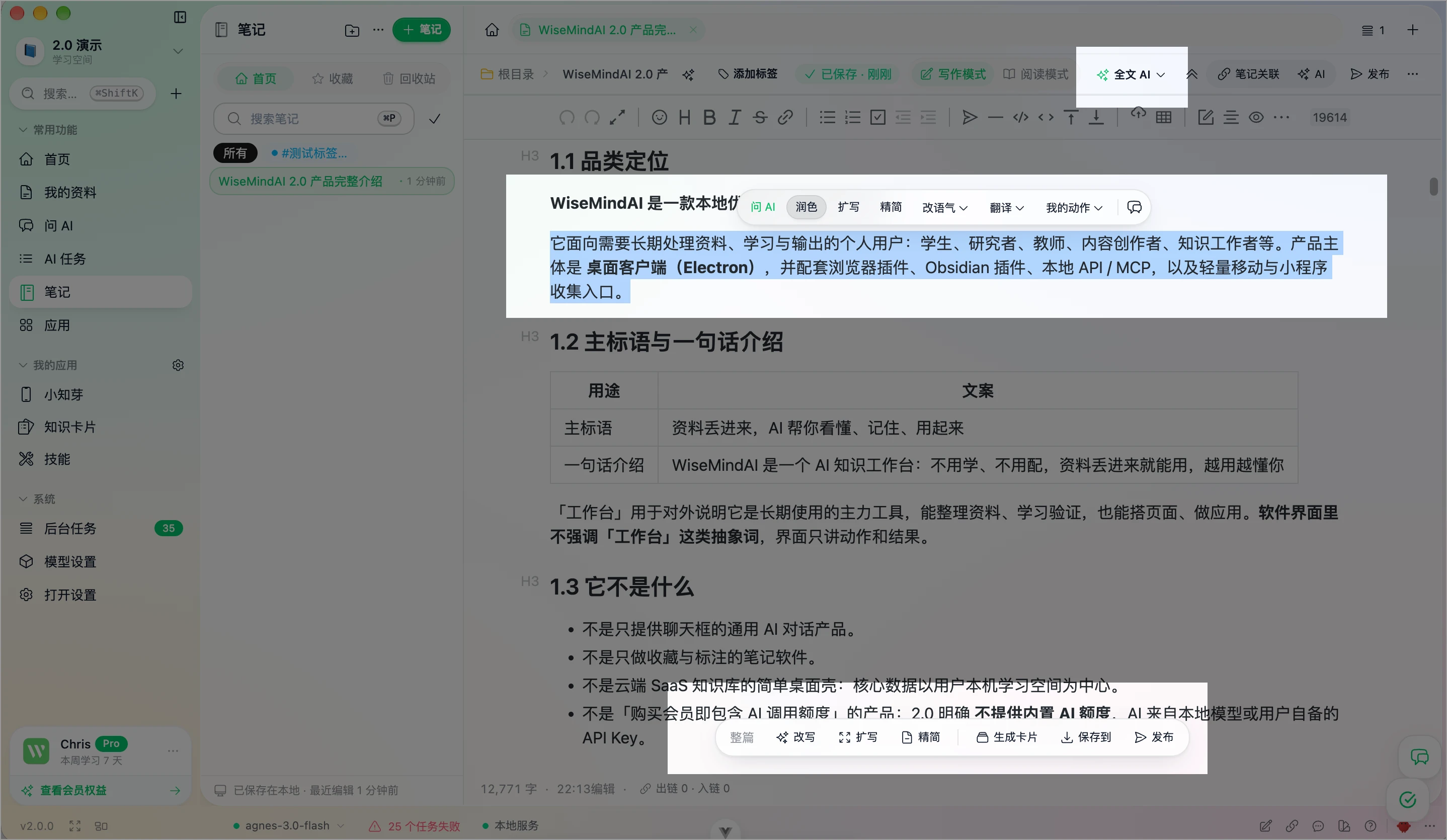
The order is: preview first, then replace the selection, insert below, or replace the whole note. After a replace, undo with ⌘Z or Ctrl+Z. Without a selection, replace-selection is not available.
You can also summarize several notes at once into highlights, a weekly report, or to-dos.
AI Assistant
While editing a note, open AI Assistant from the toolbar. It uses the current note as context, so you can keep asking or giving instructions about the body text. You can also pin it under Settings → Notes so it stays in the editing side panel.
Main capabilities:
- Rewrite: reorganize the wording of the current note
- Expand: add detail and explanation to what you already have
- Summarize: pull out the key points of the current note
- Outline: organize the note into a structured outline
- Suggest a title: offer title candidates from the body; pick one to apply
- Illustration: generate an image from the note or a selection, then insert it into the body
- Write back into the note: insert the result at the cursor, replace the selection, or replace the whole note
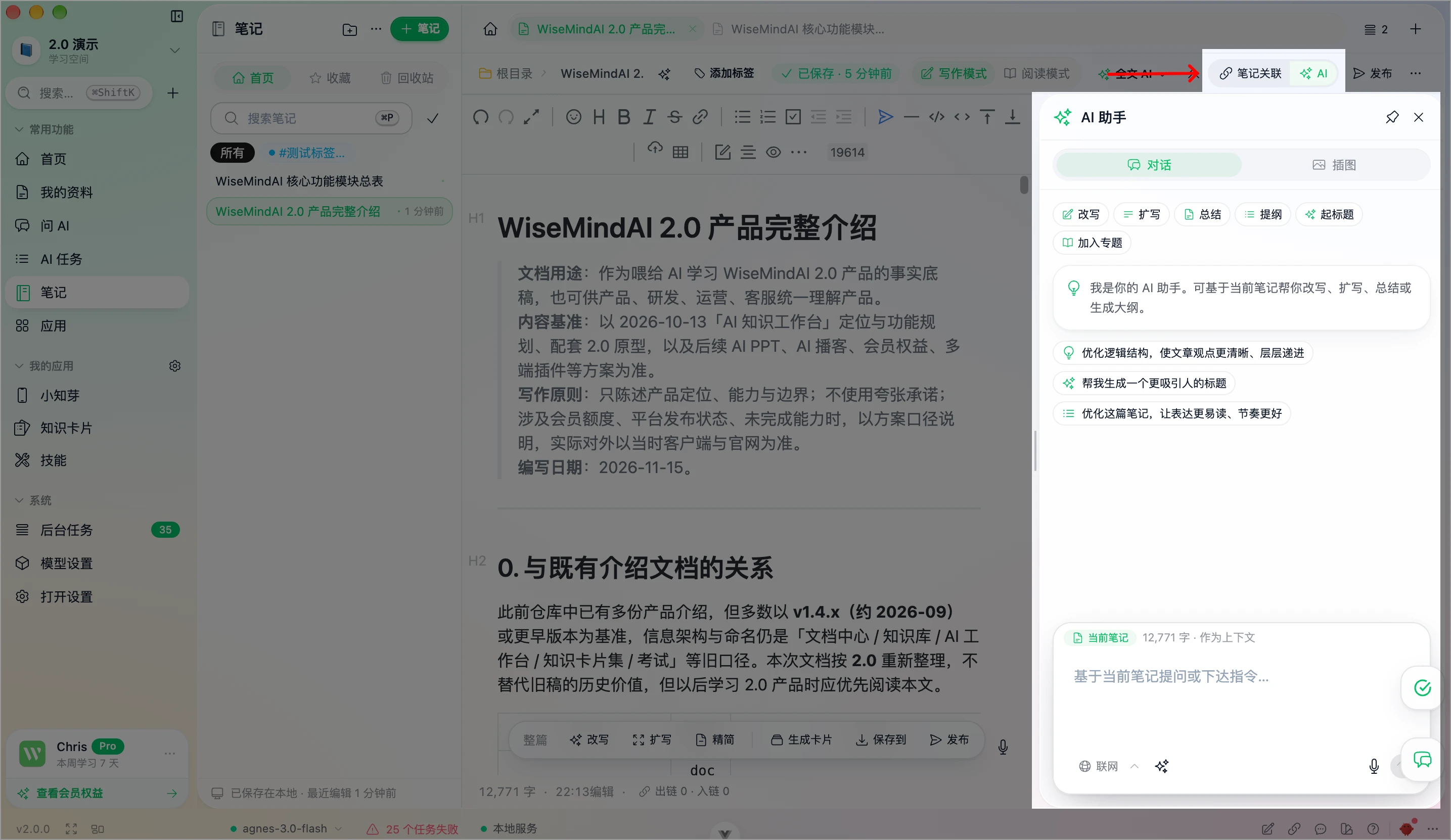
You can also type a free question or instruction in the assistant, such as adding examples, changing tone, or following up on the current note.
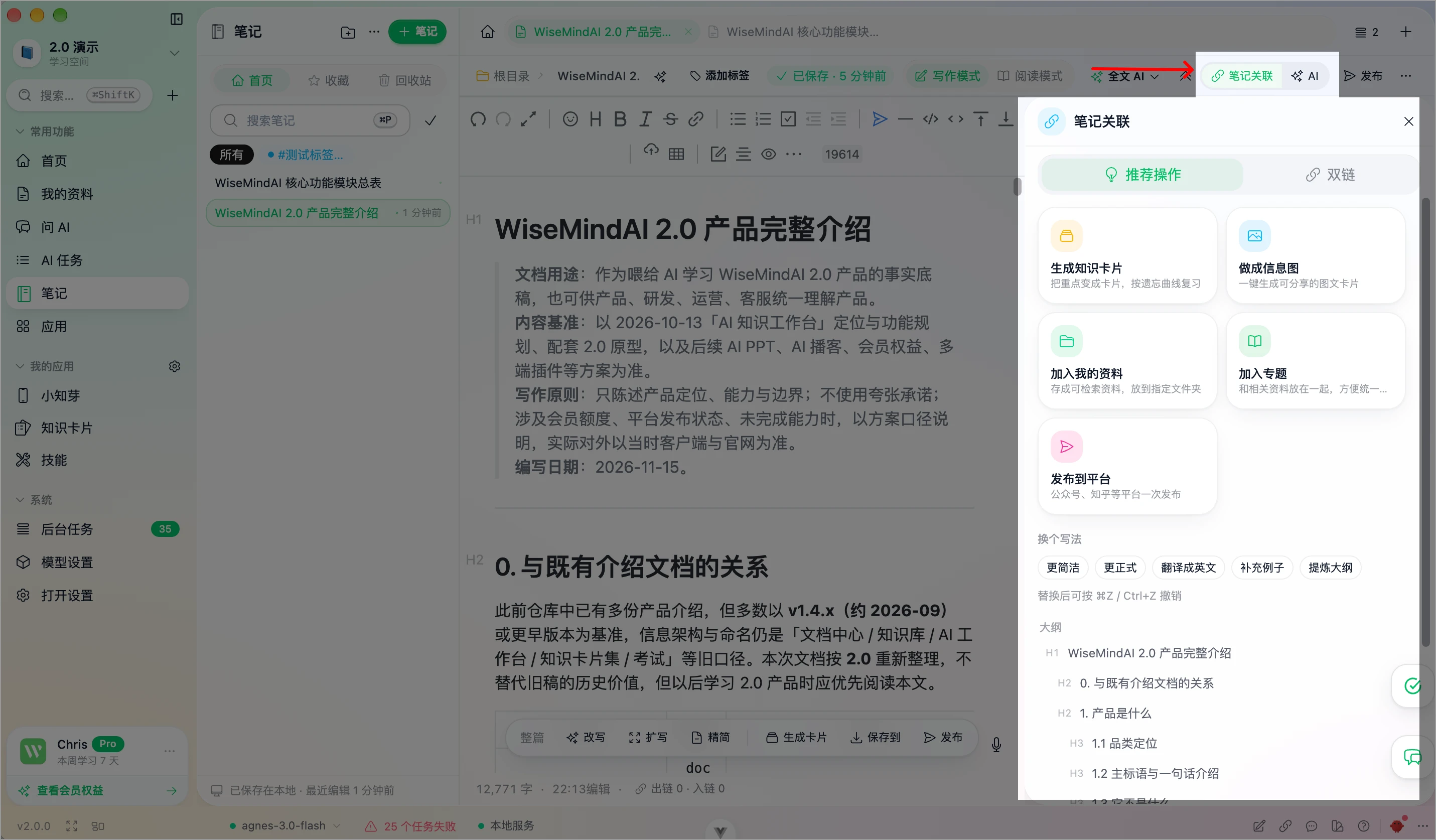
Note links
Here you can run common actions on a note—make knowledge cards, make an infographic, add to My Materials, add to a topic, and more—and you can also add bi-directional links:
Publish and sync
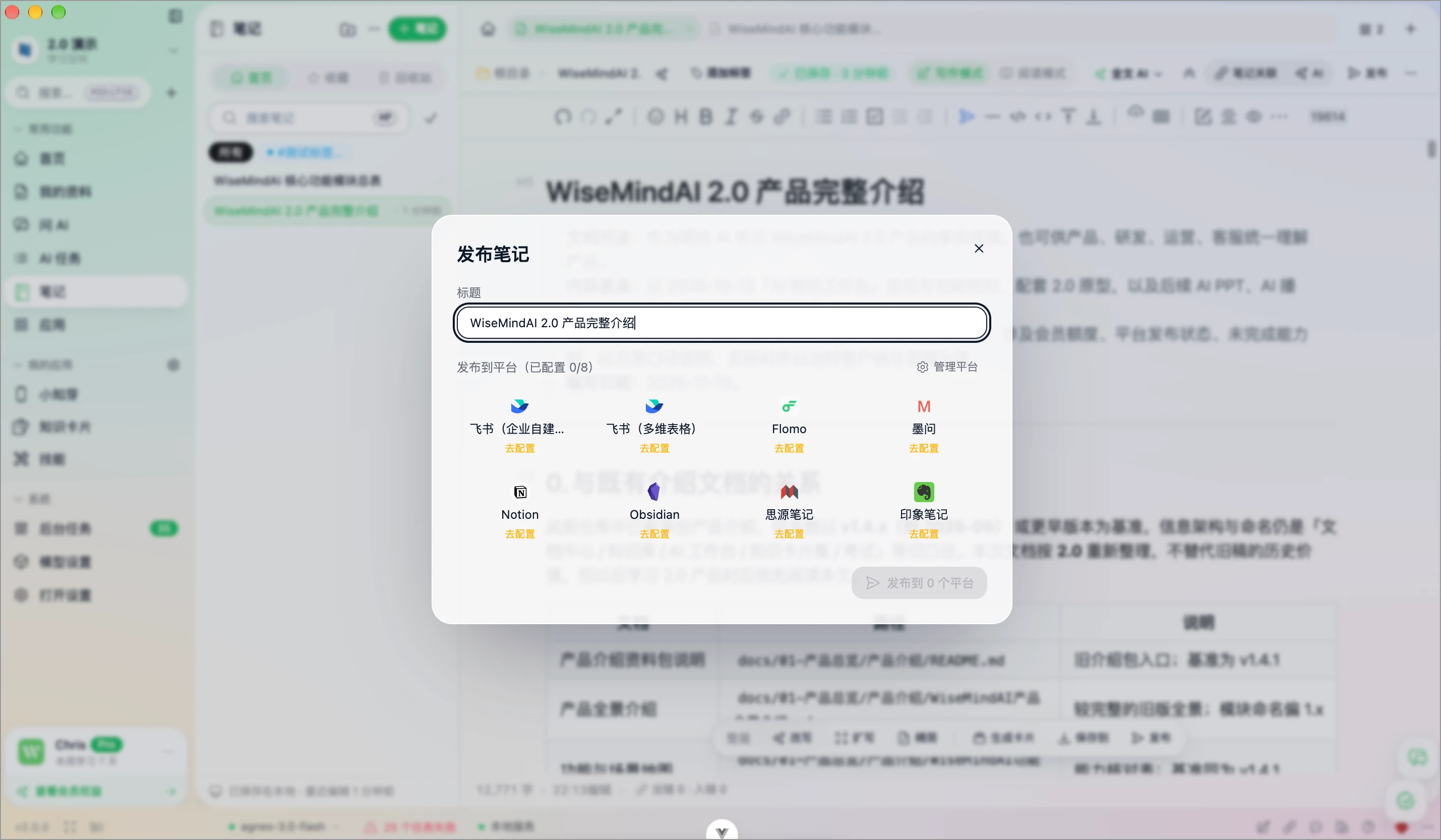
Publish note sends the current note to platforms you have configured, or adds it to a topic. A platform that is not configured prompts you to open settings. Copying to WeChat Official Account or Zhihu does not use those connectors and requires two separate pastes. See Send notes out.
Notes stay in the current learning space. Cards or quizzes made from a note stay in that space.
Related: Send notes out · Prompts and templates · My Materials