
Apps
Apps in the sidebar is the shared entry for common tools. Official capabilities such as knowledge cards, Quiz, transcription, and Whiteboard, plus apps you install or build, all open from here. Pin frequent ones under My Apps in the sidebar.
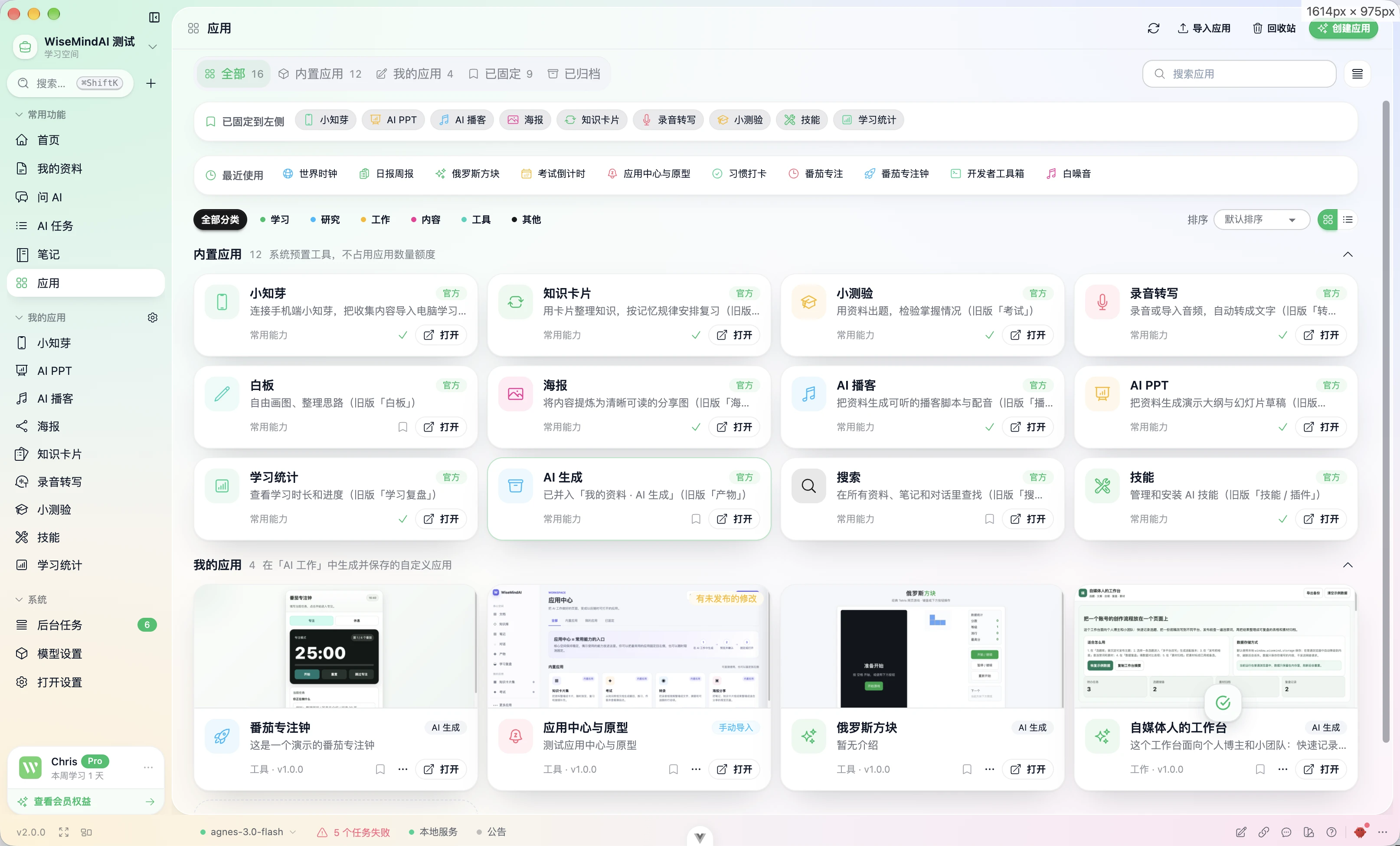
Apps turn repeated actions into small tools you can open anytime. Use official or recommended apps as they are, edit existing ones, or create your own.
Open an app
- Open Apps in the sidebar.
- Pick an item under built-in apps, recommended apps, or My Apps.
- If you use it often, pin it to the sidebar so you do not need the app list every time.
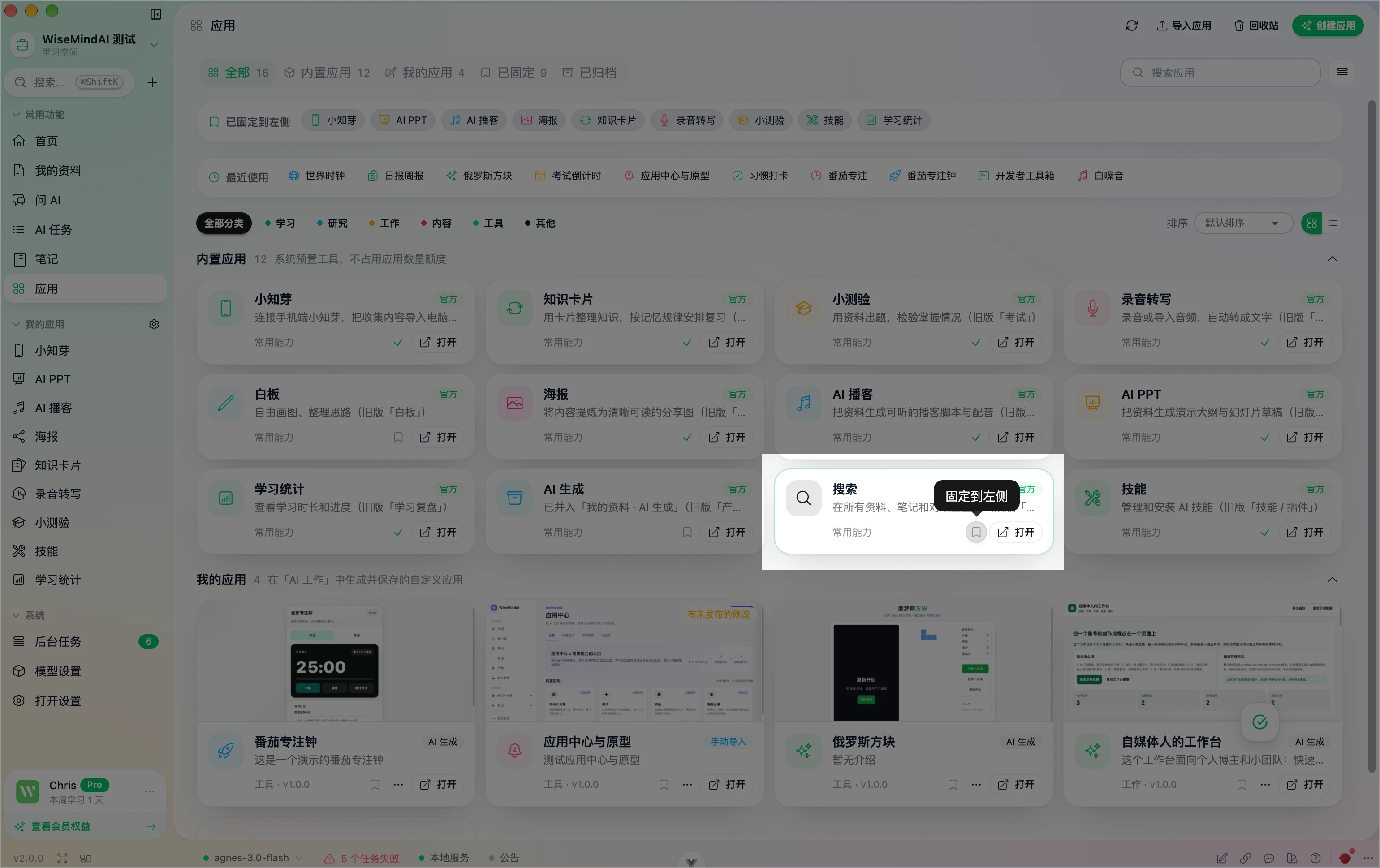
Official apps do not count against the ordinary app quota. Recommended and custom apps use a separate quota. Before installing or creating one, read the description and confirm the permissions it needs.
How to use
Use built-in apps
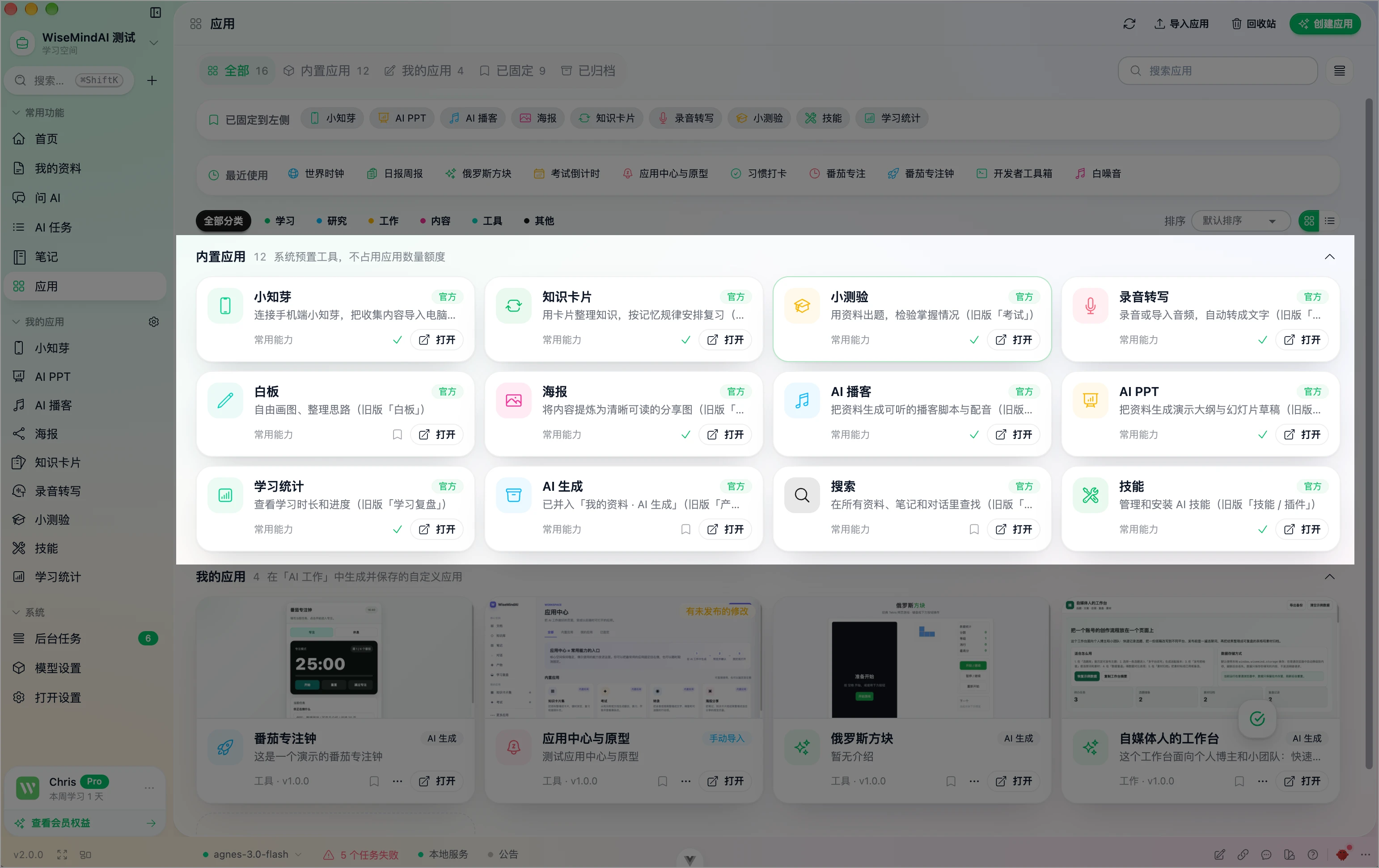
After opening Apps, browse by category: All, Official, Recommended, My Apps, Pinned. The list supports search and sorting. Official apps include knowledge cards, Quiz, transcription, Whiteboard, Poster, AI Podcast, AI PPT, learning stats, Search, Skills, Xiaozhiya, and more. See Built-in apps.
Edit an existing app
For a custom app you already created, choose Edit and describe what to change. The system checks the change and, if it passes, saves a new version. You can restore an earlier version from the version history.
Create an app
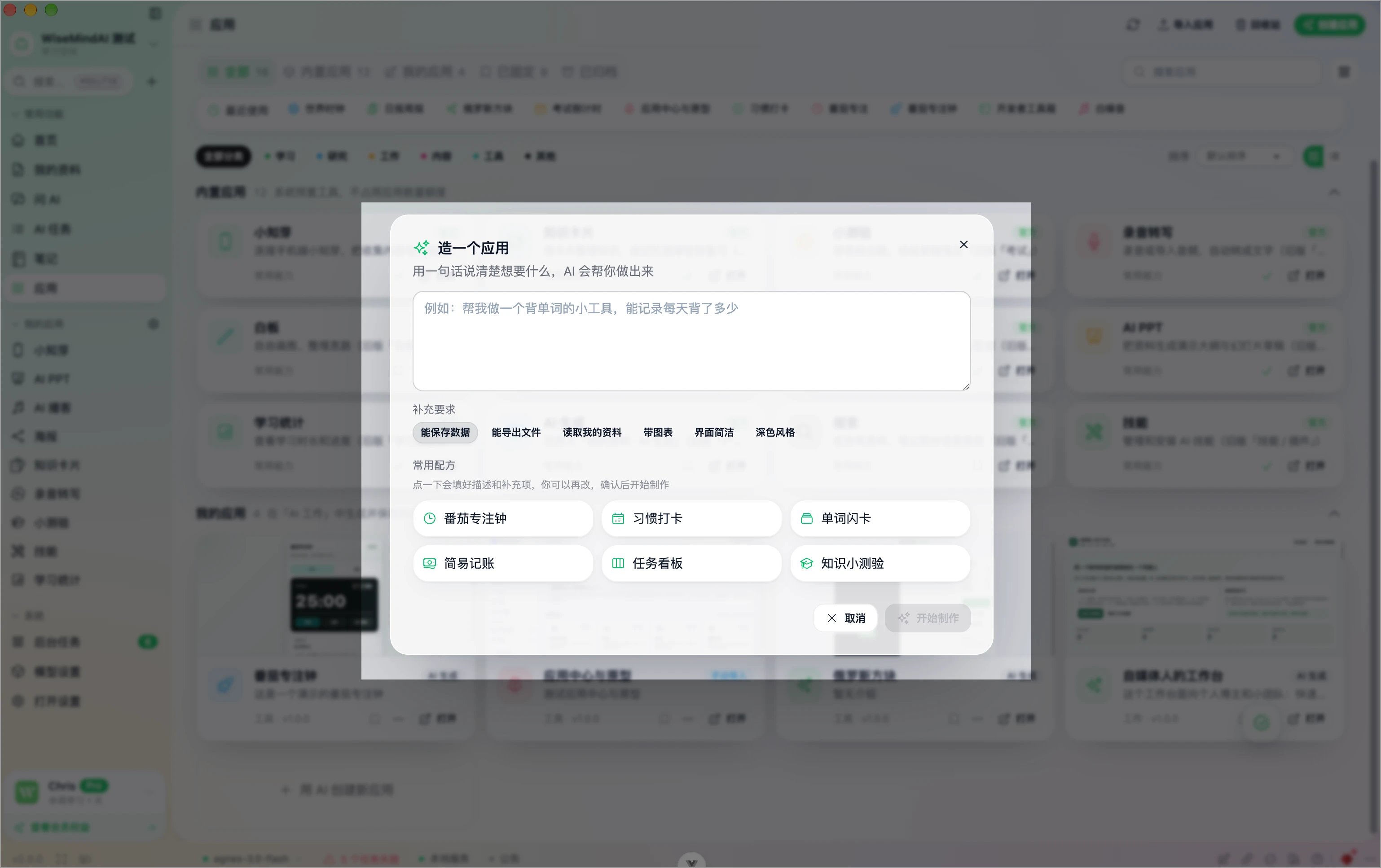
If nothing in the list fits, choose Create app in Apps:
- Describe the purpose in one sentence, for example “a vocabulary tool that tracks how many words I review each day”.
- Optionally enable extras: save data, export files, read materials, include charts, simple UI, or dark style.
- Click start. When it finishes, open it from Apps and pin it to the sidebar if you want.
You can also continue from Ask AI or AI Task results with Make an app, turning a frequent flow into a reusable tool.
Permissions and boundaries
- Reading My Materials defaults to read-only and can be scoped; the first use confirms each item.
- When online, only URLs declared by the app are allowed.
- After granting access, you can revoke permissions in the app details.
- Unused apps can move to the trash and can be restored for about 30 days.
App details usually also cover overview, version compare and restore, data and permissions, and error logs. You can duplicate, export an app package, or copy it to another learning space.
Related: Built-in apps · AI Task · Ask AI · My Materials