
Paper Search
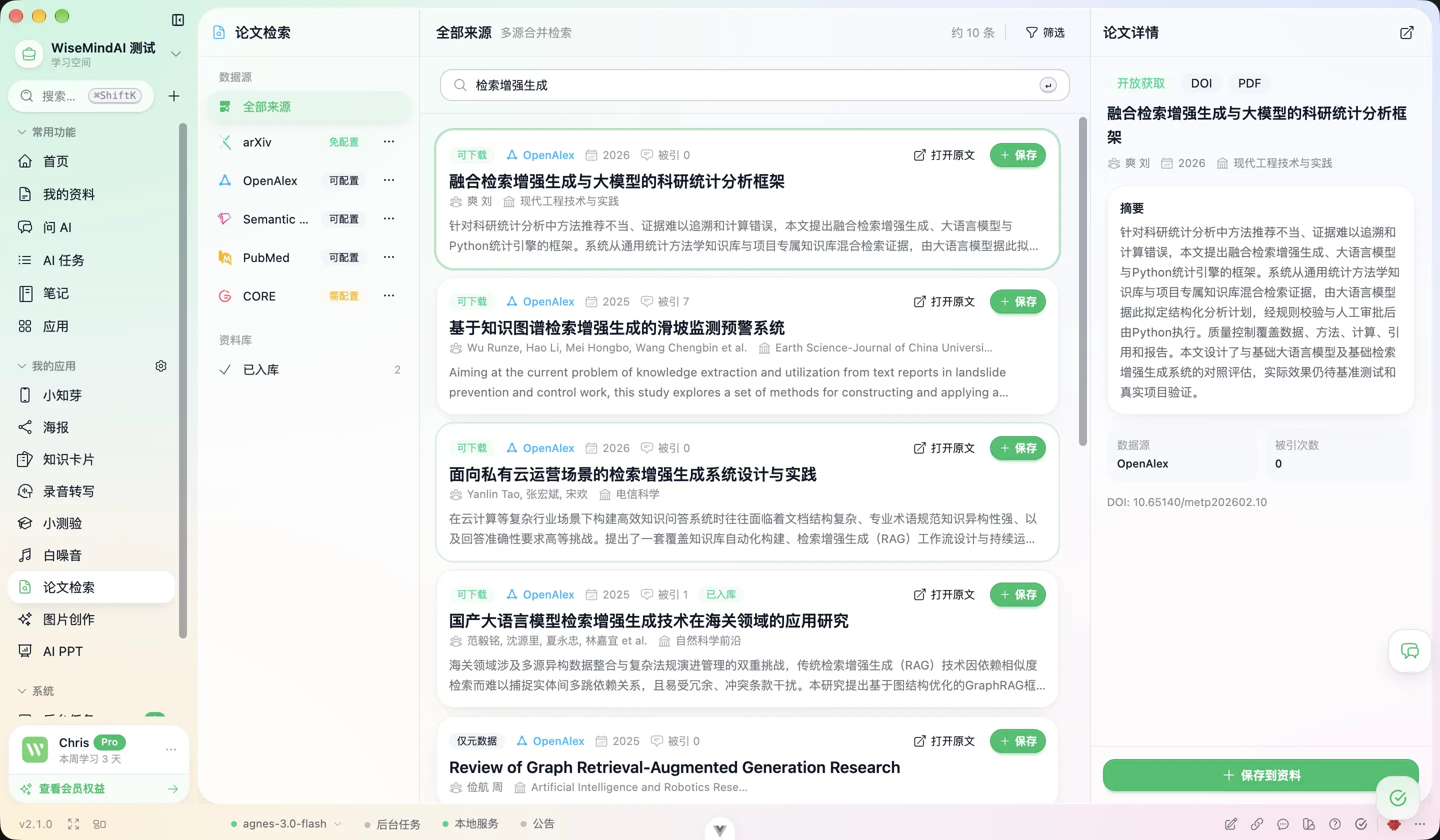
Paper Search finds papers across multiple academic sources and saves the ones you need to My Materials. Open it from Apps, or pin it to the sidebar.
It covers finding and importing papers. For summarizing, asking about, and reviewing PDFs already in your library, see Paper reading and review.
Search and save
- Open Apps → Paper Search.
- Choose a data source. Search all sources, or one source only.
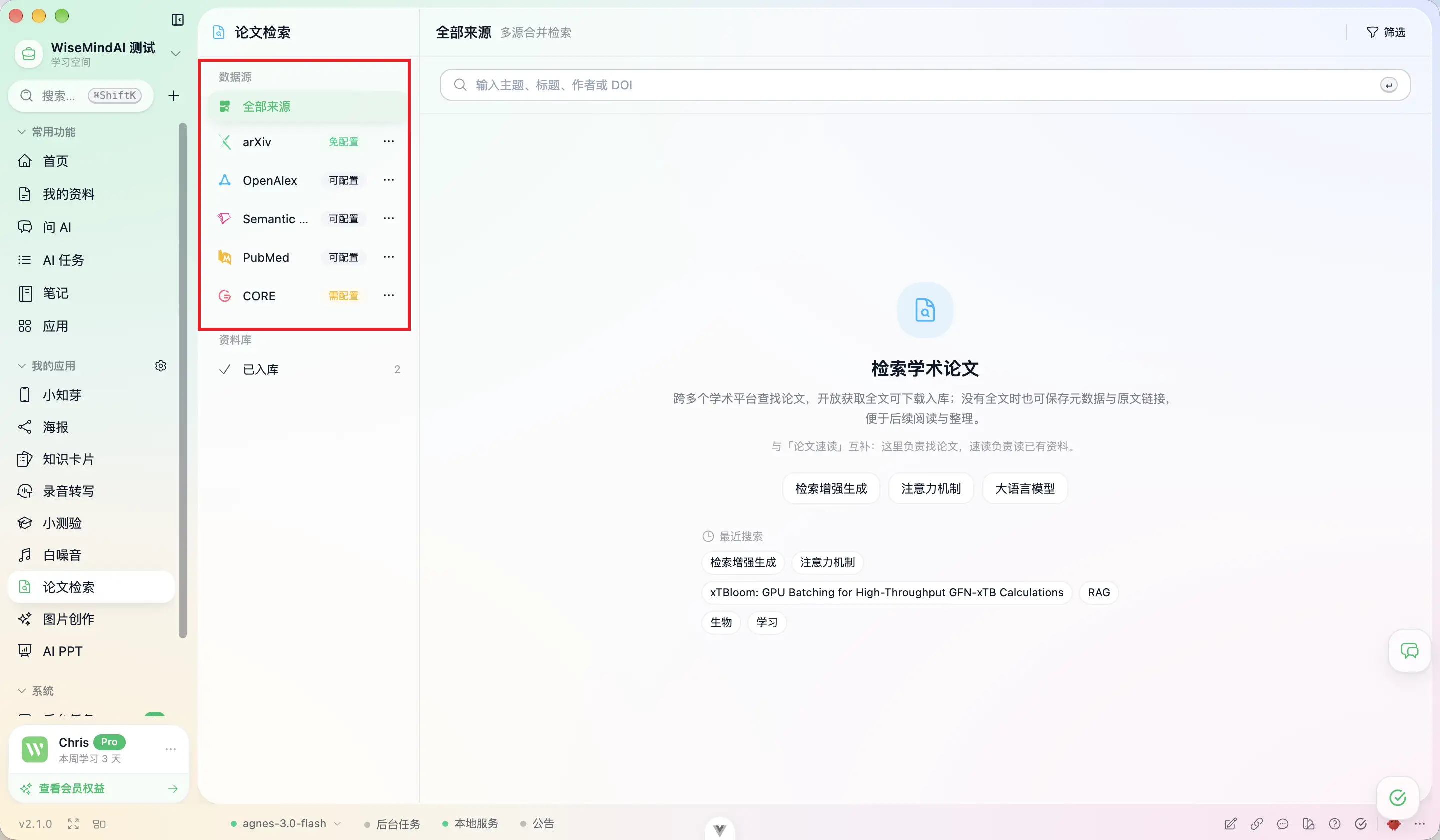
- Enter a topic, title, author, or DOI. Optionally filter for open access only, PDF available, and year range.
- Browse the result list. The right panel shows the abstract and details.
- Click Save to materials. You can download an open-access PDF when available, and ask AI to process the material after saving.
After a successful save, the paper appears in My Materials. The default folder name is Paper Search. If the PDF downloads successfully, that file is imported; otherwise the original link or a metadata note is saved. You can filter the library by the Paper Search source.
Sources and setup
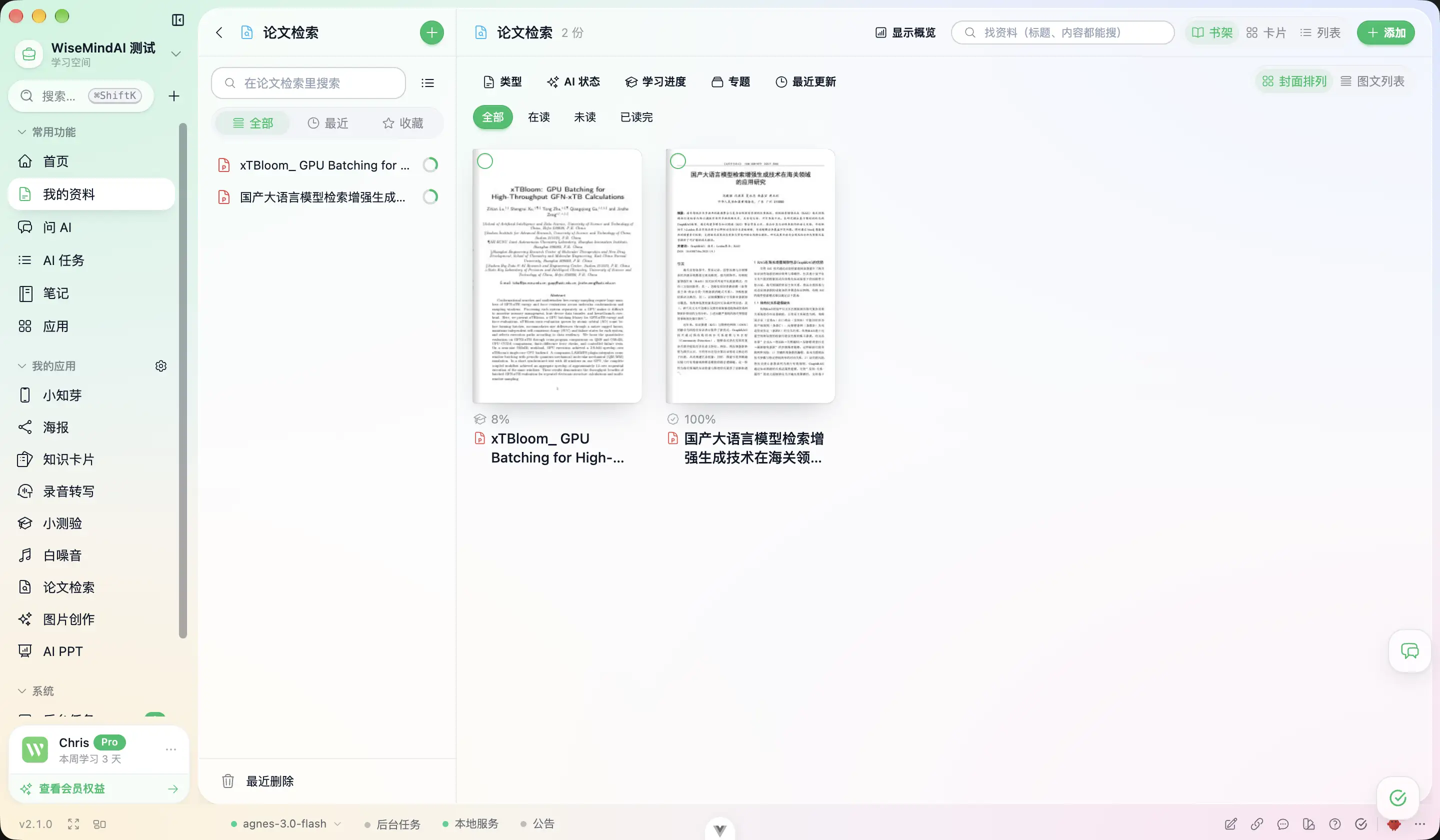
On the page you can edit API settings for each source. Keys and contact emails stay on this device only.
- arXiv: works without setup.
- OpenAlex / Semantic Scholar / PubMed: configure as needed. PubMed also accepts a contact email.
- CORE: requires an API Key before use.
- All sources: combines arXiv and OpenAlex. If Semantic Scholar is configured, it is included too.
Some sources enforce rate limits, especially arXiv. Adding a Key for optional sources usually increases available quota.
Notes
- A search hit does not always mean free full text is available. Use the downloadable markers in results to tell whether a PDF exists.
- Saving to materials counts toward the My Materials quota.
- You can also open Paper Search from the empty state and source filters in My Materials.
Related: Built-in apps · My Materials · Paper reading and review