
WiseMindAI v1.4.0 Release Notes
The central change in v1.4.0 is the move from having AI “answer a question” to having it “complete a task.” The new AI Work mode brings projects, Skills, Scheduled Tasks, execution progress, and deliverable management into one workflow. This release also expands common workflows with Global Quick Screenshot, a Personalized Home, exam paper import, long audio and video transcription, and Obsidian improvements.
TODO: Add the v1.4.0 release cover image.
1. AI Work: from one request to a complete deliverable
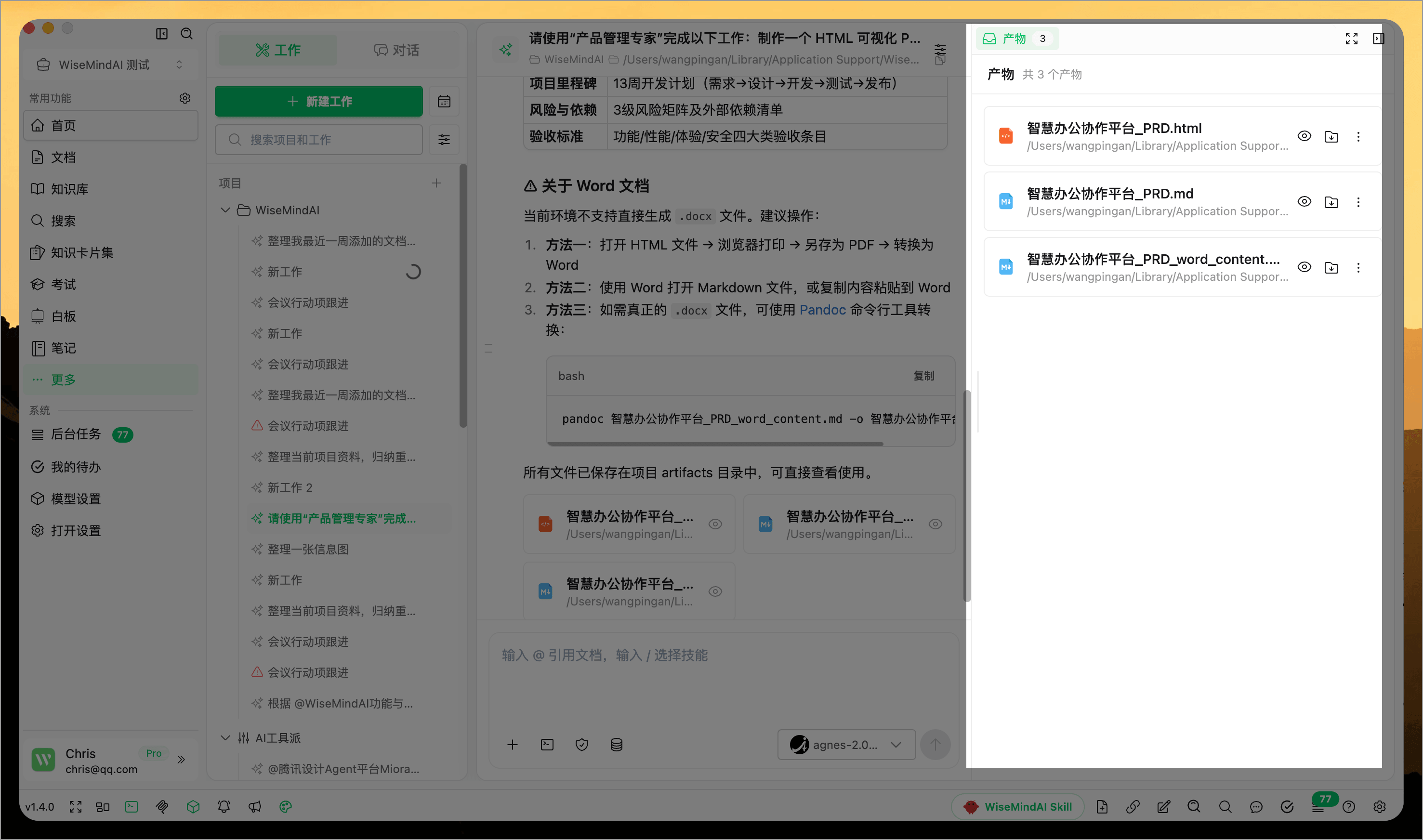
The AI assistant now includes a Work mode. Describe a goal and add your materials, and WiseMindAI will plan the steps, read the content, execute the task, check the results, and deliver documents, spreadsheets, or images.
AI Work also includes:
- Projects for managing multiple tasks, shared materials, default models, permissions, and deliverables folders;
- The ability to add more requests while AI is working, then edit, delete, or prioritize pending items;
- A deliverables sidebar for previewing, exporting, revising, and restoring earlier versions;
- A Skills Center for reusing methods or importing, creating, and testing your own Skills;
- Scheduled Tasks that run on a specific date, every day, or every week;
- Recovery that preserves completed results and lets you continue, retry, switch models, or skip a step after an interruption.
Before execution starts, WiseMindAI shows the estimated steps, time, and cost. Actions such as writing files, opening deliverables, and accessing the internet require confirmation according to your permission settings.
Read the complete AI Work guide →
2. Global Quick Screenshot
Press a shortcut in any app to select an area of the screen, then annotate it with a pen, arrow, rectangle, text, or mosaic.
Save the screenshot as a document, add it to a Knowledge Base, append it to a Note, or copy it directly to the clipboard. Settings also let you change the shortcut, default save location, filename prefix, and copy-after-save behavior. Double-clicking the desktop pet can also launch a quick screenshot.
Read the System Shortcuts guide →
TODO: Add screenshots of quick capture, annotation tools, and save destinations.
3. Personalized Home
During first-time setup, WiseMindAI recommends Home content based on your usage scenario, role, and main concerns.
You can show, hide, and reorder modules such as AI input, quick actions, Today's Focus, recent Documents, recent Knowledge Bases, recent Notes, tasks, learning progress, and recent deliverables. Frequently used Skills can also appear on the AI Work Home so you can start immediately.
TODO: Add screenshots of personalization setup and Home layout settings.
4. Preview and edit imported exam papers
Before importing an exam paper, preview every question, choose which ones to keep, and edit the prompt, answer, options, explanation, difficulty, and knowledge points.
You can also add questions, reorder them, restore an individual original question, or undo all changes. Exam details, incorrect answers, answer records, and score charts have also been improved.
TODO: Add screenshots of exam paper preview and question editing.
5. More reliable long media transcription and large-content loading
Long audio and video files are processed in segments, with progress saved after each segment. If the task stops, fails, or the app closes, completed transcripts and the original file are kept so processing can continue later.
Batch import, duration detection, transcription progress, stopping, failure recovery, and retranscription have also been improved. Local transcription selects a suitable installed model first. When a video format cannot be played directly, WiseMindAI prepares a playable version while preserving the original file.
Live Transcription now starts faster, and very long transcripts and many types of long lists load and scroll more smoothly.
Read the Live Transcription guide →
TODO: Add screenshots of segmented progress and interruption recovery for long media.
6. Obsidian transcription history and speaker management
The Obsidian plugin keeps the latest 30 transcriptions started from the plugin, allowing you to review transcripts and summaries directly.
After recording, you can rename speakers, merge speakers identified incorrectly, or change the speaker for a single segment. Knowledge Base sync now detects duplicates to reduce repeated imports of the same content.
Read the Obsidian Plugin guide →
TODO: Add screenshots of Obsidian transcription history and speaker management.
Other important updates
Online model list updates
The model list can update online and marks models that have been retired. AI Work shows the model actually used, and a notice remains in the same chat or task when you switch models.
Read the Model Configuration guide →
Message Outline for long conversations
AI Chat, Document Chat, Knowledge Base Chat, and image-generation conversations now include a Message Outline. Jump directly to a specific message instead of repeatedly scrolling through a long conversation.
PDF reading settings and source navigation
The PDF toolbar now includes reading settings for smoother page navigation and reading. Selecting a PDF source in an AI answer also jumps more accurately to the relevant page and text position.
Read the Document Center guide →
Knowledge Base sorting, deduplication, and import progress
Knowledge Bases can be reordered by dragging. When materials are added from Documents, folders, Obsidian, or the local API, WiseMindAI automatically checks whether the same content already exists.
Knowledge Base details now show local document sizes. When importing a Knowledge Base archive, you can see the checking, extraction, organization, creation, and material-import stages. Failures include a specific reason.
Read the AI Knowledge Base guide →
Mind maps, backups, and the desktop pet
Mind maps can now repair malformed content and undo the repair. Automatic backup avoids duplicate backups caused by app restarts, system wake events, or repeated schedule triggers. The desktop pet window and double-click action have also been improved so you can quickly open the main window, capture a screenshot, or record content.
Fixes
- Fixed scores sometimes not loading immediately after an exam and some score charts displaying incorrectly;
- Fixed progress loss, repeated processing, or an inability to continue after long-file transcription was interrupted;
- Fixed duplicate documents being created when the same material was imported from different entry points;
- Fixed some AI answer sources failing to navigate accurately to the original PDF content;
- Fixed some personalization choices not being saved after first-time setup;
- Fixed automatic backup creating duplicate copies after restarts, wake events, or repeated triggers;
- Fixed application builds failing in some Windows environments;
- Fixed Obsidian speaker settings not being saved correctly and some connection states becoming inconsistent.
Update recommendation
When using AI Work for the first time, start with a clear goal and a small set of materials, and keep Confirm every time enabled. Before using important deliverables, review the original materials, cited sources, and final content.