
Browser extension: save and selection
Extension 2.0 writes content into desktop My Materials by default. On first use, focus on completing a save. Advanced organization options stay collapsed to keep getting started simple.
One-click save into My Materials
Save types include body, link, selection, PDF, region screenshot, full-page screenshot, and tab-audio transcription.
- Open the page to save, then click the WiseMindAI toolbar icon.
- Confirm the title and body preview; edit them if needed.
- Choose a save mode. Optionally join a topic, add tags, or enable after-save actions (let AI understand, generate a summary, generate review cards, open in the desktop app).
- Click Save.
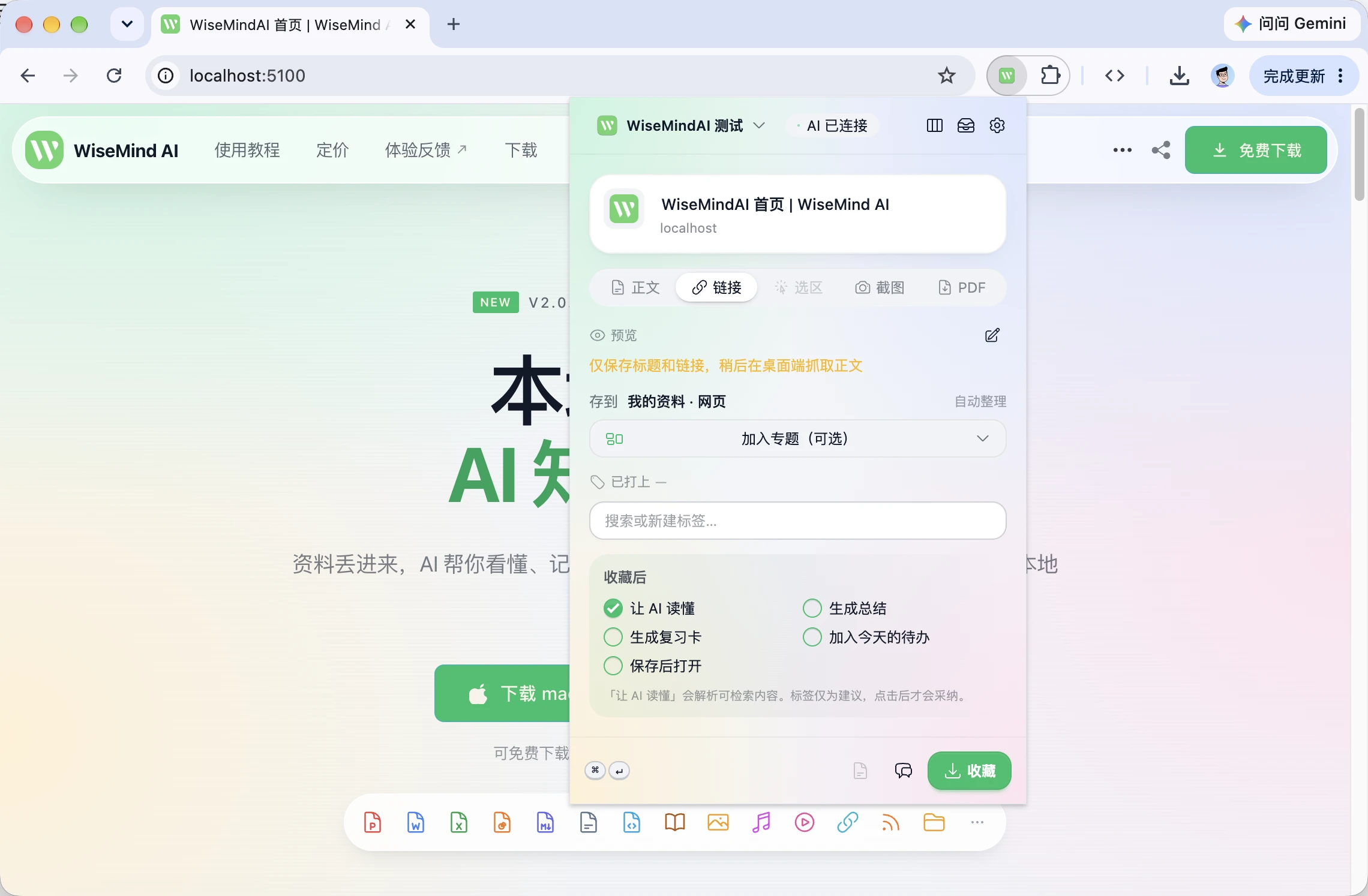
On first use, click Save directly and organize later in the desktop app.
Save modes
| Mode | Description |
|---|---|
| Body | Extract title and body, and save as a web material |
| Link | Save only title and URL; fetch the body later |
| Selection | Save text already selected on the page |
| Screenshot | Region capture; full-page capture is also available |
| When the current page is a PDF, download and import it |
If body extraction is poor, switch to link only, pick content blocks, or capture the full page.
Duplicate saves and follow-ups
Duplicate-save detection is supported. If you save the same URL again, you can update the existing record, open the existing item, save another copy, or undo this save.
After a successful save you can continue with summary, make cards, or open the existing material, and you can undo briefly.
When offline or not yet paired, content can enter a local queue first and write after connection or pairing succeeds.
Selection toolbar
After you select text on the page, you can:
- Mark / highlight
- Take a note
- Ask AI
- Make cards
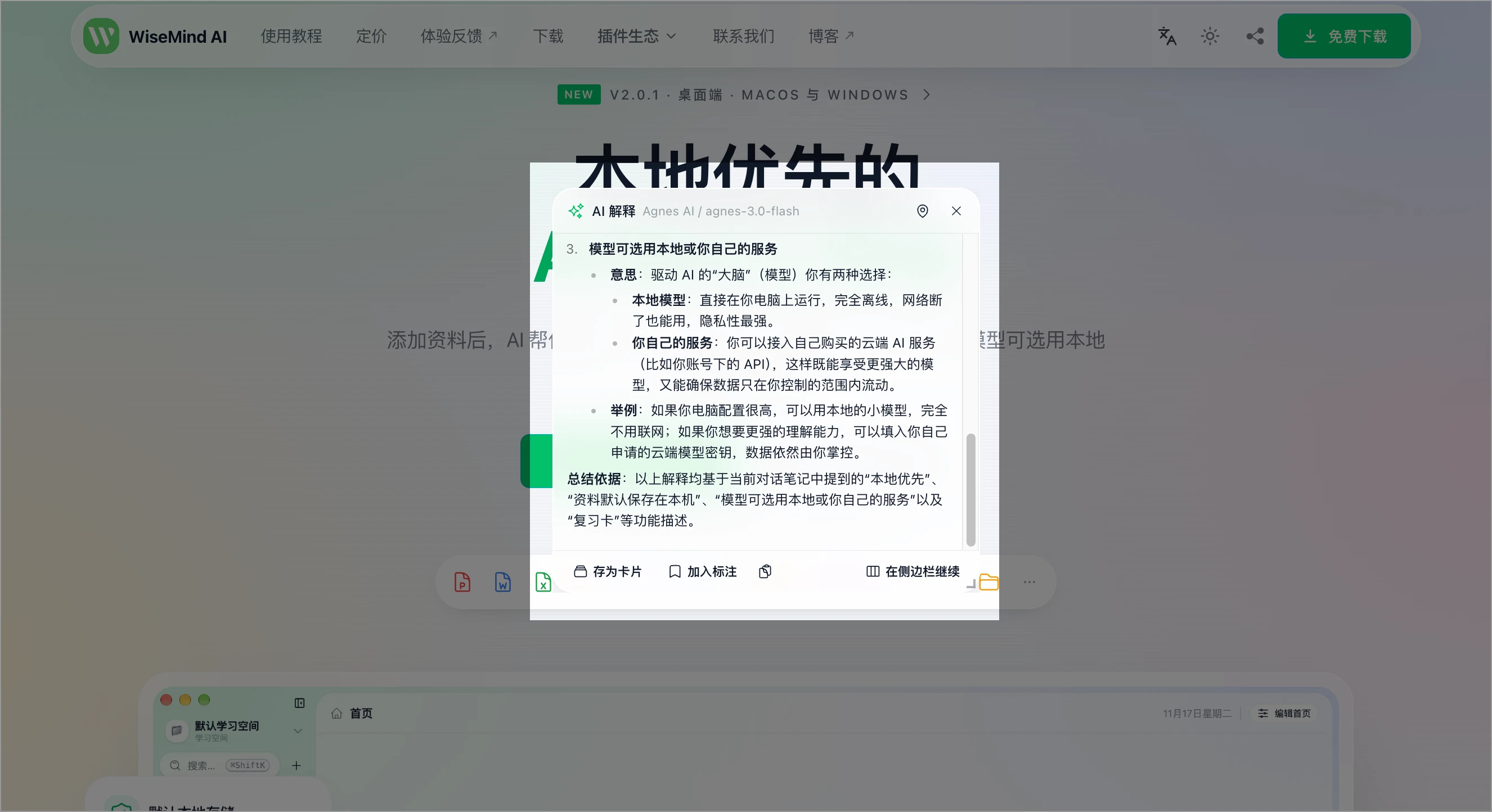
- AI explain, translate, give an example
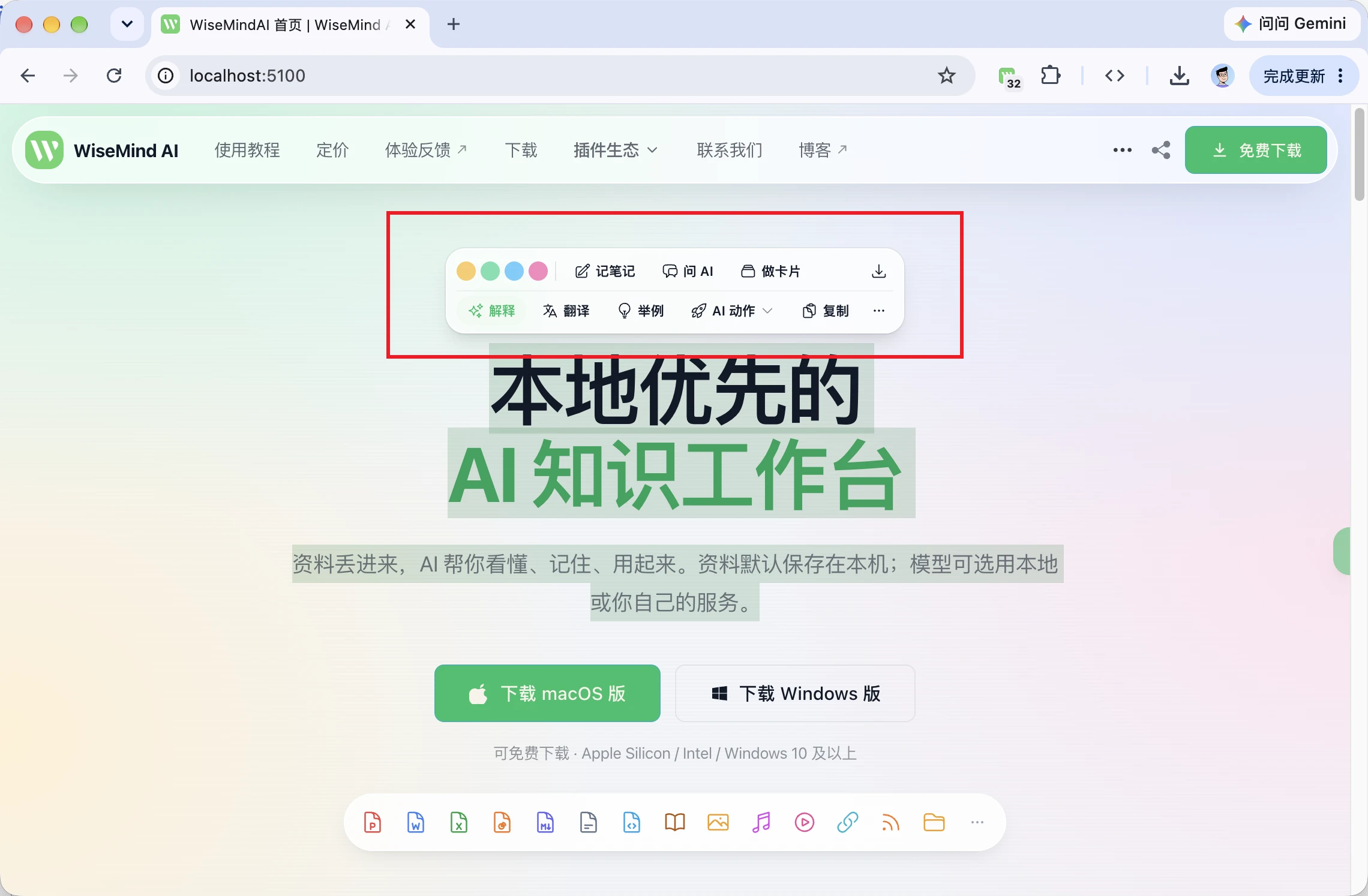
Explain and similar results appear in a floating panel, and you can continue the chat in the side panel. The reading selection toolbar is separate from the writing rewrite toolbar so they do not interfere.
Highlights stay in the current browser by default and restore by URL. Annotations can sync to the desktop app and appear under Highlights in the side panel. You can disable the selection toolbar on a site.
When you select text in a page input box, polish, rewrite, expand, shorten, and translate may appear; results can insert or replace.
Floating ball and in-page helpers
- The floating ball can dock to the edge and hide per site.
- Ordinary pages can inject selection, floating ball, and similar helpers; sensitive sites do not inject in-page UI by default.
- Summarizing sensitive body text requires confirmation for that action.
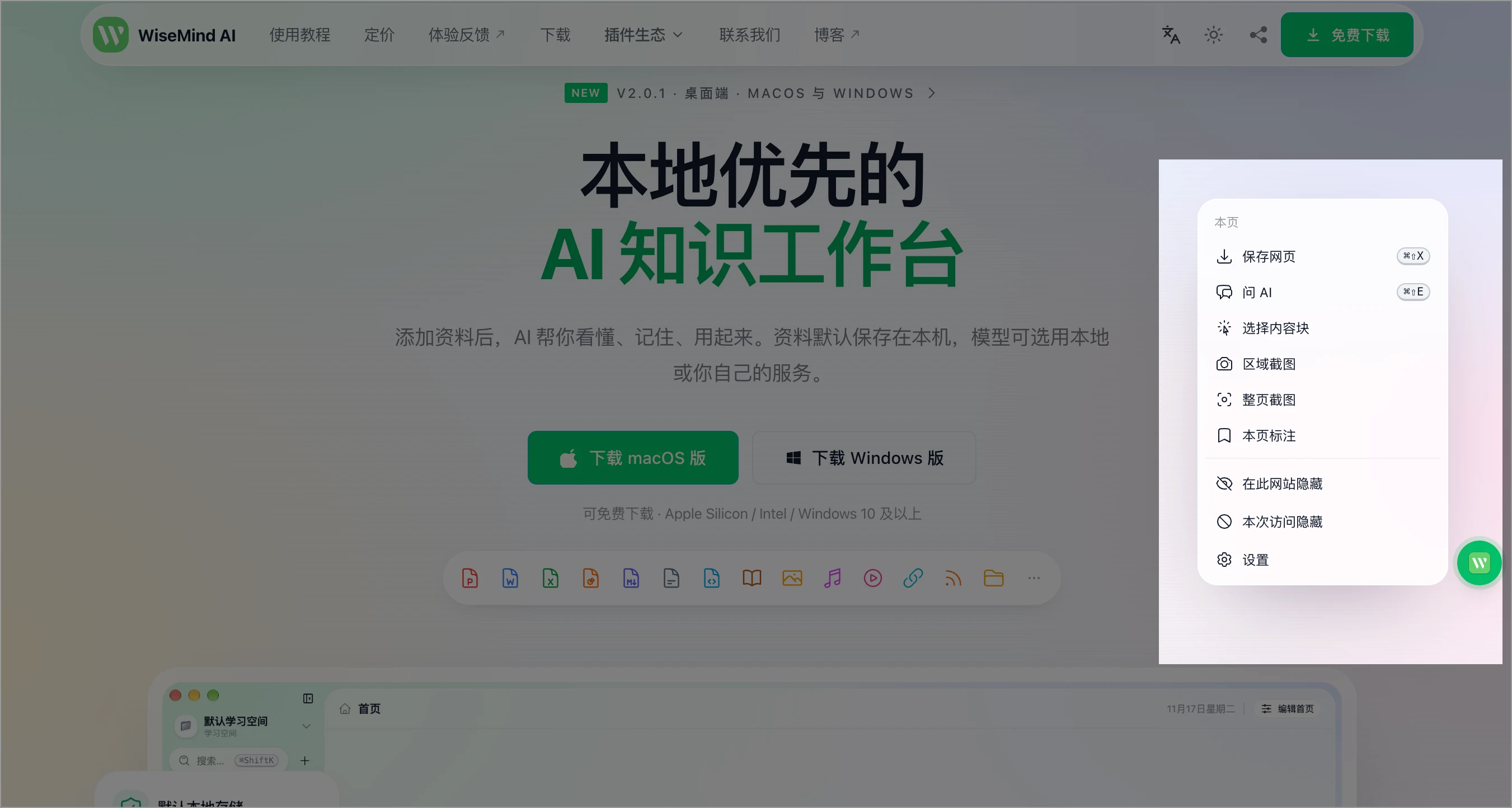
The floating ball on the right offers shortcuts. Common items: save page, Ask AI, pick content blocks, region / full-page screenshot, save as PDF, highlights on this page, batch-transfer articles.
Pick content blocks
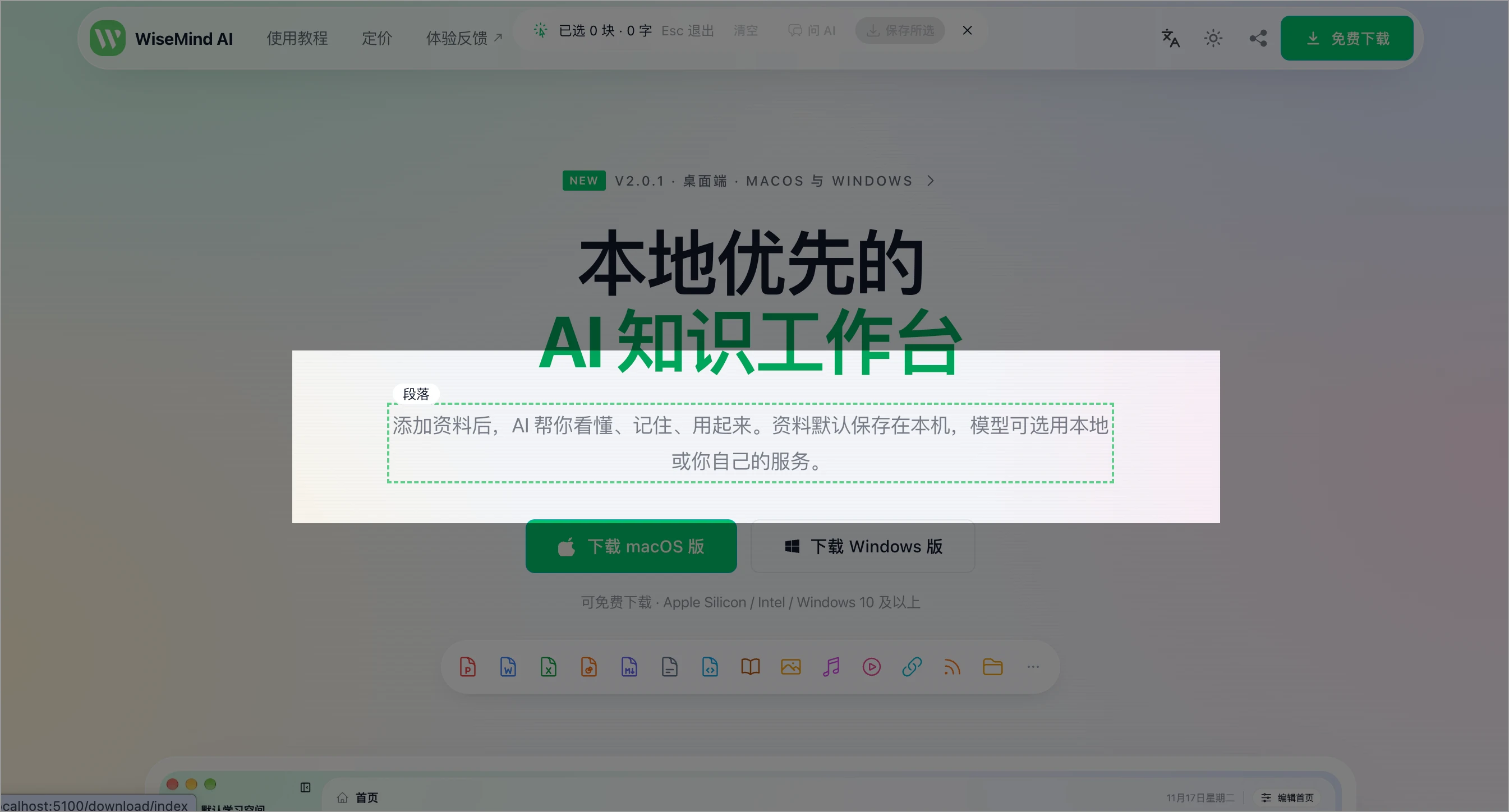
When body extraction is incomplete, click titles, paragraphs, lists, tables, code blocks, or images in order, then confirm to save or Ask AI. Press Esc to exit.
Screenshots
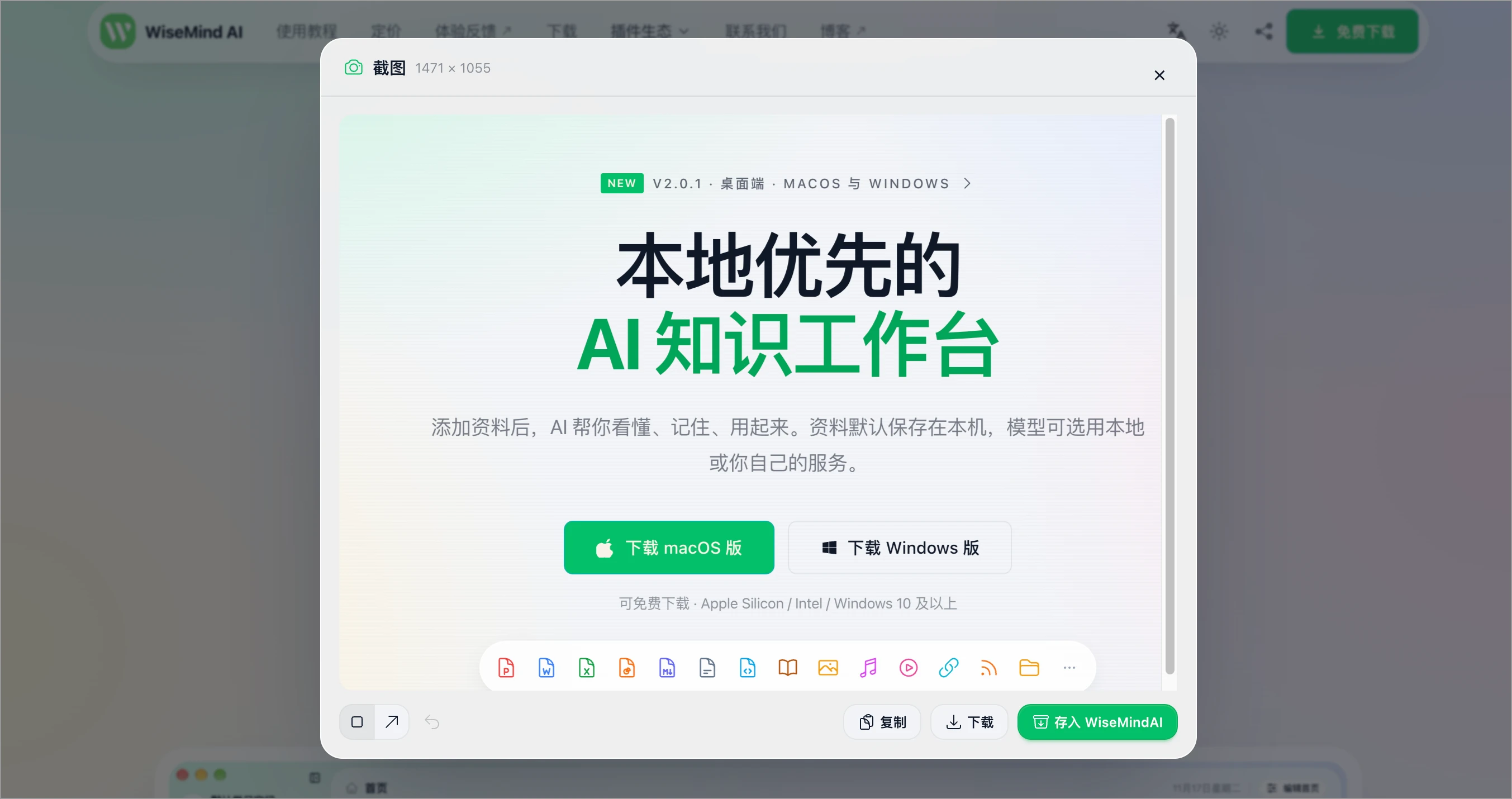
- Region screenshot: after framing, draw rectangles or arrows, then save to WiseMindAI, download, or copy.
- Full-page screenshot: auto-scrolls and stitches; do not scroll manually while it runs.
Context menu
Save page / link / image / selection, highlight, pick content blocks, screenshot, batch transfer, Ask AI, or export Markdown.
Batch-transfer articles
Useful on list pages, feed pages, or search results:
- Open a page with many article links and enter Batch-transfer articles.
- Choose a recognition recipe, select articles, set concurrency, then start.
- After closing the dialog, check progress under Recent in the side panel. You can also export a Markdown ZIP.
If generic recognition works poorly, add or download a site recipe under Article transfer in settings.
Next: Side panel