
Browser extension: side panel
The side panel offers light tools around the current page, with names kept close to the desktop app. Open it from the clipper panel, or use the Open side panel shortcut.
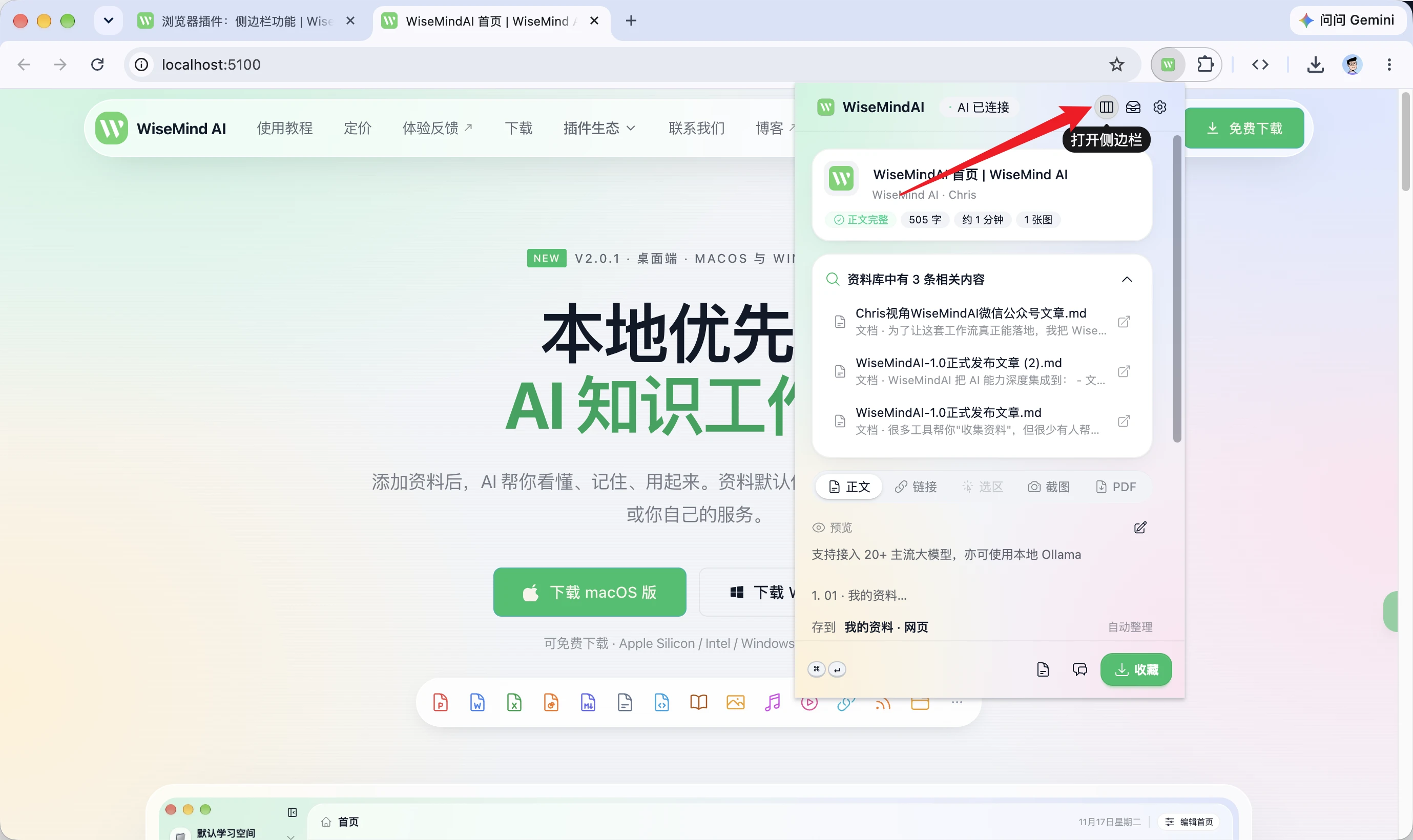
The top includes Ask AI, Summary, Highlights, and Recent, plus tool entries Review and Transcribe.
| Capability | Description |
|---|---|
| Ask AI | Ask and follow up about the current page |
| Summary | Summarize the current page |
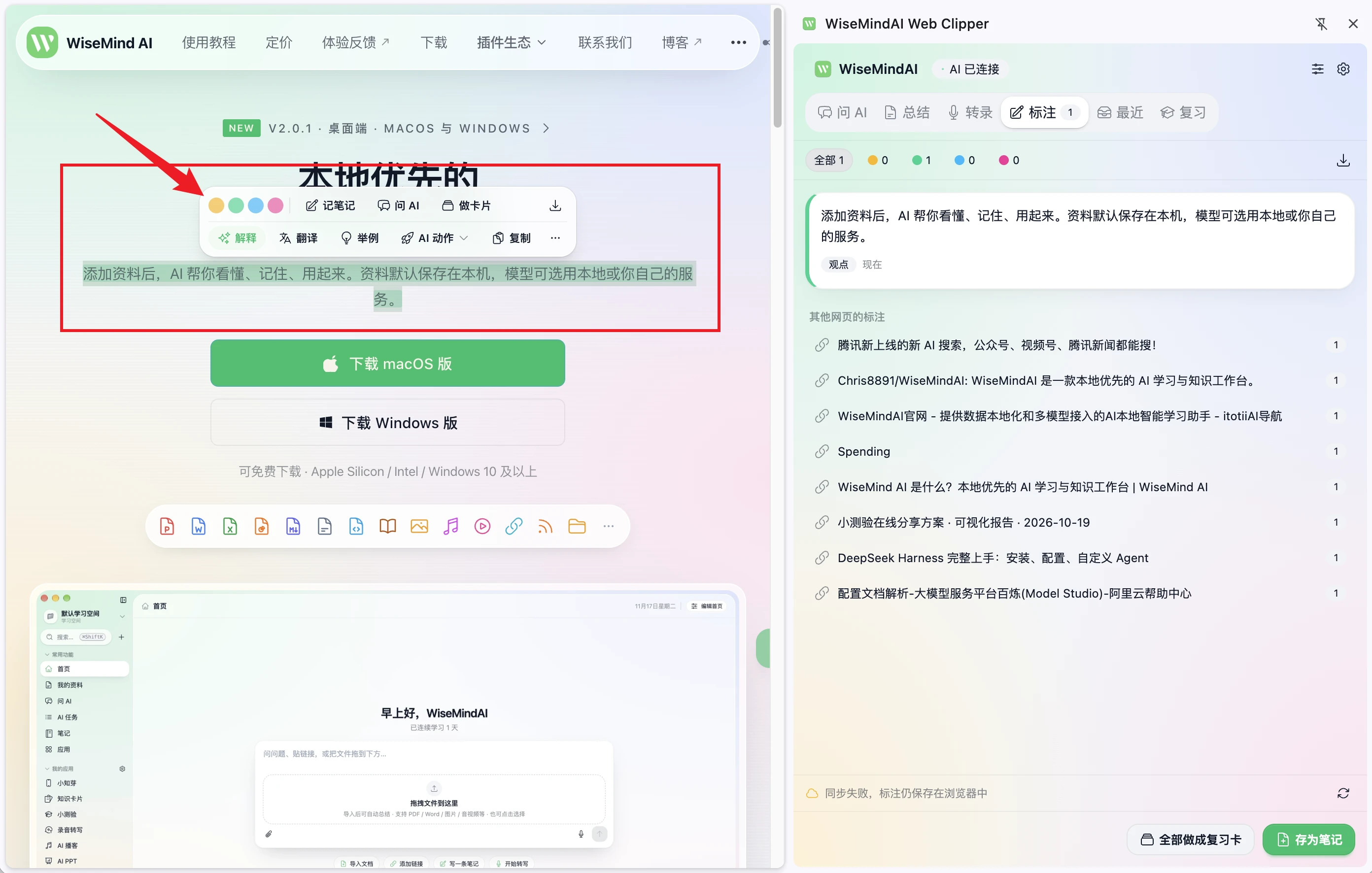
| Highlights | Manage selection highlights on this page; export or make cards later |
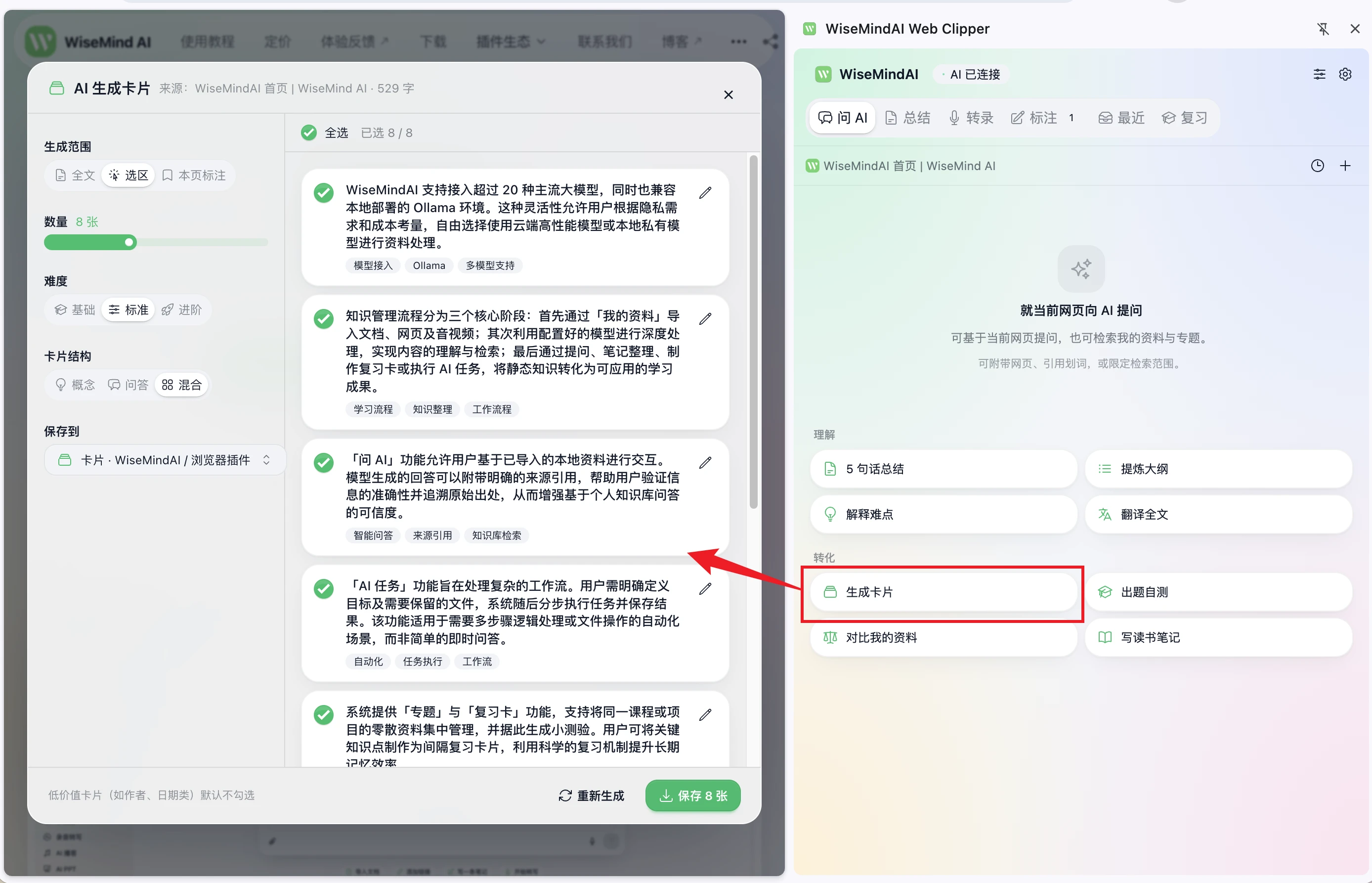
| Review | Turn chosen content into knowledge cards and check due reviews |
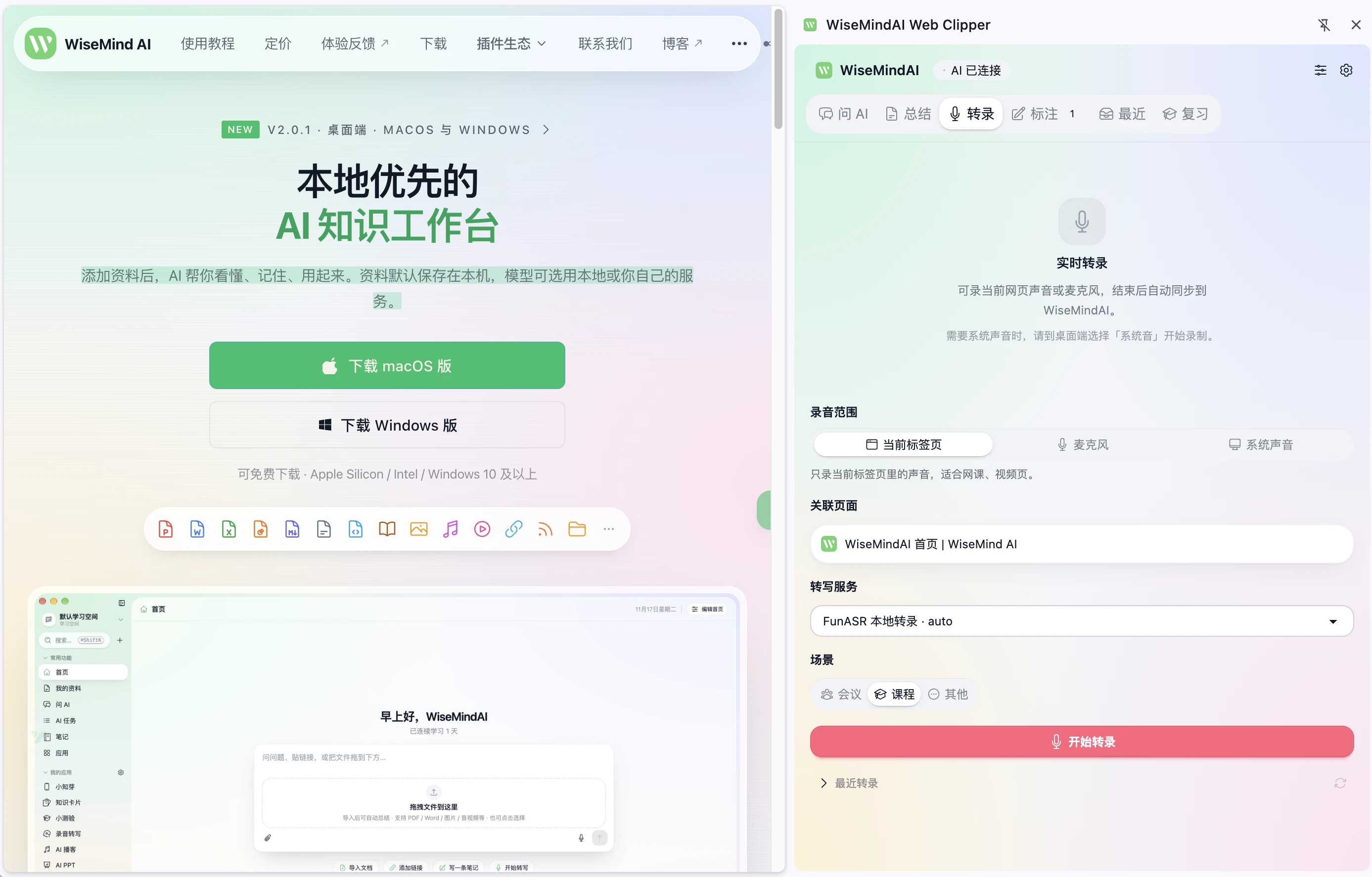
| Transcribe | Turn current-tab audio into text (started by you) |
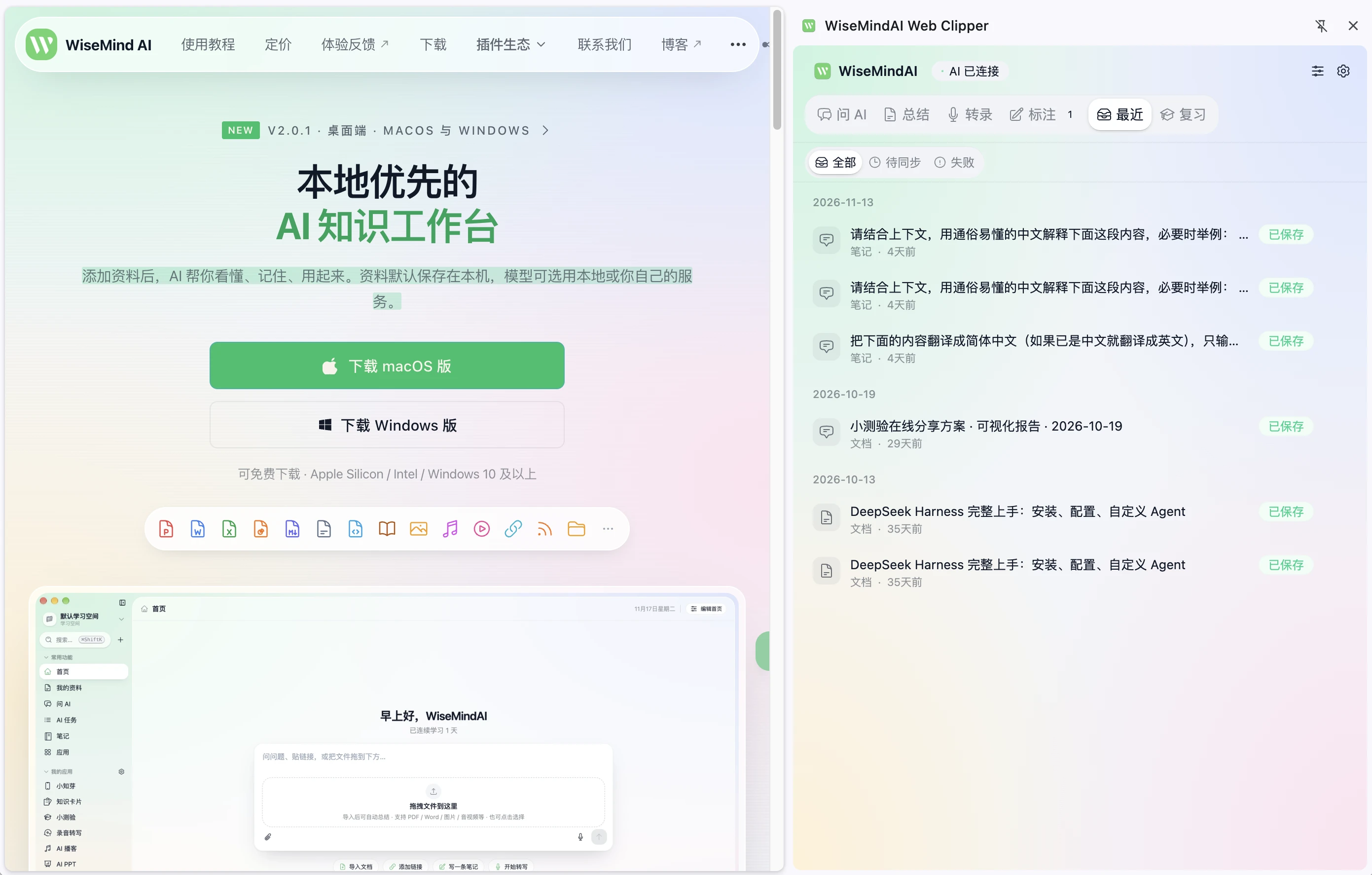
| Recent | See recent saves and actions, and return to source pages |
Side-panel chats can stay isolated per page. Switching pages shows a prompt so context does not mix across pages.
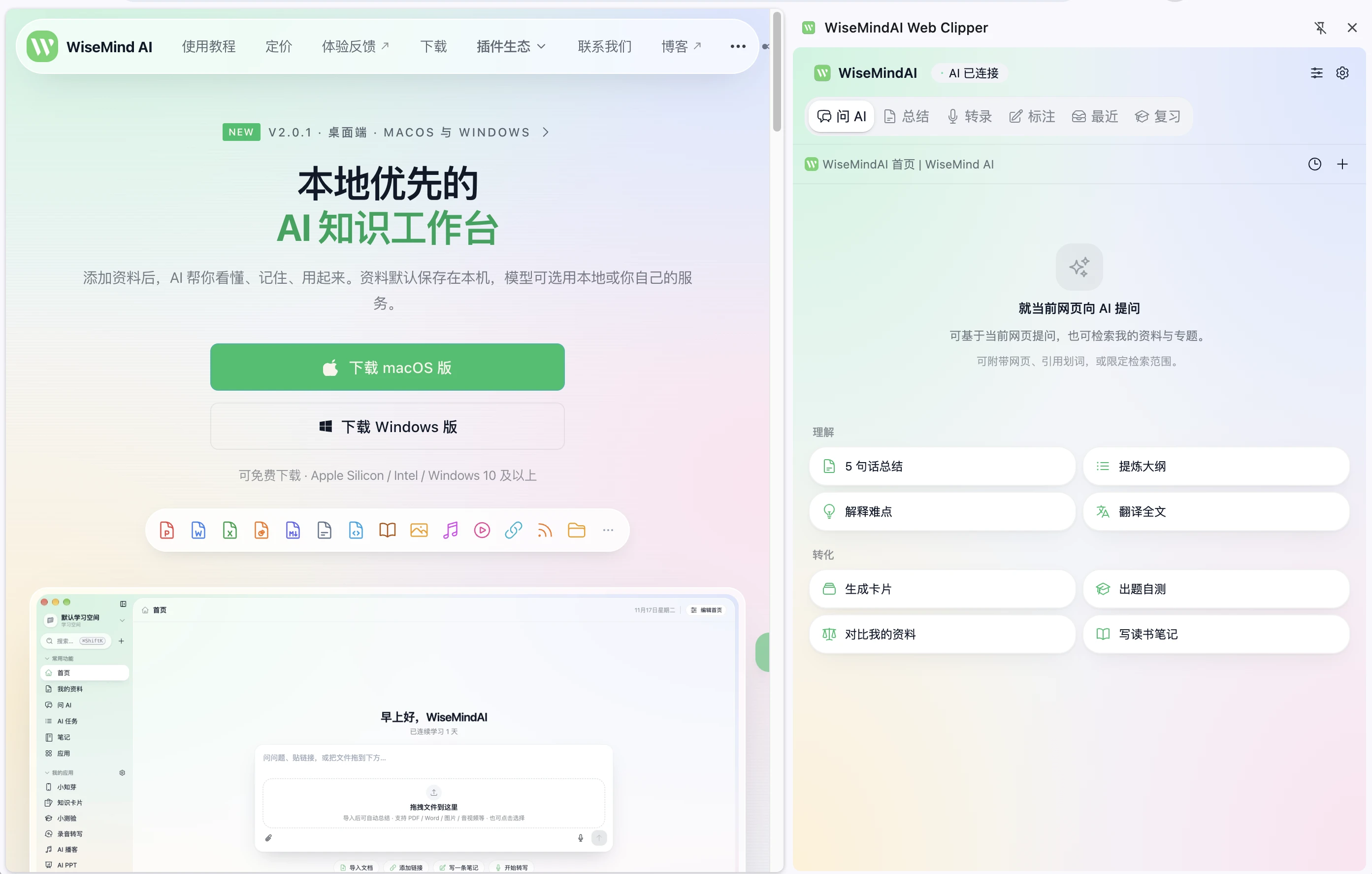
Ask AI
Ask about the current page, or search My Materials or a chosen topic.
- Confirm the scope: this page, My Materials, a topic, or web search (as shown in the options).
- Type your question. Use
@to cite materials, and/to run desktop AI actions. - Or tap a shortcut, such as summarize in 5 sentences, extract an outline, explain hard points, translate the page, generate cards, or make a self-test.
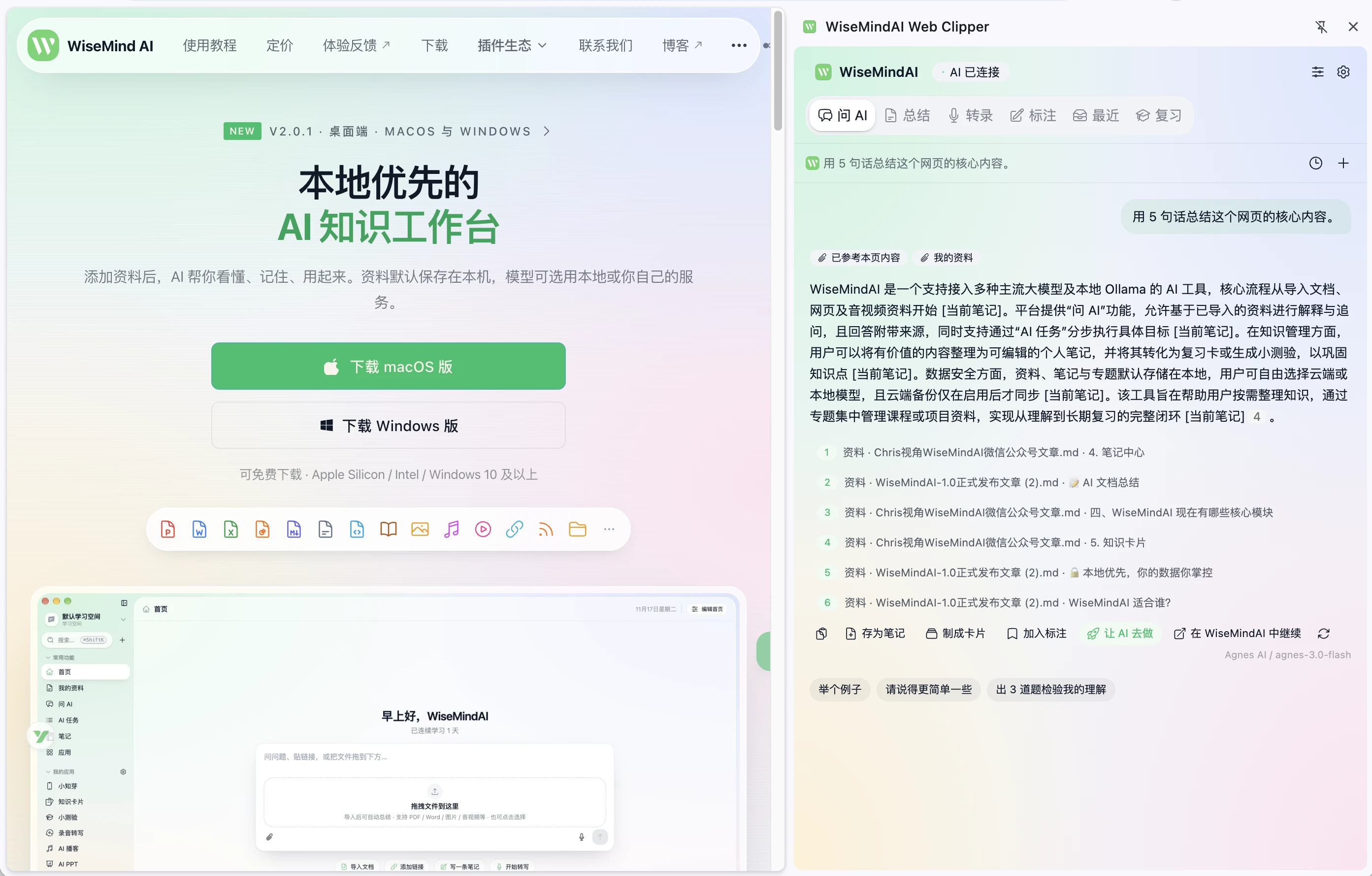
- After the answer, follow up, save as a note, make cards, or continue in WiseMindAI.
Chats sync into Ask AI in the desktop app. Sensitive sites do not attach page body by default; you can Allow for this time when needed.
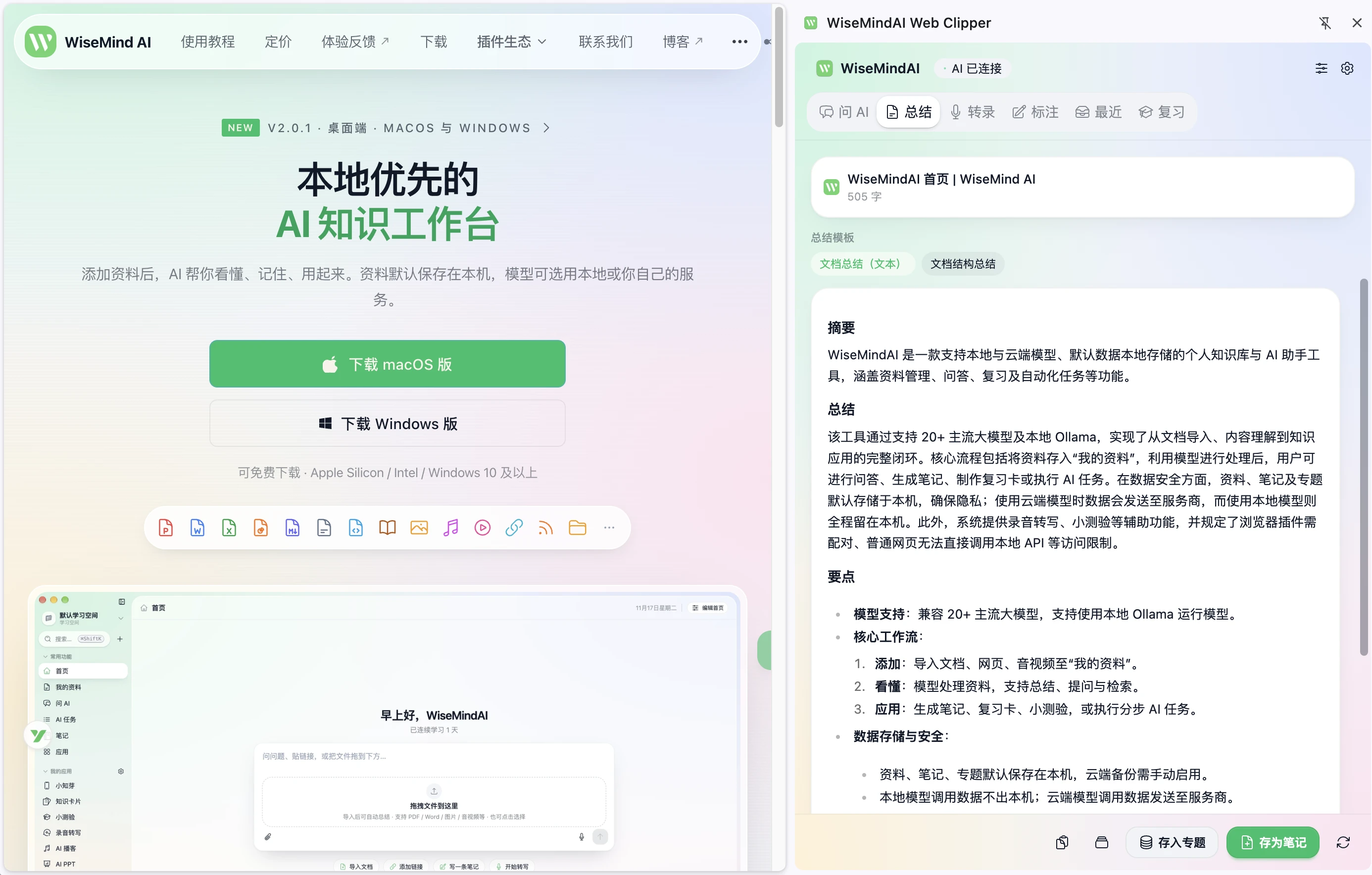
Summary
After you pick a summary template, AI organizes the current page with that template. Save the result as a note or into a knowledge base. Sensitive sites do not read the body automatically by default.
Highlights
Collects highlights and notes on this page. Jump back to the original, keep asking AI, turn all into review cards, merge into a note, or export Markdown. Highlights from other pages are also available here.
Recent
See recent saves and sync status: saved, waiting to sync, failed, over quota, and more. Offline drafts can sync or retry here. Batch-transfer tasks also show progress.
Review
Shows review cards due today. Flip and rate in the side panel (Forgot / Fuzzy / Remembered), or continue in the desktop app. After you turn a page into review cards, due reminders appear here.
Transcribe
Transcribe meeting, class, or video audio playing in the current tab. It records tab audio only, not the microphone.
- Open a tab that is playing sound, then enter Transcribe.
- Choose a scene and transcription service, then click Start transcription.
- Pause or resume, and mark segments as key, to-do, or question.
- When finished, click End and save. The record writes into WiseMindAI for further AI organizing.
You must start it yourself, and configure a speech-to-text service in the desktop app first.
Learning space
Switch learning space at the top of the panel or side panel. That switch only affects the space the extension uses for the current save and ask. It does not force-switch the space the desktop app is using. You can also Follow desktop.
Next: Settings and FAQ